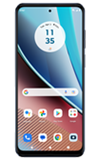
 This device is available with 128GB of internal memory and the option to add a MicroSD card
 In this tutorial, you will learn how to:
• View available storage
• Free up storage
• Remove unused apps
• Clear app data
• Add storage
View available storage
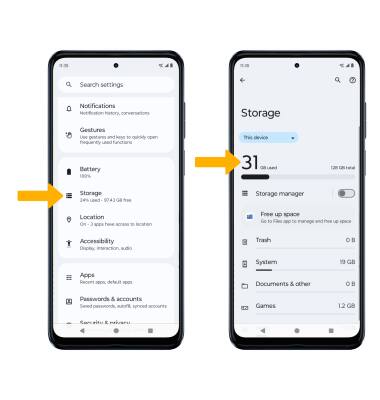
1. Swipe down from the Notification bar with two fingers, then select the  Settings icon.
Settings icon.2. Scroll to and select Storage. Available storage will be displayed.
Note: If a SD card is not installed, you will automatically be brought to the Internal shared storage screen.
Note: If a SD card is not installed, you will automatically be brought to the Internal shared storage screen.
Free up storage
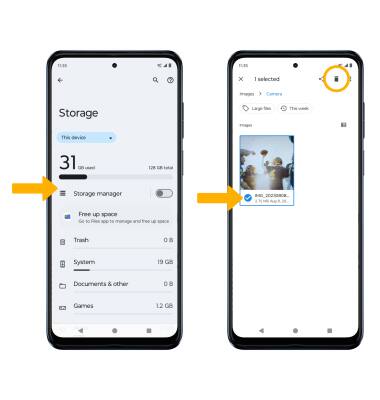
From the Storage screen, select the desired storage location. Navigate to, then select and hold the desired content. Select the  Delete icon.
Note: Select OK to confirm.
Delete icon.Note: Select OK to confirm.
Remove unused apps
From the Settings screen, scroll to and select Apps > select See all apps > select the desired app. From here, you may Uninstall or Force stop the app.

Clear app data
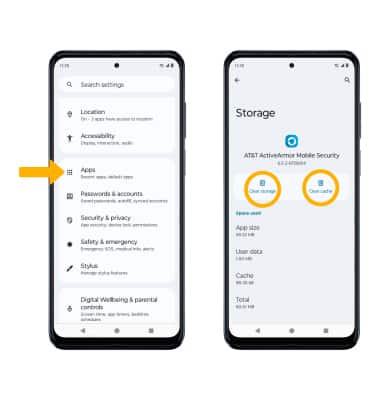
From the Settings screen, scroll to and select Apps > select See all apps > desired app > Storage & cache > Clear storage or Clear cache.
Add storage
Download a cloud storage app from the  Play Store or insert a microSD card up to 1TB (sold separately).
Play Store or insert a microSD card up to 1TB (sold separately).