In this tutorial, you will learn how to:
• Access camera settings
• Change the picture size
• Turn the flash on or off
• Set the timer
• Access and use Tap anywhere to capture
• Access and use Smart Composition
• Enable Assistive grid
• Enable Leveler
Access camera settings
From the home screen, select the  Camera app then select the
  Settings icon.
Change the picture size
From the camera screen, select the Ratio icon, then select the desired option.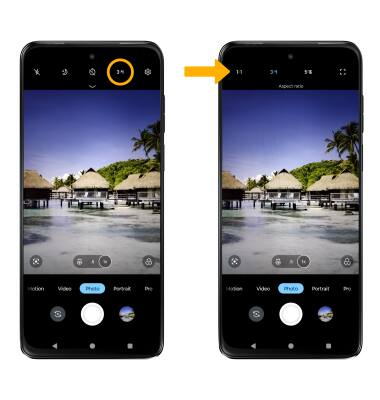
Turn the flash on or off
From the camera screen, select the  Flash icon then select the desired option.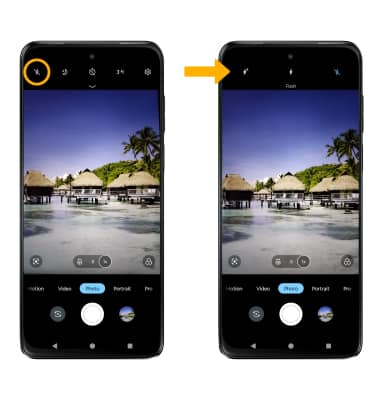
Set the timer
From the camera screen, select the Timer icon then select the desired time.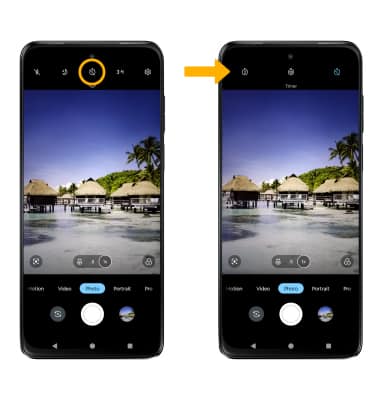
Access and use Tap anywhere to capture
From Camera settings screen, scroll to and select Capture methods, then select the Tap anywhere to capture switch.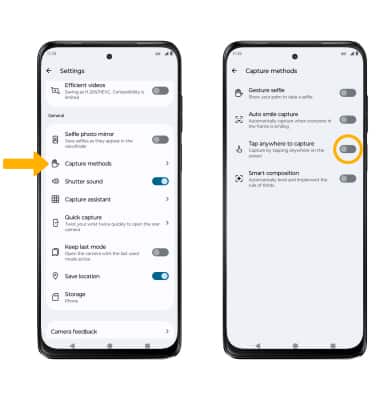
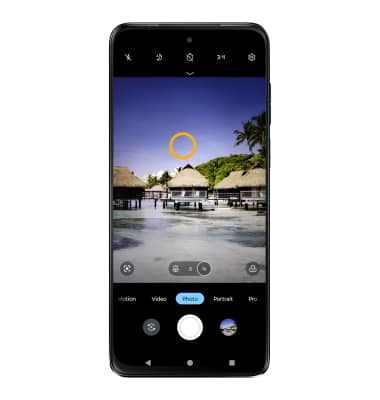
To take photos, select anywhere on the camera screen to take a photo.
Access and use Smart Composition
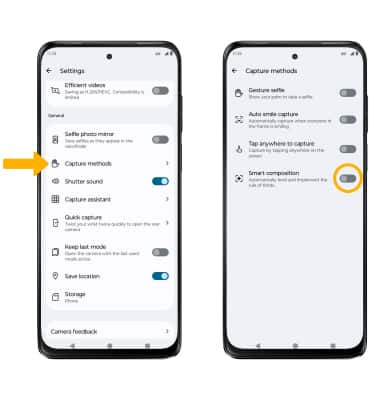
From Camera settings screen, scroll to and select Capture methods, then select the Smart composition switch.
Note: When this feature is enabled, the camera will automatically level and implement the rule of thirds.
Enable Assistive grid
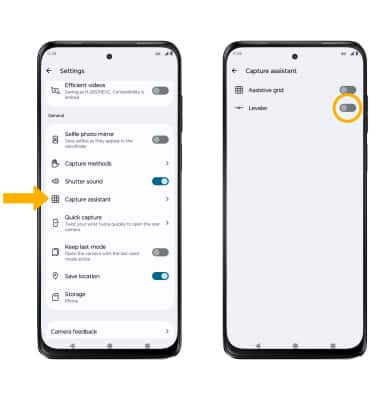
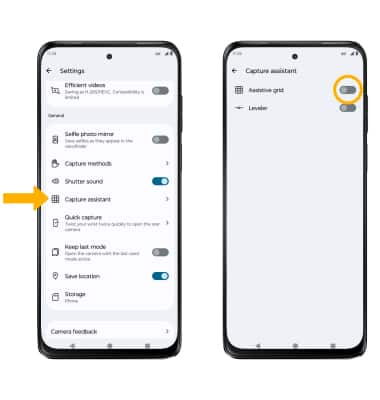
From Camera settings screen, scroll to and select Capture assistant, then select the Assistive grid switch.
Enable Leveler
From Camera settings screen, scroll to and select Capture assistant, then select the Leveler switch.