Deals
iPhone deals
Samsung Galaxy deals
Gift ideas
Business employee
55+
Military
Active first responders
Retired responders
Nurses & physicians
Teachers
Union
Credit card discount
&More Benefits
Explore wireless
Phone plans
New phones & devices
Upgrade
Bring your own phone
Add a Line
Switch and save
Trade in your device
International phone plans
Shop new iPhones
Shop Certified Pre-Owned
iPhone 17
Samsung Galaxy S25
Why AT&T Wireless
Wireless help
More resources
Explore home internet
Internet plans
Fiber internet
Home Wi-Fi
Check availability
AT&T Internet Air
Moving services
Bundles
Gaming
Home business
Internet help
Speed test
More resources
Access from AT&T
Explore AT&T PREPAID
Prepaid plans
Prepaid phones
Bring your own phone
Prepaid deals
Prepaid account
Activate your service
Lease-to-Own
Home Phone Services
AT&T Phone
AT&T Phone – Advanced
Landline Phone
Lifeline
Phones & accessories
Digital phone help
Landline phone help
Bundles
Internet + Wireless
Internet + Phone
Home office
Smart watches & devices
Smart home
In-car Wi-Fi
All accessories
Headphones
Phone & tablet cases
Chargers
Screen protectors
Speakers & smart home
Internet & TV equipment
PopSockets & more
Gadgets & gaming
Accessory deals

Accessibility

Accessibility features improve the usability of your device for users with impaired vision or hearing, cognitive difficulty, or reduced dexterity.

INSTRUCTIONS & INFO

Prenote info

For more information about accessibility features and TTY compatibility, see AT&T Accessibility.
In this tutorial, you will learn how to: 

• Access accessibility features
• Turn Talkback on or off
• Enable and use Select to Speak
• Access Real-Time Text (RTT) settings
• Enable and change the Accessibility shortcut
• Enable or disable Flash notifications


Access accessibility features

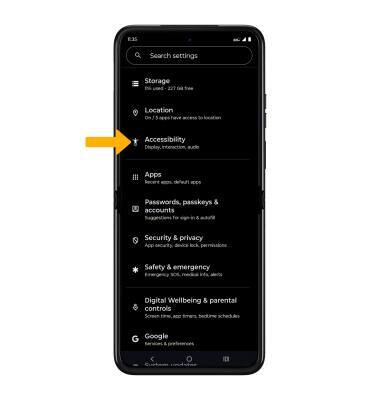
1. Swipe down from the Notification bar with two fingers, then select the settings icon Settings icon.

2. Scroll to and select Accessibility.

Image 1 


Turn TalkBack on or off

Select TalkBack, then select the Use TalkBack switch to place it in the On position.

Note: Review the TalkBack permission prompt, then select Allow to confirm. Review the TalkBack prompt, then double-tap Next. When finished, double-tap Finish. To disable, double-tap the Talkback switch, then double-tap Turn off.  
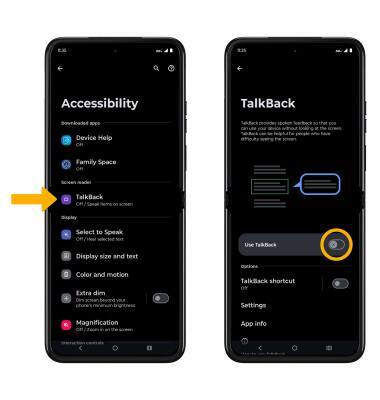
Image 2 


Enable and use Select to Speak

From the Accessibility screen, select Select to Speak then select the Select to Speak shortcut switch to place it in the On position. 

Note: Review the Select to Speak prompt, then select Allow to confirm. Review the Use gesture to open prompt, then select Got it.
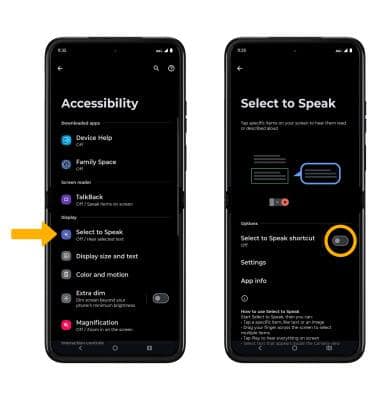
Image 3 

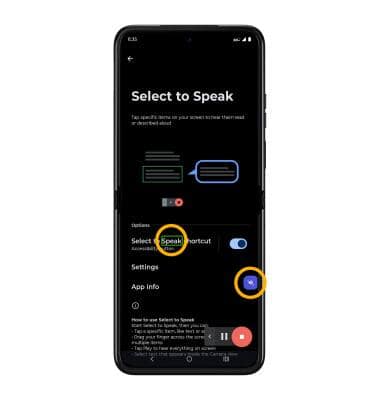
To use Select to Speak, select the Speaker icon then select the area of the screen you would like to hear read aloud.

Note: To pause screen reading, select the Pause icon. To resume, select the Play icon. To stop using Select to Speak, select the Stop icon

Image 4 


Access Real-Time Text (RTT) settings

From the Accessibility screen, scroll to and select RTT call button, then select the desired option.

Note: Real-Time text (RTT) communication is a conversation of text and voice to make calls. As a sender types a message on their device, text displays on the receiving device.
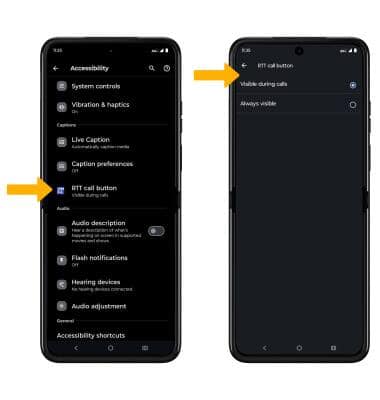
Image 5 


Enable and Change the Accessibility shortcut

From the Accessibility screen, scroll to and select Accessibility shortcuts, then select the desired option to edit.
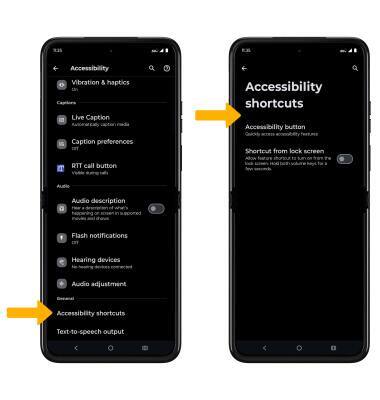
Image 6 


Enable or disable Flash notifications

From the Accessibility screen, scroll to and select Flash notifications, then select the Camera flash switch or Screen flash switch.
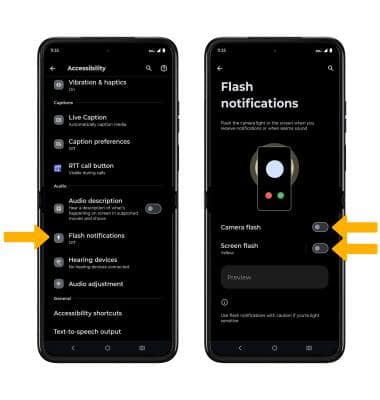
Image 7


Did you get the help you needed?


Did you get the help you needed?