
In this tutorial, you will learn how to:
• Turn mobile hotspot on/off
• View mobile hotspot network name & connected devices
• Configure hotspot settings
When Mobile Hotspot is enabled, the  Mobile hotspot icon will be displayed in the Notification bar.
Turn mobile hotspot on/off
1. Swipe down from the Notification bar with two fingers, then select the  Settings icon.
2. Select Network & internet, then select Hotspot & tethering. 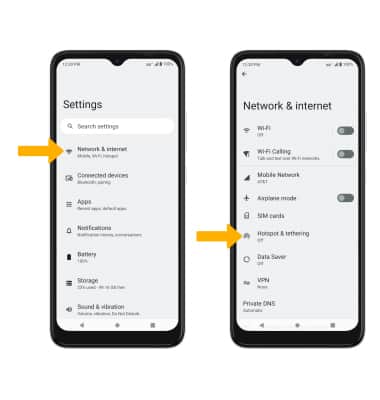
3. Select Wi-Fi hotspot, then select the Use Wi-Fi hotspot switch.
Note: If prompted, select OK to confirm. If Wi-Fi is turned on, you will be prompted to select TURN OFF. 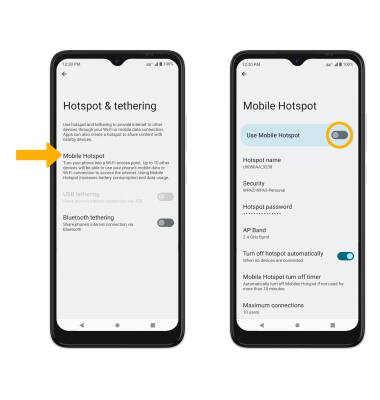
View mobile hotspot network name & connected devices
VIEW MOBILE HOTSPOT NETWORK NAME: The Hotspot name will be displayed on the Mobile Hotspot screen. 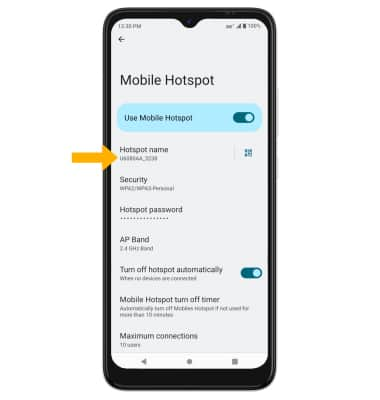
VIEW CONNECTED DEVICES: From the Mobile hotspot screen, scroll to Connected users. The number of connected devices will be displayed.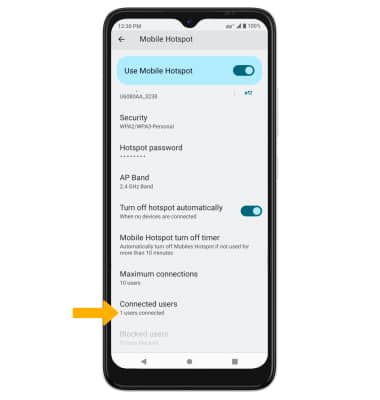
Configure hotspot settings
1. From the Mobile Hotspot screen, select the desired network setting: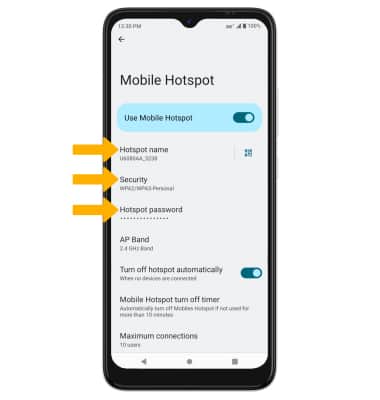
• HOTSPOT NAME: Select Hotspot name to change the name of the Mobile Hotspot network.
• SECURITY: Select Security to change the security type of the Mobile Hotspot network.
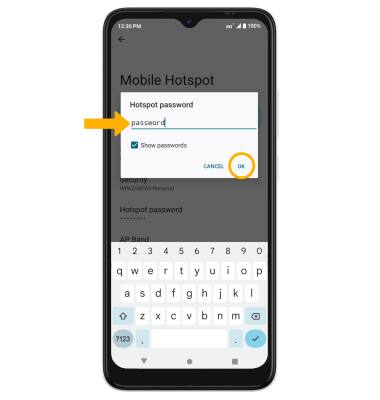
• HOTSPOT PASSWORD: Select Hotspot password to view or change the password of the Mobile Hotspot network.
2. Edit the desired information, then select OK when finished.