In this tutorial, you will learn how to:
• Log in to NumberSync
• Log out of NumberSync
Log in to NumberSync
 Phone app.
Note: If this is your first time opening the Phone app, you may be prompted to select OK.
2. Enter your myAT&T User ID, then select Continue.

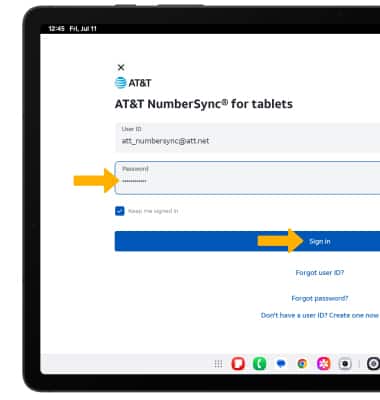
3. Enter the Password for the smartphone number you would like to sync with your tablet, then select Sign In.
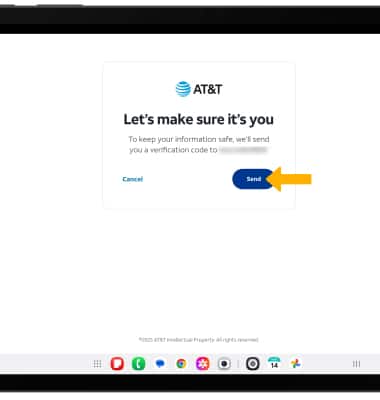
Note: Review the Let's make sure it's you prompt, then select Send. A text message will be sent to the number linked with your User ID. Enter the 6-digit code to complete the log in process.
4. Review the Let's make sure it's you prompt, then select Send.
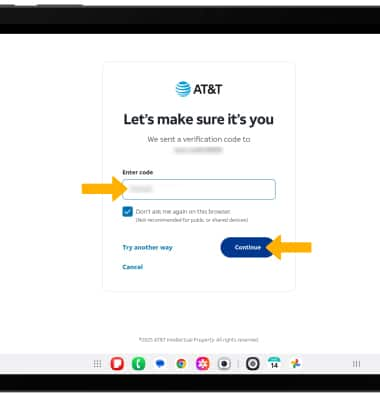
5. Enter the code on your paired device, then select Continue.
Note: You may be asked to share the device's location. Select the desired option.
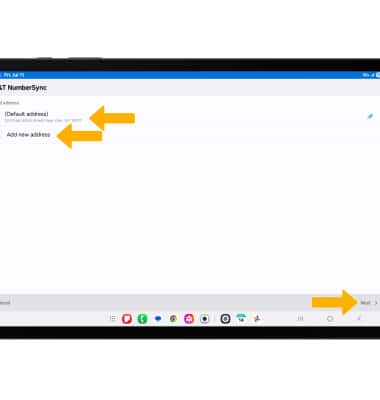
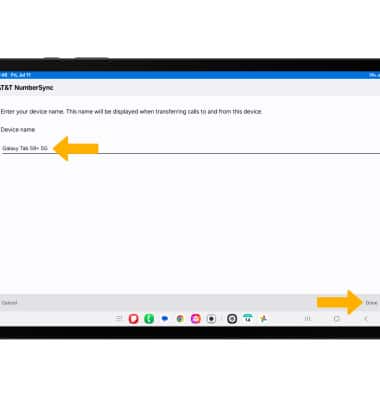
6. Select the desired emergency address then select Next, or select Add new address and follow the prompts.
Log out from NumberSync
 Settings icon. Scroll to and select Accounts and backup, then select Manage accounts.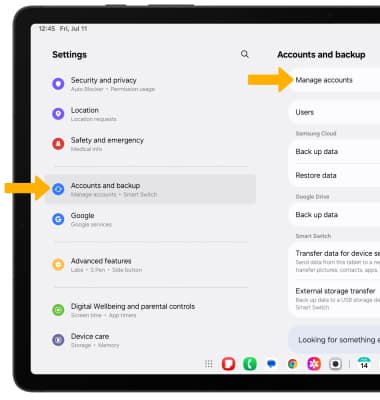
2. Select AT&T NumberSync.
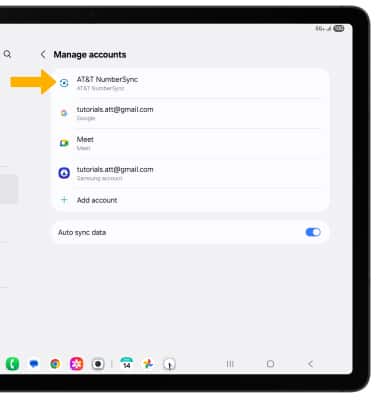
3. Select Log out.
Note: You will be prompted to select OK to confirm.

NumberSync for Android tablets requires smartphone set up for HD voice on AT&T postpaid wireless account & compatible tablet. To use NumberSync for video calls on tablet, phone must be video call capable.
Device Limit: Sync up to 5 tablets.
Charges: When tablet not connected to Wi-Fi, data usage rates apply to voice & video calls on tablet. International calls sent on tablet incur charges consistent with phone’s rate plan or international package.
Roaming: Cannot use NumberSync outside US, PR, or USVI.
Calls via NumberSync cannot be used with TTY & will not support 911 TTY calls. Visit att.com/numbersync for more information about 911 services, TTY, and progress with RTT.