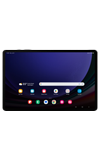
In this tutorial, you will learn how to:
• Adjust volume
• Activate vibrate or silent mode
• Activate vibrate or silent mode
• Access additional volume settings
• Change ringtone
• Turn on/off do not disturb mode
• Use Sleep mode
• Use Sleep mode
• Turn on/off Dolby Atmos
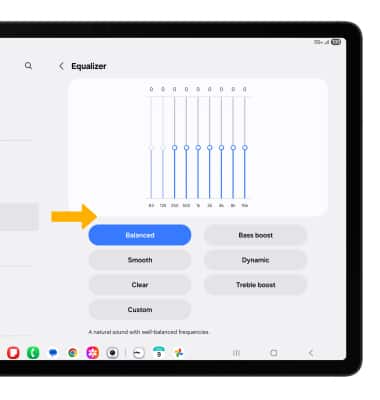
• Adjust Equalizer
Adjust volume
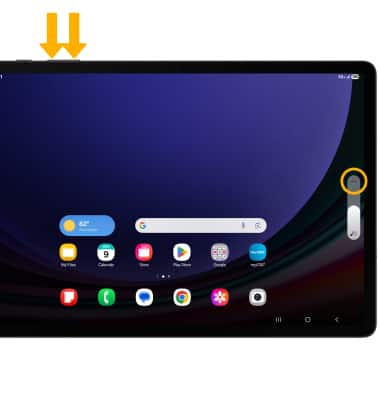
1. Press the Volume buttons located on the top of the device to adjust the media volume. To access additional volume settings, press either of the Volume buttons then select the Menu icon.
Note: To use the Volume keys to adjust ring volume, select the either Volume button > Menu icon >
  Settings icon > scroll to and select Use Volume keys for media switch to disable.
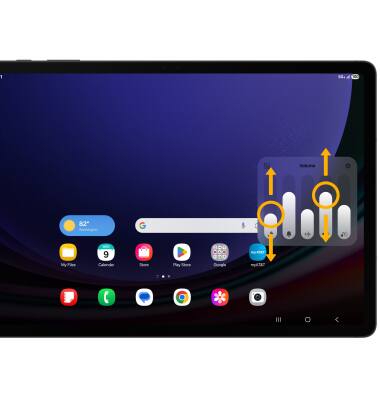
2. Select and drag the Volume bars up or down as desired.
Note: To use the Volume keys to adjust ring volume, select the either Volume button >
Menu icon > Settings icon > scroll to and select Use Volume keys for media switch to disable. 2. Select and drag the Volume bars up or down as desired.
Activate vibrate or silent mode
To activate Silent mode, swipe down from the Notification bar then select the Volume icon.
Note: When Vibrate mode is active, the Vibrate mode icon will display in the Notification bar. When Silent mode is active, the
  Silent mode icon will be displayed in the Notification bar.
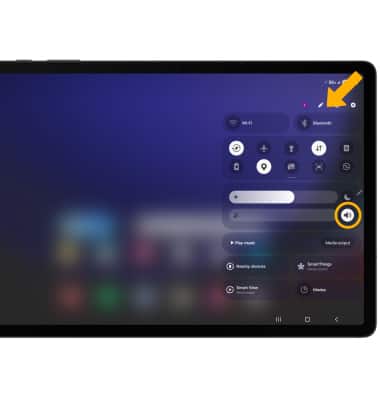
Note: When Vibrate mode is active, the
Vibrate mode icon will display in the Notification bar. When Silent mode is active, the Silent mode icon will be displayed in the Notification bar. Access additional volume settings
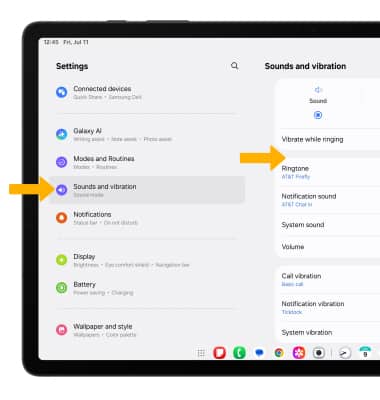
1. Swipe down from the upper right corner of the screen, then select the Settings icon.
Settings icon.2. Scroll to and select Sounds and vibration, then edit sound settings as desired.
Change ringtone
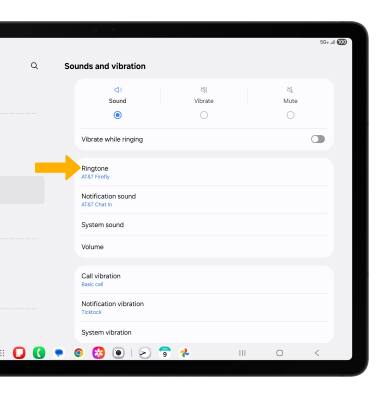
1. From the Sounds and vibration screen, select Ringtone.
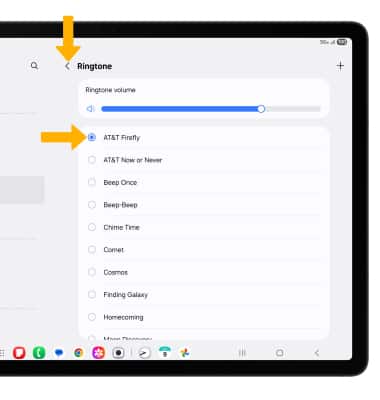
2. Select the desired ringtone, then select the back arrow.
Note: For steps to assign a ringtone to a contact, please see the Contacts tutorial.
2. Select the desired ringtone, then select the back arrow.
Note: For steps to assign a ringtone to a contact, please see the Contacts tutorial.
Turn on/off do not disturb mode
Swipe down from the upper right corner of the screen, then swipe down from the icon section of the quick settings screen to access additional buttons. Select Do not disturb.
Note: When Do not disturb mode is active, the Do not disturb icon will be displayed in the Notification bar. Do not disturb mode mutes sounds and the screen will remain off for incoming calls and alerts, but not alarms.
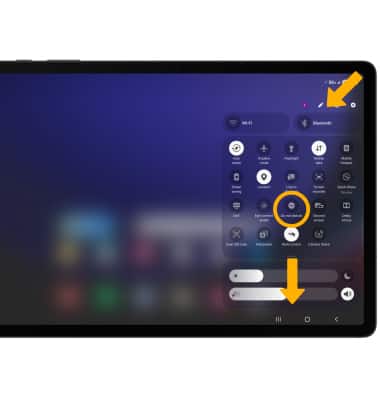
Note: When Do not disturb mode is active, the
Do not disturb icon will be displayed in the Notification bar. Do not disturb mode mutes sounds and the screen will remain off for incoming calls and alerts, but not alarms.
Use Sleep mode
1. Enabling Bedtime mode will automatically darken your screen and set your phone to Do Not Disturb during sleeping hours. From the Settings screen, select Modes and Routines then select Sleep.
Note: If it is your first time accessing Sleep mode, select Start to begin.
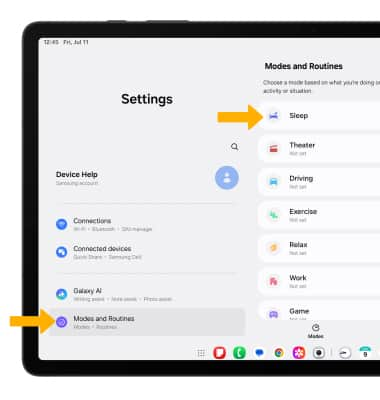
2. Select Turn on automatically to set a sleep schedule.
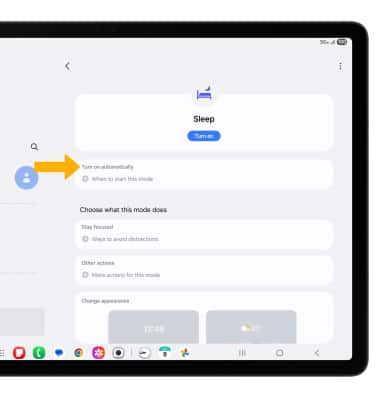
3. Select Sleep schedule.

4. Set the time as desired and edit the schedule as desired, then select Save.
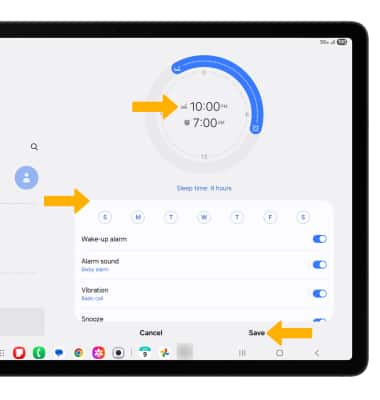
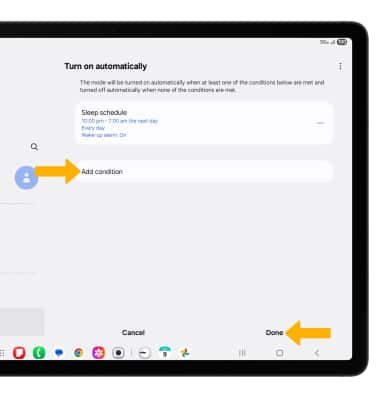
5. To add additional conditions, select Add condition. When finished, select Done.
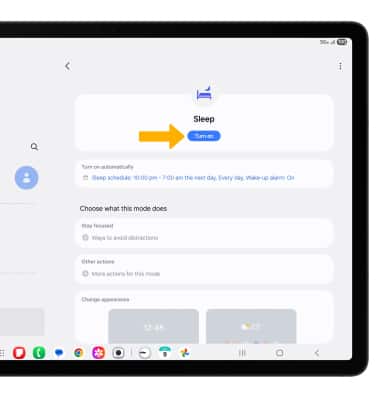
6. To turn on Sleep mode manually, select Turn on.
Note: To turn off Sleep mode, select Turn off.
Turn on/off Dolby Atmos
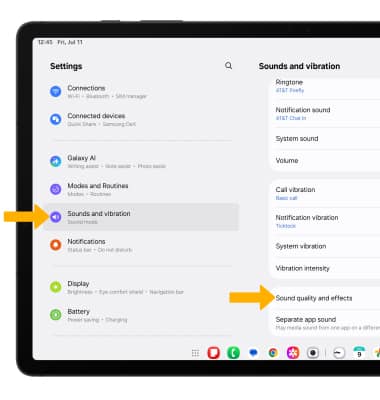
1. From the Settings screen, scroll to and select Sounds and vibration then scroll to and select Sound quality and effects.
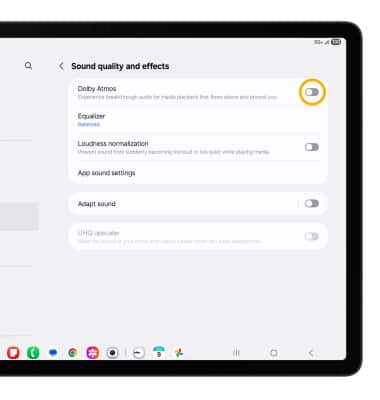
2. Select the Dolby Atmos switch.
Adjust Equalizer
1. From the Sound quality and effects screen, select Equalizer.

2. Adjust Equalizer settings as desired.