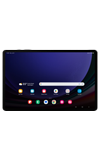
In this tutorial, you will learn how to:
• Access contacts
• Add a contact
• Edit or delete a contact
• Add a ringtone to a contact
• Backup your contacts
Access contacts
From the home screen, swipe up from the center of the screen to access the Apps tray > select the Samsung folder > select the  Contacts app.
Add a contact
1. Select the  Add icon. Select the desired account you want to save the contact to.

2. Enter the desired contact information in the corresponding fields. Select the drop-down icon to change the desired account you want to save the contact to. To add a picture or emoji as a contact photo, select the Edit icon then navigate to the desired image. To create a profile card, select Create profile card. Select Save when finished.

Edit or delete a contact
EDIT CONTACT: Select the desired contact, then select the  Edit icon. Edit the contact as desired, then select Save.
DELETE CONTACT: Select the  More icon, then select Delete. Select Move to Trash to confirm.
Add a ringtone to a contact
1. From the contact screen, select the More icon then select Change ringtone/vibration.

2. Select Ringtone.

3. Select the desired Ringtone, then select the Back arrow.

Backup your contacts
1. From the Contacts screen, select the Menu icon then select Settings.

2. Select Export contacts, then follow the prompts.
