
In this tutorial, you will learn how to:
• Access Samsung Health
• Track steps
• Track workout
• Manage items
• Access settings
Access Samsung Health
From the home screen, swipe up to access the Apps tray then select the Samsung folder. Select the  Samsung Health app.
Note: If this is your first time accessing S Health, review the AI prompt then select Start. Review the Samsung Health permission, then select Continue. Review the allowances and select the desired options. You will be prompted to chose a wellness goal. Select the desired option, then select Next. When finished, select Start.
Track steps
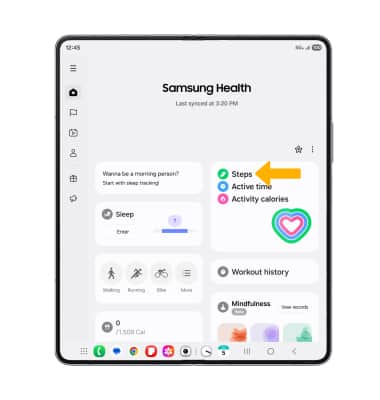
1. Select Steps.
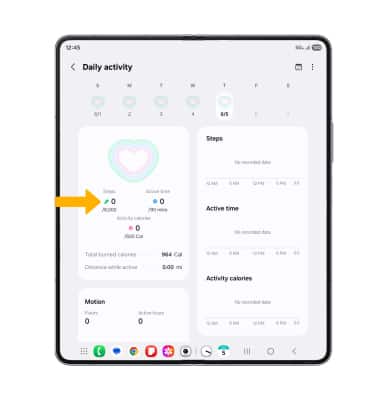
2. The pedometer will be displayed.
Track workout
1. Select the desired exercise icon.
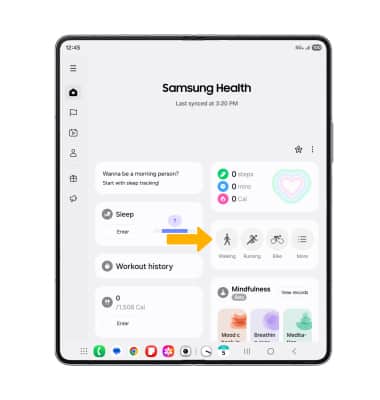
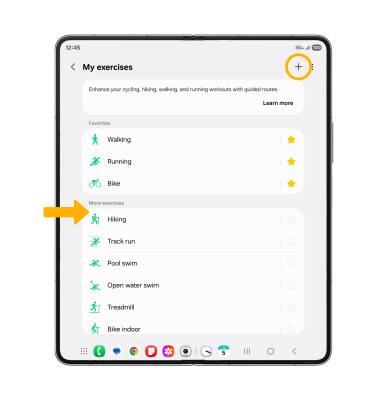
2. To add a different exercise to the Exercise tab, select the  Menu icon then select the desired exercise or select the Add icon to view other workout options.
Note: The exercise feature helps you keep track of your exercise routines, calories burned, length of time and distance traveled.
Manage items
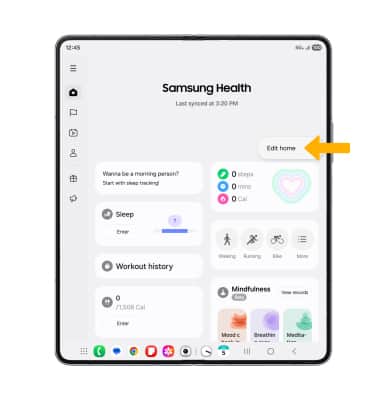
1. Select the  Menu icon, then select Edit home.
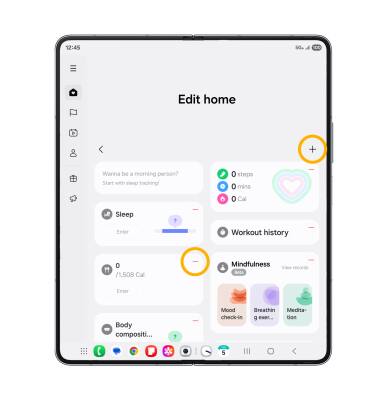
2. Select the Add icon next to the desired option to add an item to your Samsung Health screen. Select the Remove icon to remove an item from your Samsung Health screen.
Access settings
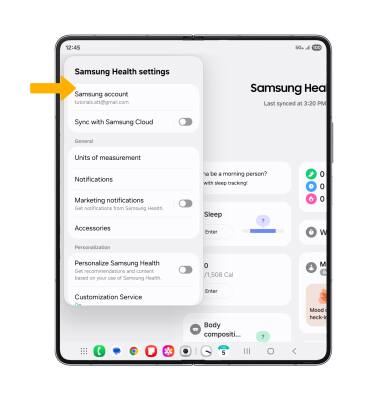
1. Select the  Menu icon, then select the
  Settings icon.
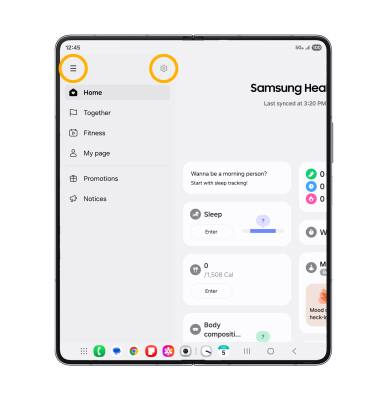
2. Adjust settings as desired.