
In this tutorial, you will learn how to:
• Access the main browser
• Bookmark a site
• Access bookmarks
Access the main browser
1. Swipe up from the bottom of the clock screen to access the Apps tray, then scroll to and select the  Samsung Internet Browser app.
Note: This device does not come installed with the Samsung Internet Browser app. Visit Download Apps & Games to learn how to install an app.
Samsung Internet Browser app.Note: This device does not come installed with the Samsung Internet Browser app. Visit Download Apps & Games to learn how to install an app.
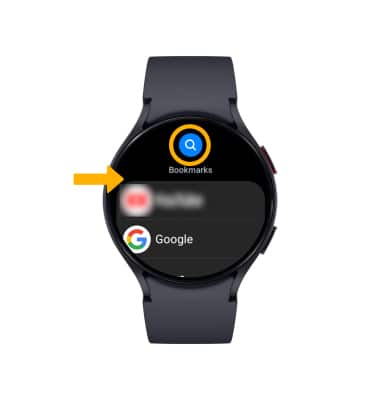
2. Select the desired bookmark or select the Search icon.
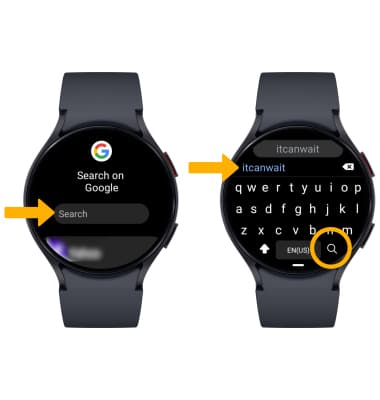
3. Select the Search field. Enter the desired keyword, then select the Search key.
Bookmark a site
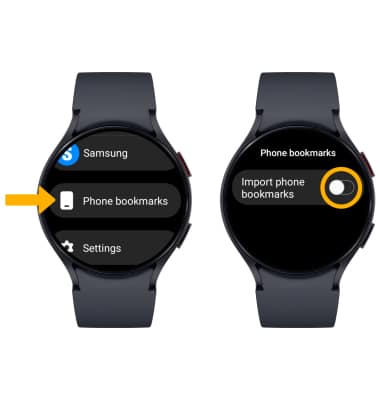
Bookmarks must be added and edited from the paired device. To import bookmarks, from the Samsung Internet Browser app, scroll to and select Phone bookmarks then select the Import phone bookmarks switch.
To bookmark a site on your paired device, select the  Bookmark icon.
Access bookmarks
To access bookmarks on your paired device, select the Bookmarks icon.