In this tutorial, you will learn how to:
• Access reminders
• Set a reminder
• View, edit and delete reminders
• Dismiss a reminder
Access reminders
Swipe up from the bottom of the clock screen to access the Apps tray, then scroll to and select the  Reminder app.
Set a reminder
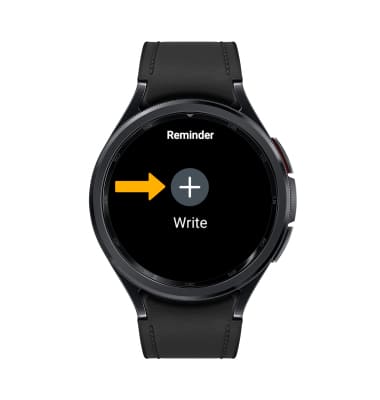
1. Select the Add icon.
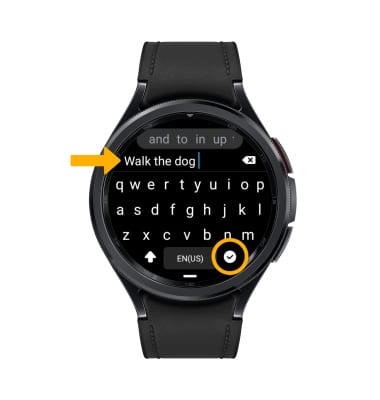
2. Enter the desired reminder, then select the Checkmark icon.
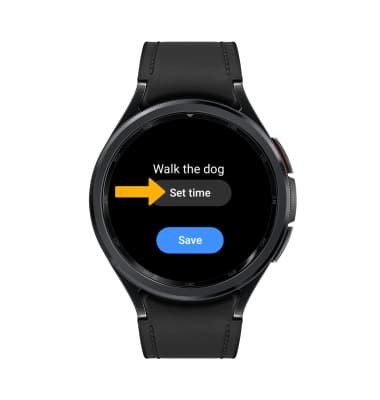
3. To add a time, select Set time.
Note: To save the reminder without setting a time, select Save.
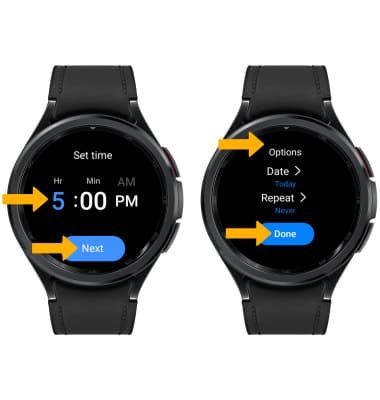
4. Select the desired time, then select Next. Adjust settings as desired, then select Done.
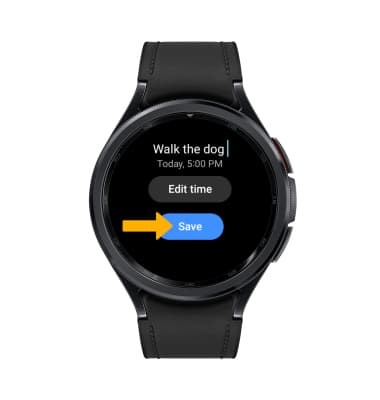
5. When finished, select Save.
View, edit and delete reminders
VIEW: From the Reminder app, select the desired reminder to view the reminder.
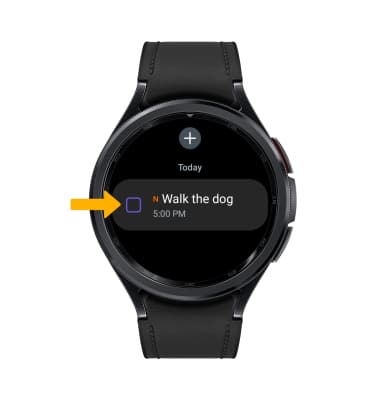
EDIT: From the desired reminder, scroll to and select Edit time. Edit the reminder as desired, then select Done when finished to save the changes.
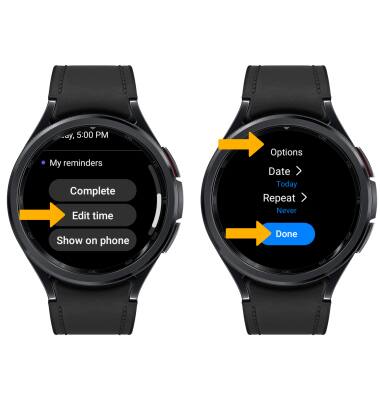
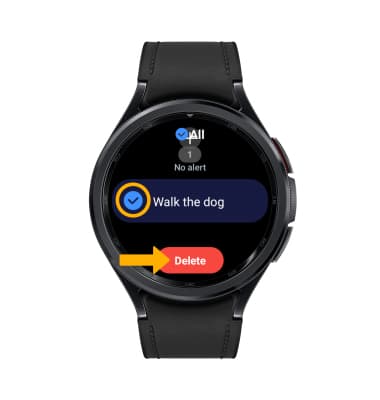
DELETE: From the Reminder app, select and hold the desired reminder then select Delete.
Dismiss a reminder
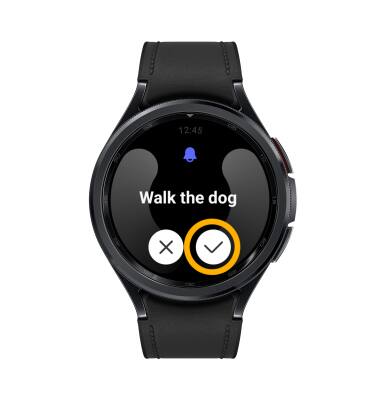
At the time of the reminder, you will receive a notification. Select the Checkmark icon to dismiss.