
In this tutorial, you will learn how to:
• Change the picture size
• Turn the flash on or off
• Set a timer
• Turn the shutter sound on or off
To access camera settings, from the home screen, select the  Camera app. Select the
  Quick control icon, then select the
  Settings icon.
Change the picture size
From the camera screen, select the Quick control icon then select the  Ratio icon. Select the desired option.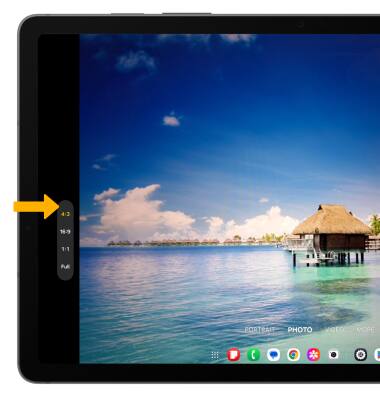
Turn the flash on or off
From the camera screen, select the  Flash icon then select the desired option.
Note: The Samsung Galaxy Tab S9 FE flash feature is only available on the front-facing camera.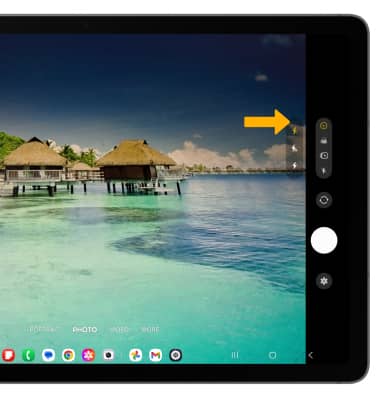
Set a timer
From the camera screen, select the Quick control icon then select the  Timer icon. Select the desired time.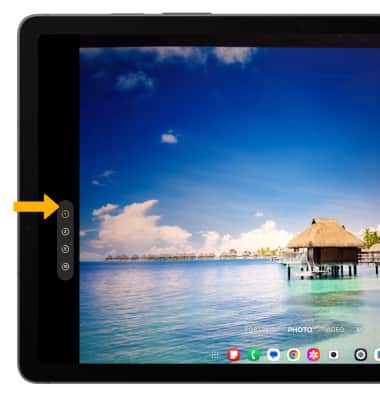
Turn the shutter sound on or off
From the Camera settings screen, scroll to and select the Shutter sound switch.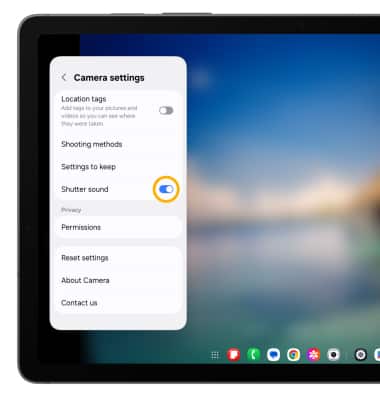
Tips
ALTERNATE METHODS TO ACCESS CAMERA: Press the Side button twice, or from the lock screen swipe up from the Camera icon.
CHANGE CAMERA MODES: From the Camera app, swipe left or right to access different camera modes.