In this tutorial, you will learn how to:
• Add a Smart Stack
Change wallpaper
 Settings app.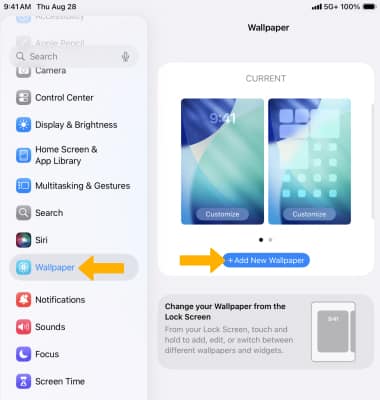
Note: Create a custom look for your home screen and lock screen. Dynamic Wallpapers change your wallpaper throughout the day based on the time. Select wallpaper like Astronomy, perfect for the large display, or Kaleidoscope, which animates as you rotate your iPad. You can also select Photos to browse and choose a Live Photo. To save battery life, turn off Live and Dynamic wallpapers.
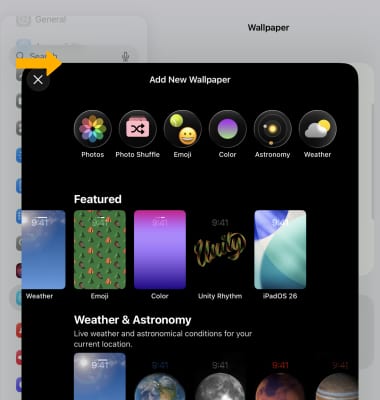
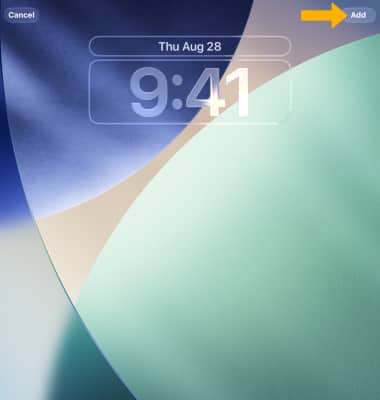
4. Select Add.
Note: Swipe left or right to view different colors or versions of the desired wallpaper.
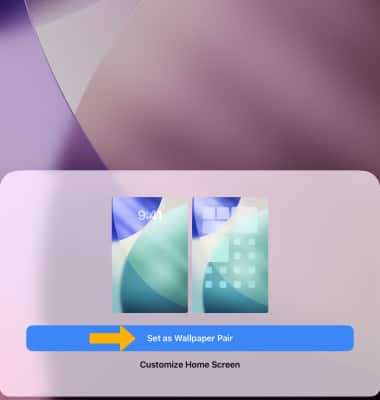
Personalize multiple lock screens
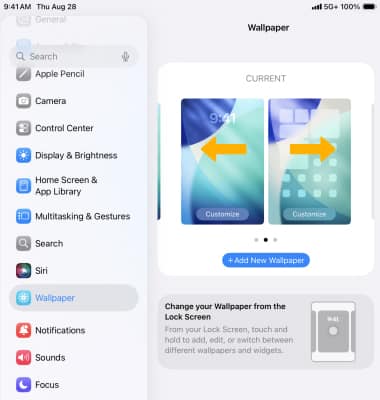
2. Select Customize under the lock screen.
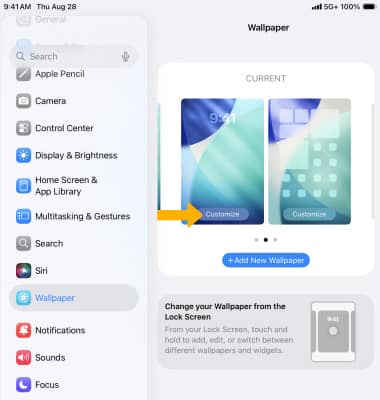
3. Customize settings as desired. When finished, select Done.
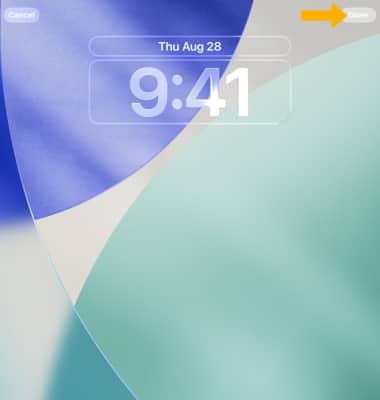
Add widgets
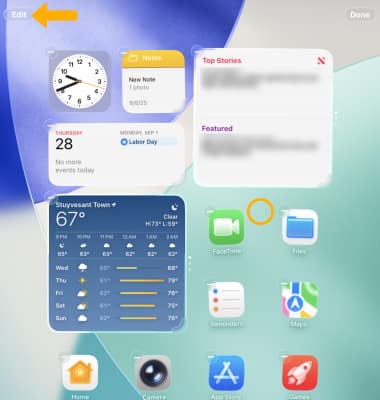
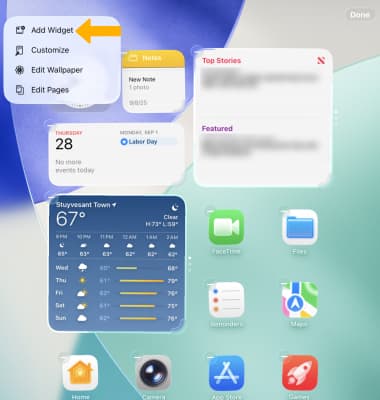
2. Select Add Widget.
3. Search for or select the desired widget.
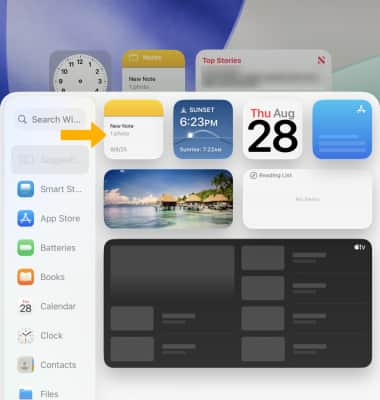
4. Swipe left or right to the desired widget layout and size, then select Add Widget.
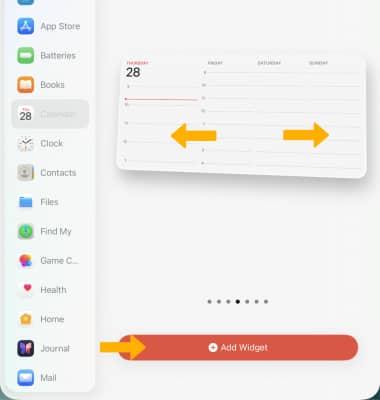
Add a Smart Stack
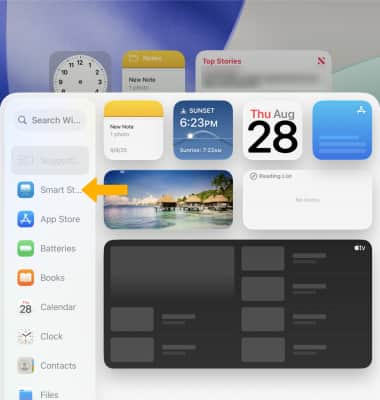
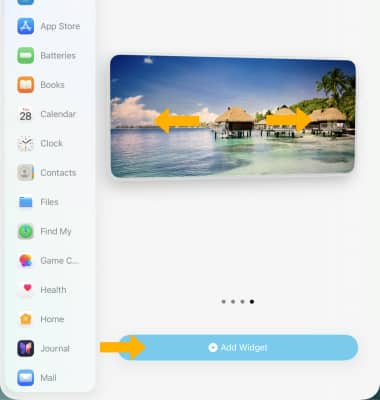
2. Swipe left or right to the desired layout and size, then select Add Widget.
3. Select Done when finished.
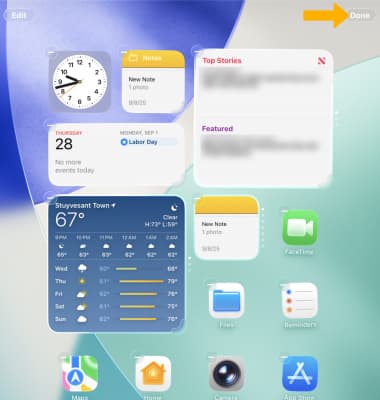
Move or remove a widget from the home screen
 Remove icon above the desired widget to remove it. When finished, select Done.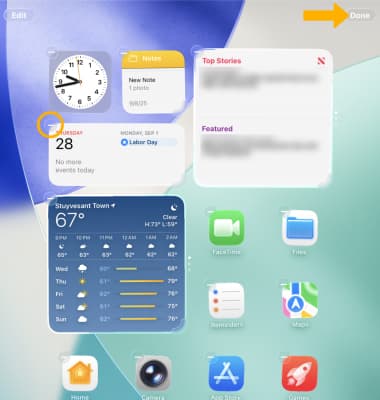
Re-arrange apps and widgets
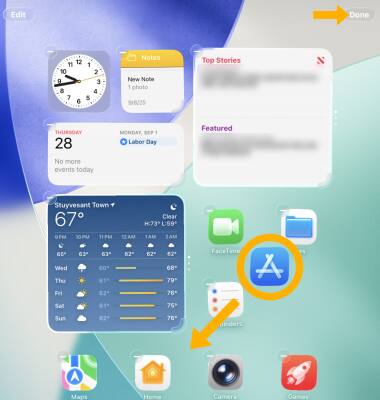
From the home screen, select and hold an empty space on the screen until the apps start to shake, then select and hold the desired app or widget to move and re-arrange the home screen. Select Done.
Change app look
1. From the home screen, select and hold an empty space on the screen until the apps start to shake. Select Edit, then select Customize.
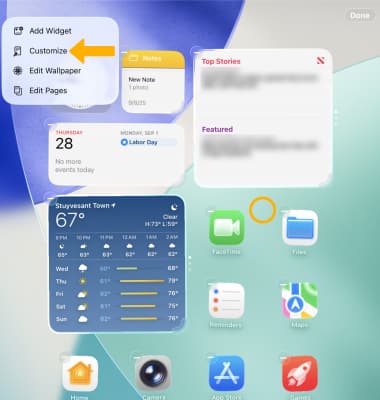
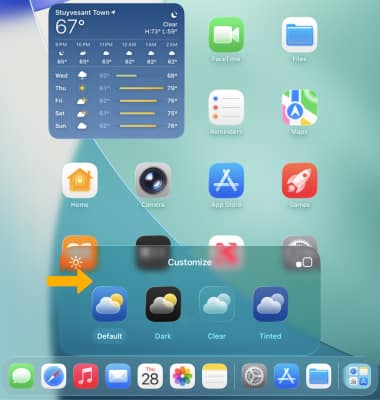
2. Select the desired app appearance option.
Note: For further customization, select Clear or Tinted to have see through app icons with iOS 26's Liquid Glass.
Lock and hide apps
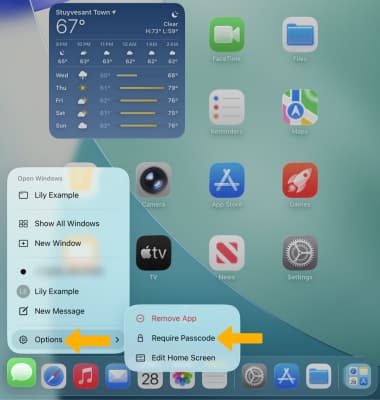
1. From the home screen, select and hold the desired app. Select Options, then select Require Passcode.
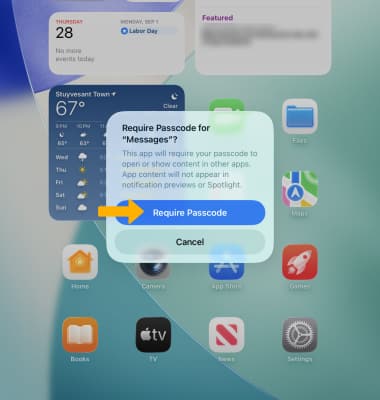
2. Select Require Passcode for the desired app.
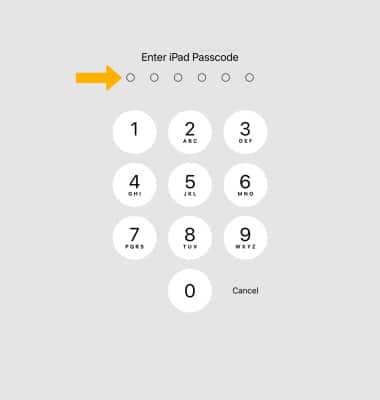
3. Enter the desired passcode.
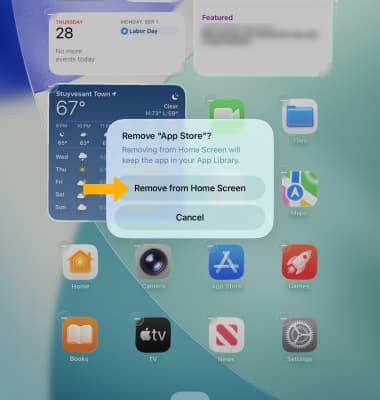
4. To hide an app from the home screen, select and hold an empty space on the screen until the apps start to shake. Select the Remove icon on the desired app. Select Remove from Home Screen.
Note: Apps removed from the home screen will still be accessible in the app library.