In this tutorial, you will learn how to:
• Access and view email
• View, save, or share an attachment
• Compose an email and add an attachment
• Reply, reply all, or forward an email
• Mark, move, or trash an email
• Switch between email account inboxes
• Unsend an email
• Follow up an email
Access and view email
When a new email is received, a  Notification badge appears on the
  Mail app.
1. To view new emails, select the Mail app from the home screen.
2. To view an email, select the  Sidebar icon then select the desired email from the desired inbox.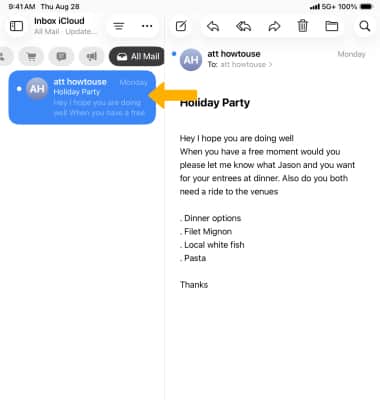
3. To refresh the inbox, swipe down. 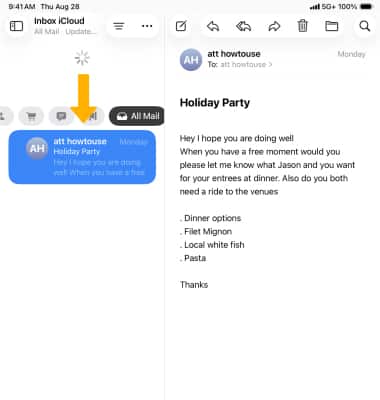
View, save, or share an attachment
1. To view an attachment, select the attachment to view the image or file. 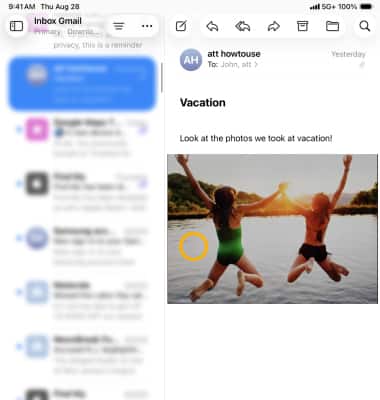
2. To save or share the attachment, select and hold the desired attachment, then select Save Image.
Note: Attachments are saved according to their file type. To view saved photos and videos, from the home screen select the Photos app. To view saved PDF documents, from the home screen select the Books app. To view saved music, from the home screen select the Music app.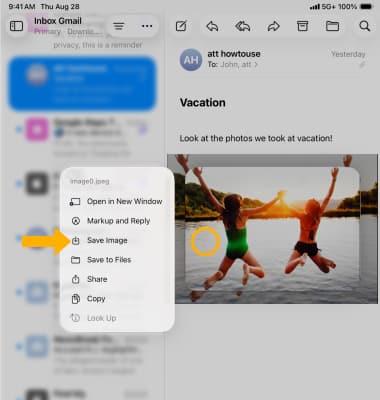
Compose an email and add an attachment
1. From your inbox, select the  Compose icon.
2. Enter the desired recipient, subject, and message.
Note: Select the  Format icon to edit a variety of formatting options such as font style, size, color, alignment, indenting and outdenting text, and numbered and bulleted lists.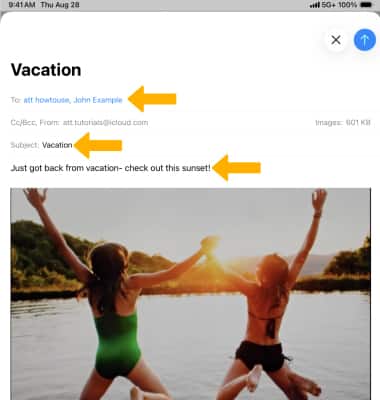
3. To add an attachment select the desired option then follow the prompts. To attach a photo, select the  Camera icon. To attach a file, select the
  File icon. Select the
  Send icon when finished.
4. To format your email, select the Format icon then edit email format as desired.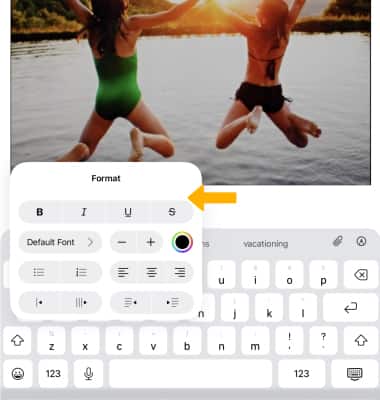
5. To schedule an email for later, select and hold the Send icon, then select the desired option. Select Send Later... and follow the prompts to set a custom time.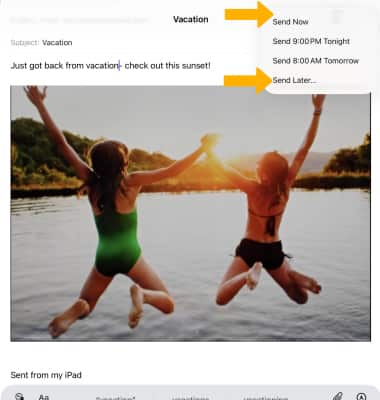
Reply, reply all, or forward an email
Select the  Reply icon, then select the desired option.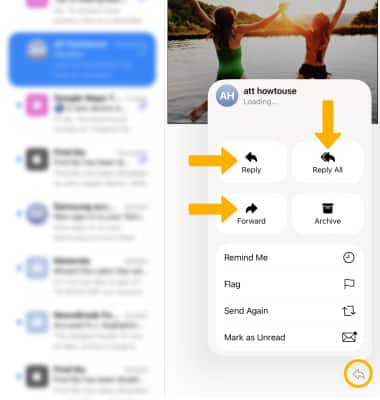
Mark, move, or archive an email
1. From the desired inbox, select and hold the desired email.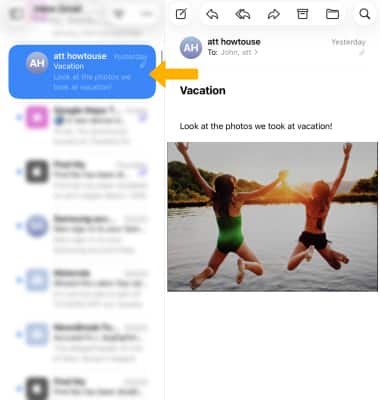
2. Select the desired action.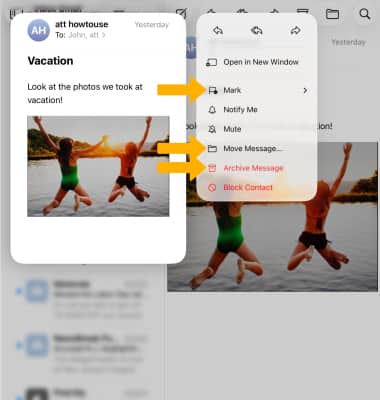
Switch between email account inboxes
If you are already in an inbox, select the Sidebar icon then select the desired email account inbox.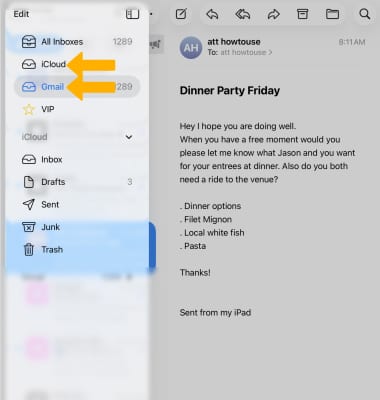
Unsend an email
You can unsend an email 10 seconds after sending it. To unsend the most recent email, select the Sidebar icon then select Undo Send.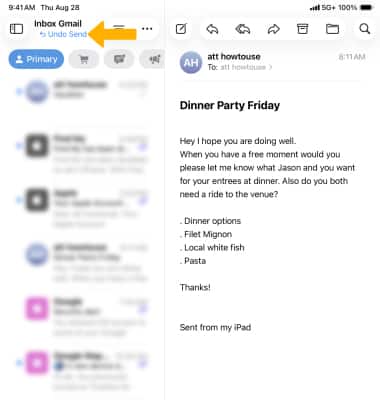
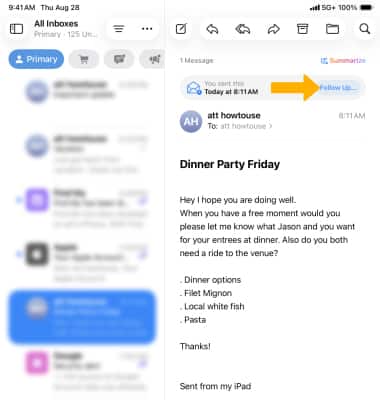
Follow up an email
When viewing an email you've sent, select Follow Up... to send a follow up email.