In this tutorial, you will learn how to:
• Access and view email
• Compose an email
• Email a photo
• Reply or reply all to an email
• Mark, move, or delete an email
• Flag or delete an email
• Switch between email account inboxes
Access and view email
1. To view new emails, from the clock screen press the Digital Crown/Home button then select the  Mail app.
Note: You can only access email from an account already set up on your paired iPhone.
2. To view an email, select the desired email from the desired inbox. 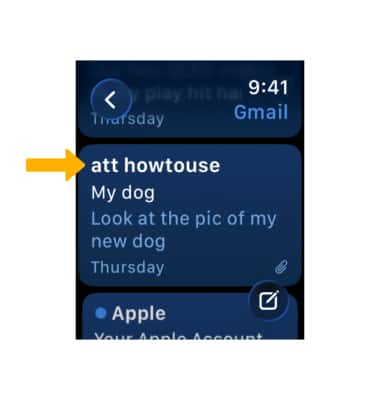
3. To refresh the inbox, swipe down. 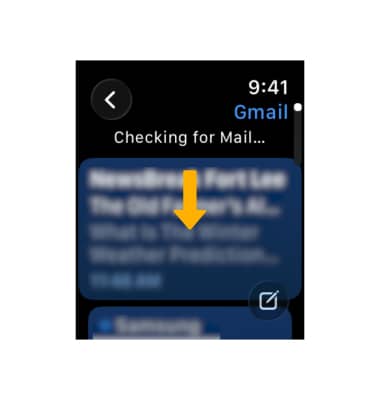
Compose an email
1. From the desired inbox, select  Compose icon.
2. Select the Add Contact field, then select the  Microphone icon to dictate a name, or the
  Add contacts icon to select a contact from the contacts list. Follow the prompts to add recipients. Scroll to and select the Add Subject field and follow the prompts to add a subject.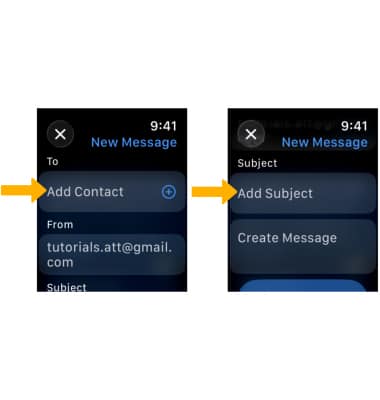
3. Select the Add Message field, then select the desired the auto response option or select Add Message.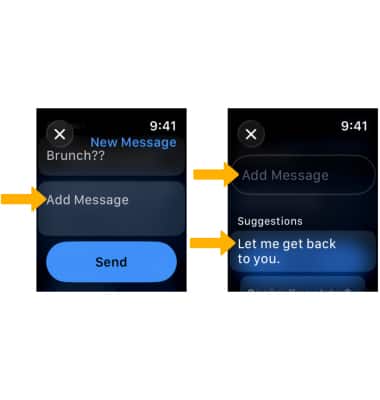
4. Type out your message or select the Emoji icon to send an emoji. Select the Keyboard icon to switch to another method of input. Follow the prompts to create your message, then select Done.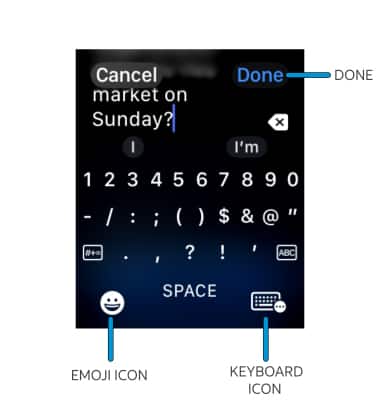
5. Select Send when finished. 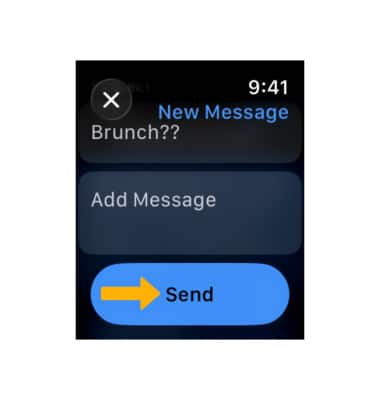
Email a photo
1. From the clock screen press the Digital Crown/Home button then select the  Photos app.
2. Navigate to and select the desired photo, then select the  Share icon. Select the Mail icon.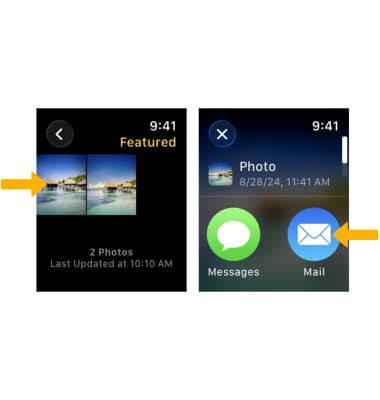
3. Enter the desired contact, subject, and message, then select Send. 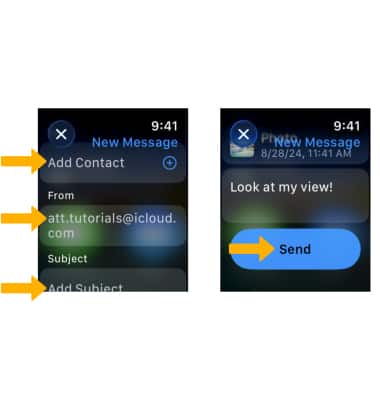
Reply or reply all to an email
From the desired email, scroll to and select Reply or Reply all. Follow the prompts to complete your reply. 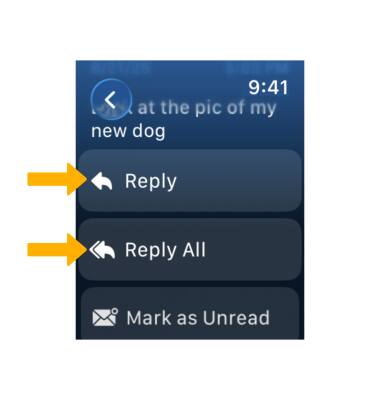
Flag or delete an email
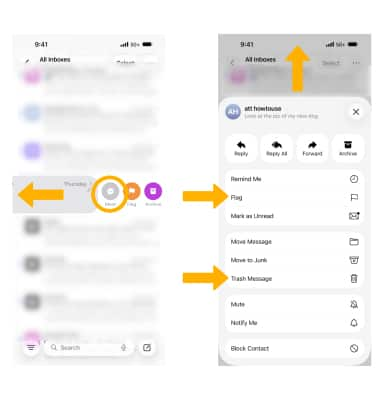
1. You can only delete an email from the Watch's paired device. From the paired iPhone, select the Mail app.
2. Navigate to and swipe left on the desired email, then select More. Swipe up, then select Flag to flag an email. Select Trash Message to delete an email.
Switch between email account inboxes
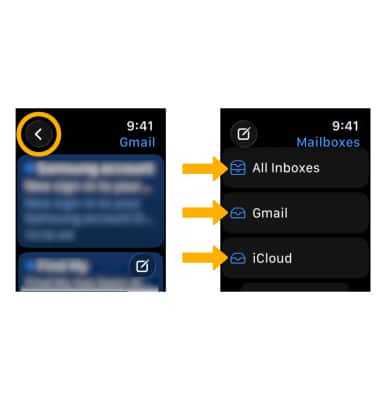
If you are already in an inbox, select the back arrow in the upper left corner of the screen to get to the Mailboxes screen. Select the desired Inbox. To view all inboxes at once, scroll to and select All Inboxes.