

In this tutorial, you will learn how to:
• Access Samsung Smart Switch Mobile
• Transfer content using the Samsung Smart Switch Mobile app
Access Samsung Smart Switch Mobile
1. From the home screen, swipe up from the center of the screen the access the Apps tray.
2. Navigate to and select the Samsung folder, then select the  Samsung Smart Switch app.
Transfer content using the Samsung Smart Switch Mobile app
1. Review the Privacy Policy and Terms of Service, then select Continue.
Note: If using Samsung Smart Switch for the first time, you have to grant Smart Switch permission to access Phone, Contacts, Calendar, Text messages, Storage, Microphone and Location. From the permissions screen, select Allow.
2. To move your content from your old device to your new one, select Receive on this tablet.
3. Select your old device type.
Note: For this demonstration, Galaxy/Android was selected. You will see a prompt to sign in if you select iPhone/iPad.
4. Select Wireless or Cable. To connect using a USB Cable, you must have a USB cable and adapter. To connect using Wireless, both devices must be connected to the same Wi-Fi network.
Note: For this tutorial, Wireless was selected.
5. Make sure that Samsung Smart Switch is installed on the old device. Select Send from this tablet on the old device.
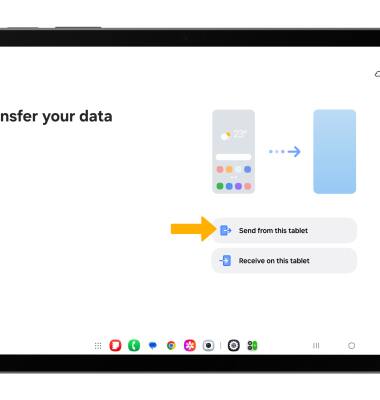
6. On the old device, select Wireless or Cable. To connect using a USB Cable, you must have a USB cable and adapter. To connect using Wireless, both devices must be connected to the same Wi-Fi network.
Note: For this tutorial, Wireless was selected.
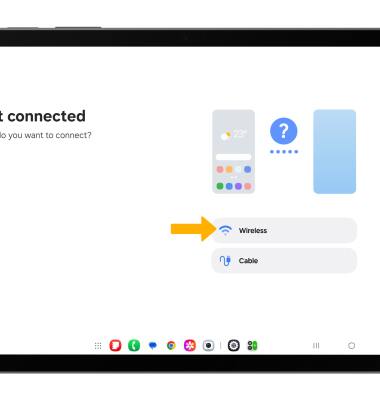
7. Use your old device to scan the QC code on the new device. The devices will connect automatically.
8. On the new device, select the desired option then select Next.
Note: For this tutorial, Custom was selected.
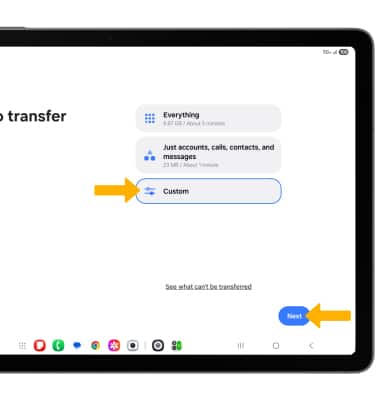
9. Select the desired content you would like to transfer then scroll to and select Transfer.
10. Select Next.
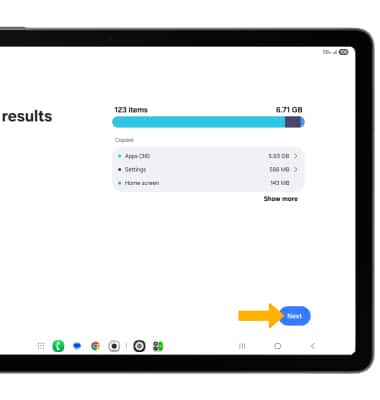
11. Select Done when the content transfer is complete.
Note: Visit samsung.com/smartswitch for more information on using your PC or Mac.