In this tutorial, you will learn how to:
• Access and use Heart Rate app
• Edit Heart Rate zones
• Set up Hypertension notifications
Access and use Heart Rate app
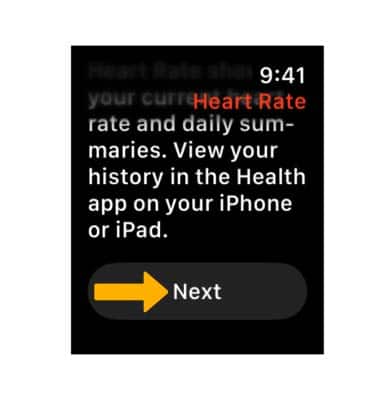
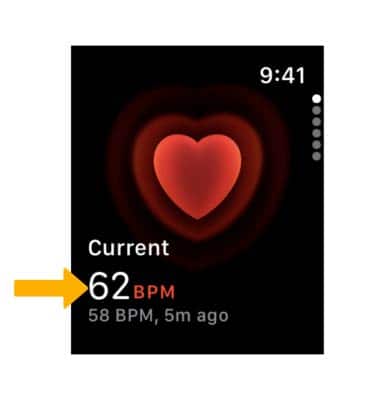
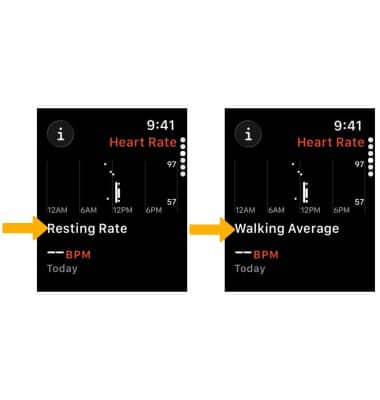
1. From the clock screen, press the Digital Crown/Home button then select the Heart Rate app.
Note: For more information about the Heart Rate app, please visit Apple's support site.
Edit Heart Rate zones
1. From your paired iPhone, navigate to and select the  Watch app.
2. Scroll to and select Workout, then scroll to and select Heart Rate Zones.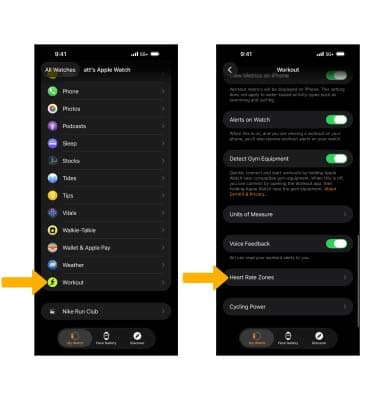
3. Heart Rate Zones are automatically calculated and personalized using your health data. To manually edit Heart Rate Zones, select Manual then select the desired Heart Rate zone.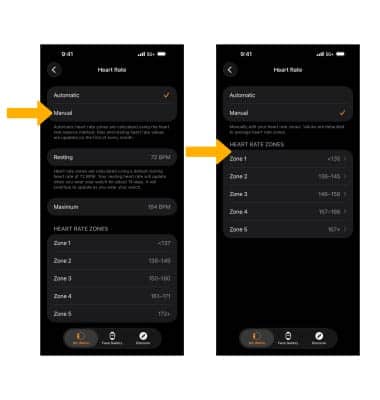
4. Edit Beat per Minutes as desired, then select the Back arrow.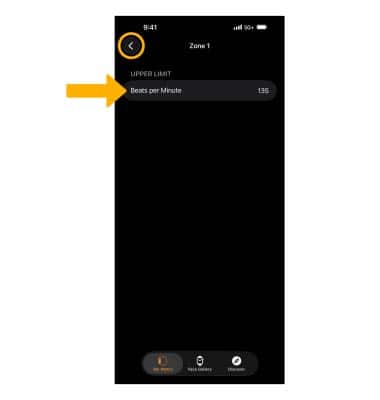
Set up Hypertension notifications
1. From your paired iPhone, navigate to and select the Watch app.
Note: Ensure Hypertension Notifications are available in your country or region. Hypertension Notifications are only available on Apple Watch Series 9 or later or Apple Watch Ultra 2 or later, with the latest version of watchOS. An iPhone 11 or later with the latest version of iOS. Wrist detection must also be enabled. You must be 22 years or older, not pregnant, and have not been diagnosed with hypertension.
2. Scroll to and select Heart, then select Set Up Hypertension Notifications in Health.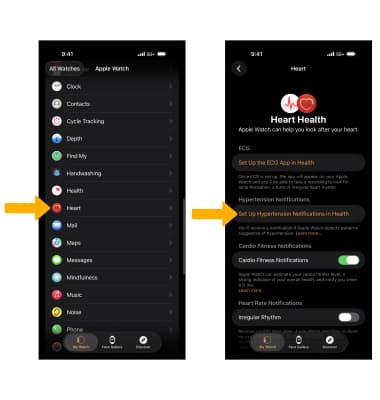
3. Review the Are These Notifications for You? prompt, then select the desired options. Select Continue when finished.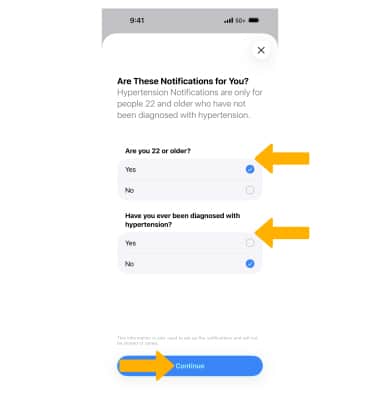
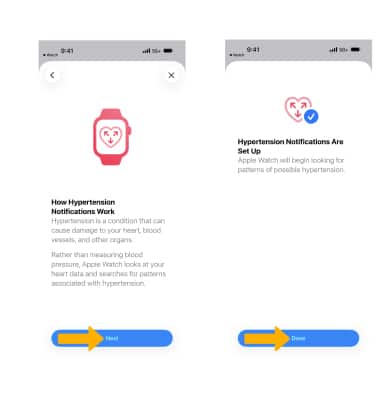
4. Review the How Hypertension Notifications Work prompt, then select Next. Select Done when finished.
Note: Apple Watch cannot identify every instance of Hypertension. Regular measurements with a blood pressure cuff are the most effective way to look for hypertension. Hypertension notifications should not be turned on during pregnancy. It also cannot detect pre-eclampsia. Apple Watch cannot detect heart attacks. If you experience chest pain, pressure, tightness, or think you are having a heart attack, call emergency services immediately.