In this tutorial, you will learn how to:
• Save photos to iCloud
• Pin, customize and reorder a collection
Access photos and videos
 Camera app.
2. Select the Preview icon.
 Photos app.
Save photos to iCloud
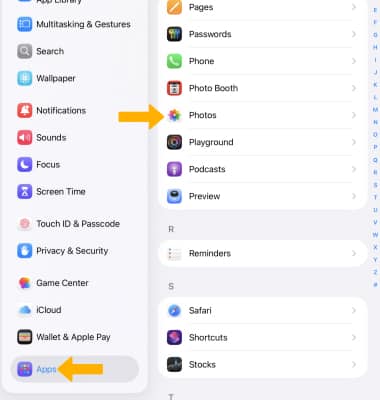
1. From the home screen, select the  Settings app.
2. Scroll to and select Apps > Photos > select the  iCloud Photos switch.
Note: iCloud will automatically upload and safely store all of your photos and videos so you can browse, search and share from any of your devices. Learn more from the Apple websites iCloud Setup and iCloud Support.
Browse by topic
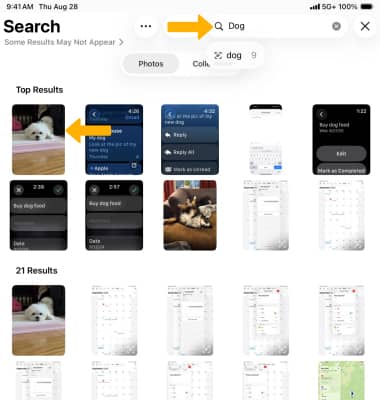
1. The new Photos app keeps your library organized and makes it super easy to find photos fast. Its gorgeous yet familiar look puts everything you want right at your fingertips, so you can spend less time searching and more time enjoying your memories. From the home screen, select the Photos app.
2. Tap the Search icon at the top of the screen.

3. Enter a keyword (such as Recent Days, Trips, People or Pets) related to the photo you want to find. The results will be displayed.
Pin, customize and reorder a collection
PIN A COLLECTION: 1. Collections automatically organizes your library by theme, so you can check out your recent days, people and pets, trips, and more. From the Photos app, select the  Menu icon > Collections > Pinned.
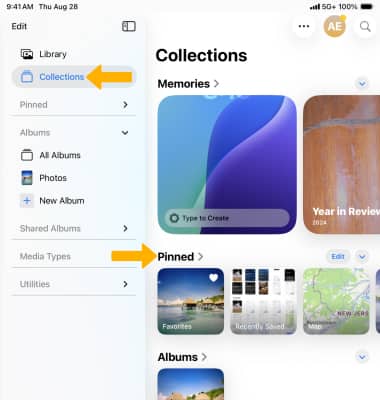
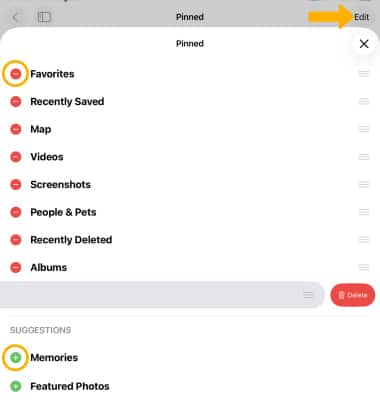
2. From the Pinned collections screen, select Edit. Select the Add icon to add the desired albums to Pinned collections. Select the Remove icon next to the desired collection then select Delete to remove albums. When finished, select the X icon.
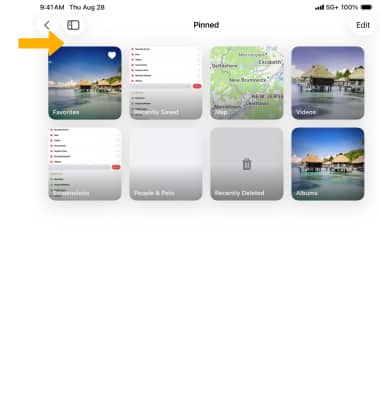
3. The collections will be displayed under Pinned.
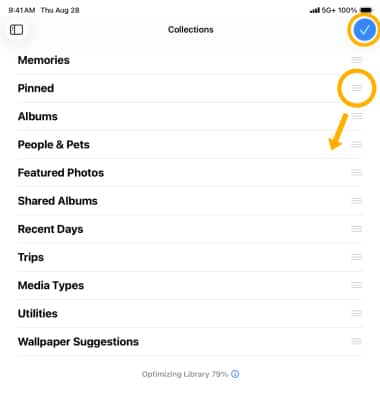
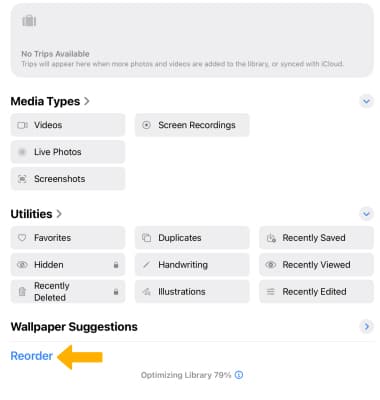
CUSTOMIZE & REORDER A COLLECTION: 1. Reorder Collections and choose items to keep at your fingertips in Pinned Collections, so you can quickly get to the content you care about most, whether that’s photos of your dog or your friends, photos you’ve recently edited, or even screenshots or receipts. From the Collections screen in Photos app, scroll to and select Reorder.
2. Select and drag the desired collection to the desired location. When finished, select the Checkmark icon.