In this tutorial, you will learn how to:
• Set a timer
• Turn the flash on or off
• Access camera modes
• Turn live photos on or off
• Adjust additional camera settings
To access the Camera app, swipe left on the Lock screen.
Set a timer
From the Camera app, select the Timer icon then select the desired option. 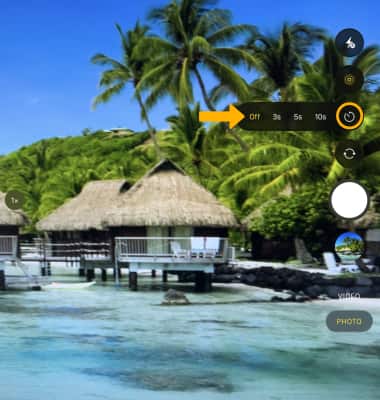
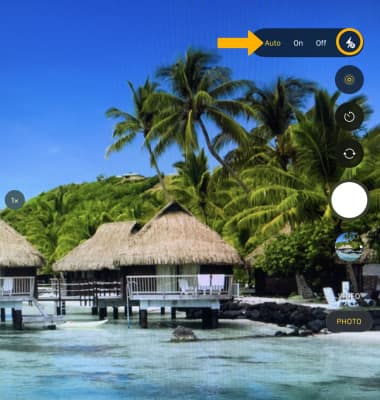
Turn the flash on or off
From the Camera app, select the  Flash icon then select the desired option.
Note: Flash is supported on all iPad Pro models, as well as the iPad mini (6th gen). It is only available on the front-facing camera.
Access camera modes
Swipe up or down to switch camera modes, which include Time-Lapse Video, Slo-mo Video, Video, Photo, Square, and Pano. 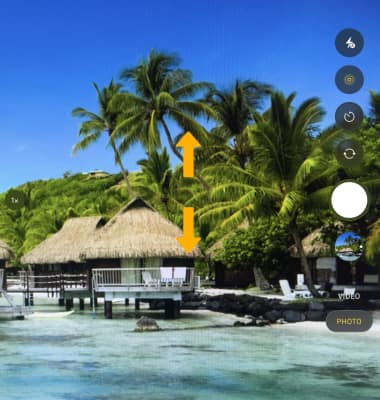
Turn live photos on or off
Live Photos is enabled by default. Live Photos record what happens 1.5 seconds before and after you take a picture. To enable or disable Live Photos, from the Camera app, select the  Live Photos icon.
Note: Turn off live photos to save camera memory.
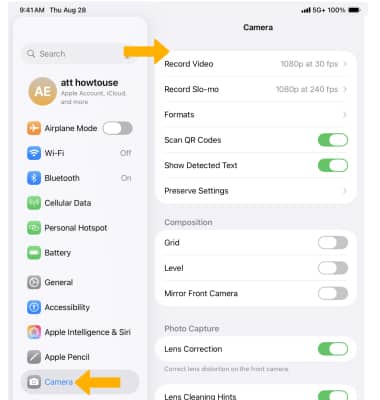
Adjust additional camera settings
1. From the home screen, select the  Settings app.
2. Select Camera, then adjust settings as desired.
Note: If you are you having trouble taking pictures or video on iPad, click here.