In this tutorial, you will learn how to:
• Track a workout
• Track activity history
• Edit Activity rings
• Edit Activity summaries
• Share activity
• Use Live Activity to view cycling metrics
• Access and use Workout Buddy
Track a workout
1. From the clock screen, press the Digital Crown/Home button, then select the  Workout app.
Note: Alternately, from the Smart Stack, select the Workout widget.
2. Scroll to and select the desired workout. Wait for the 3 second countdown, then begin your workout. To skip the countdown, select the screen.
Note: To set a goal, select the  Menu icon next to the desired workout type, then scroll to and select the desired goal type and follow the prompts. Accurately track your fitness metrics for a variety of workouts and even your post-workout Cooldown. For more information about workouts, please visit Workout types on Apple Watch.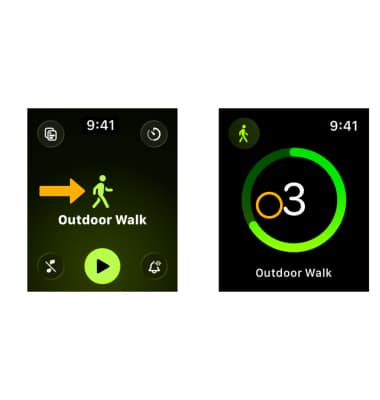
3. From the workout screen, swipe right then select the desired option.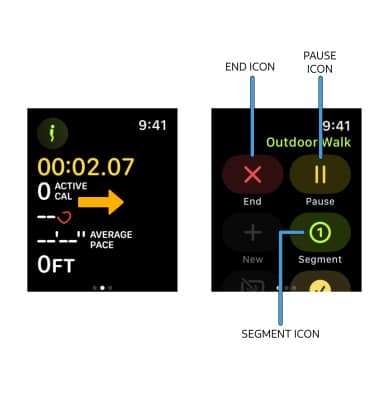
• END: To end your workout, select the End icon then select End Workout.
• ADD SEGMENT: To start a new segment, select the Segment icon, then follow the prompts.
• PAUSE/RESUME: To pause a workout, select the Pause icon. To resume a workout, select the Resume icon.
Track activity history
1. From the clock screen, press the Digital Crown/Home button then select the  Activity app.
Note: Upon first access, you will be prompted to enter personal information to continue.
2. The Activity app will automatically detect movement, exercise, standing time, steps, distance, and flights climbed when wearing the watch. To view this information, swipe up to the desired activity timeline.
Note: For more information, please visit Use the Activity app on your Apple Watch.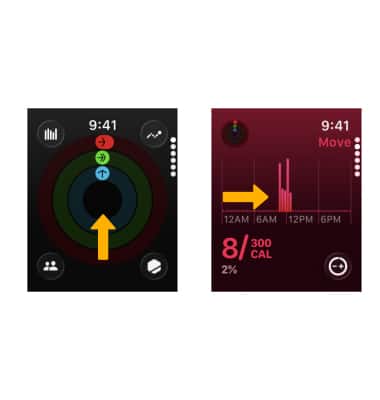
3. To view your shared activity, from the Activity screen, select the Shared activity icon. To view Activity Awards, select the Activity award icon.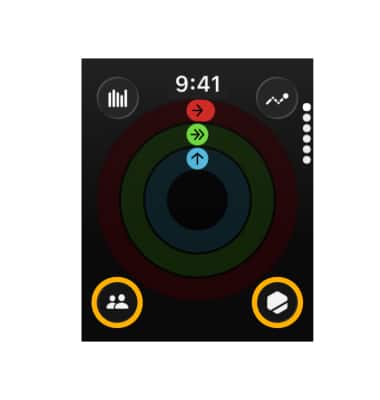
Edit Activity rings
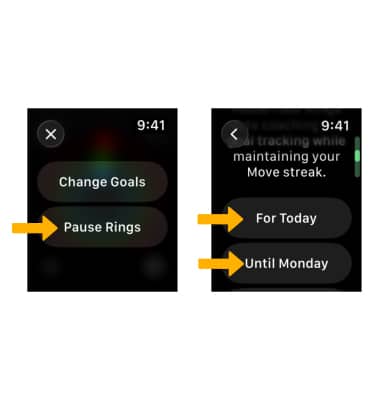
To edit Activity ring settings, from the Activity app, select any free space on the screen.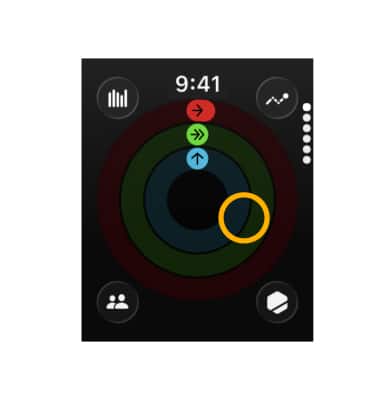
To edit your activity goals, select Change Goals. Edit settings as desired, then select Set. 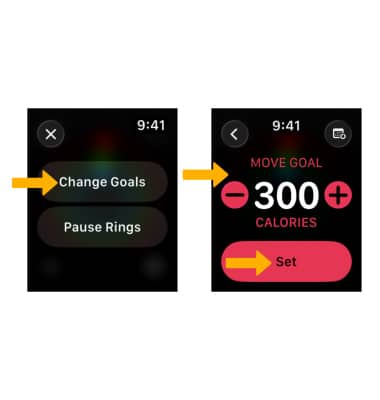
To pause Activity rings, select Pause Rings. Scroll to and select the desired amount of time you wish to pause your Activity rings.
Edit Activity summaries
From your paired iPhone, navigate to and select the Fitness app. Scroll to and select Edit Summary. Select the Remove icon on the metrics you wish to remove. Select Add to add a new metric. When finished editing, select the Checkmark icon.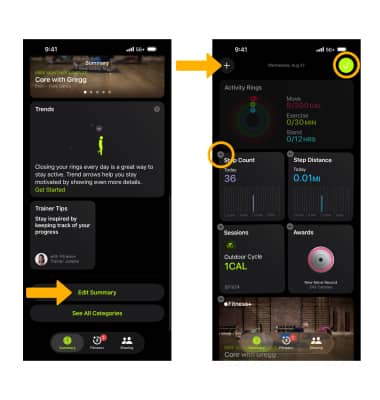
Share activity
From your paired iPhone, navigate to and select the Fitness app. Select the Sharing tab > Get Started > Share Activity icon > Invite a Friend > enter the desired contact(s) or phone number(s) > select Send. 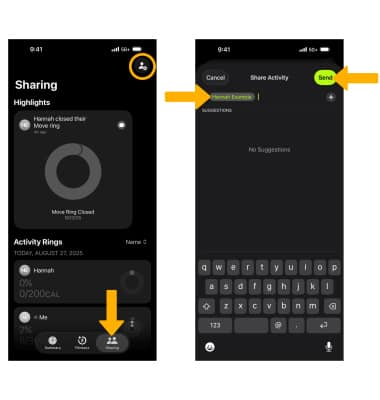
Use Live Activity to view cycling metrics
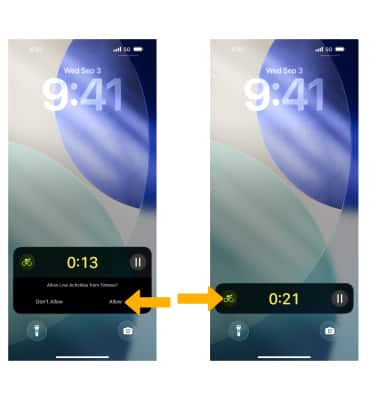
1. Start a cycling workout from your watch and it will automatically show up as a Live Activity on your iPhone, making it easier to see your metrics while on a ride. To start, simply select a cycling workout on your Apple Watch.
Note: This functionality is only available on Apple watches running watchOS 10 or later that are paired with iPhones running on iOS 17 or later.
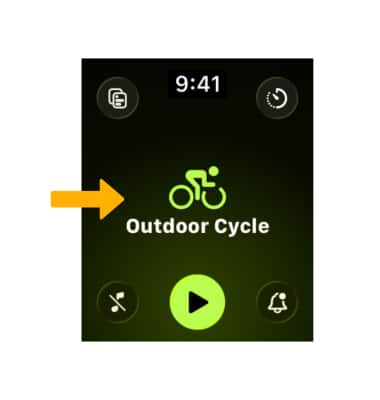
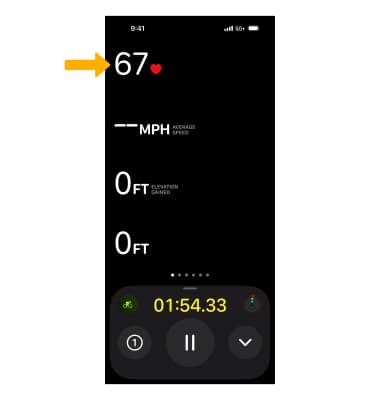
2. From the lock screen of your paired iPhone, select Allow. To view your cycling metrics in full screen, select the Live Activity notification.
3. Your heart rate, average speed, maximum speed, distance, and time elapsed will be displayed.
Access and use Workout Buddy
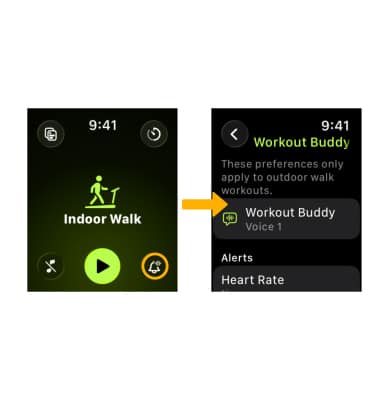
Workout Buddy helps you stay motivated with generative audio built with voice data from Fitness+ trainers. To use Workout Buddy, navigate to the desired workout, then select the Play icon. Throughout your workout, Workout Buddy will encourage a pep talk to kick things off, give highlights along the way, and a summary upon completion.
Note: Upon first access to the Fitness app, you will prompted to enable Workout Buddy. Select theUse Workout Buddy switch.
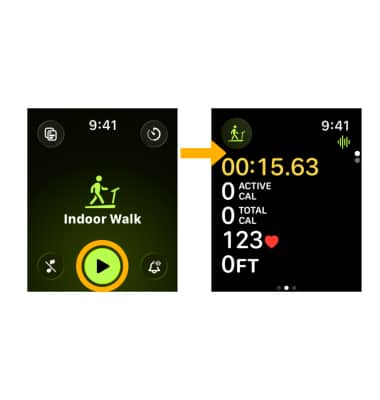
To edit Workout Buddy settings, from the Workout app, select the Workout Buddy and Alerts icon. Edit settings as desired.
Note: Workout Buddy will be available on Apple Watch with Bluetooth headphones, and requires an Apple Intelligence-supported iPhone nearby. Apple Intelligence helps to incorporate a user’s workout data and their fitness history to generate personalized, motivational insights during their session, based on data like heart rate, pace, distance, Activity rings, personal fitness milestones, and more. It will be available starting in English, across some of the most popular workout types: Outdoor and Indoor Run, Outdoor and Indoor Walk, Outdoor Cycle, HIIT, and Functional and Traditional Strength Training.