In this tutorial, you will learn how to:
• Determine Stage Manager Compatibility
• Enable or disable Stage Manager
• Use Stage Manager
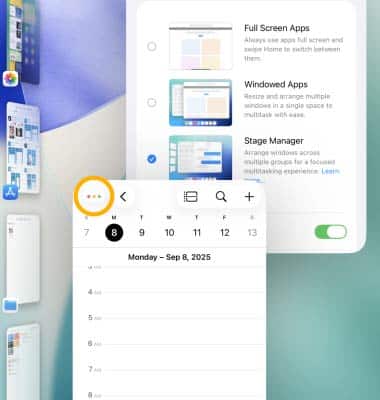
With Stage Manager, you have a new way to multitask and get things done with ease. Resize windows to look the way you want, see multiple overlapping windows in a single view, tap to switch between apps, and more. You can group apps for specific tasks or projects, and arrange, resize, and overlap them in your ideal layout.
Determine Stage Manager Compatibility
Stage Manager is compatible with:
• iPad Pro 12.9-inch 3rd, 4th, 5th, and 6th generation
• iPad Pro 11-inch 1st, 2nd, 3rd, and 4th generation
• iPad Air 5th generation
Note: This list covers all iPads that are compatible with iPad OS26 or newer. For help determining your iPad's model, visit Identify your iPad model.
Enable or disable Stage Manager
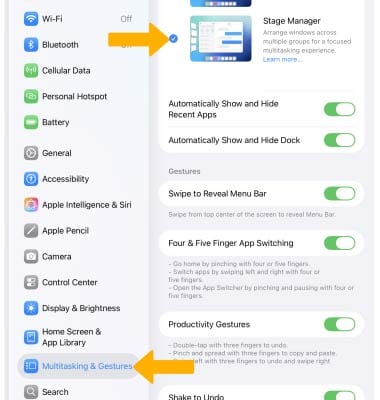
From the home screen, select the  Settings app. Select Multitasking & Gestures, then select Stage Manager.
Use Stage Manager
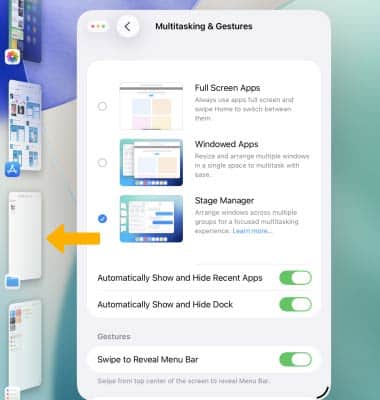
SWITCH BETWEEN APPS: When Stage Manager is enabled, apps will open in a windowed view. You can easily switch between apps, by selecting a Recent app on the left side of the device.
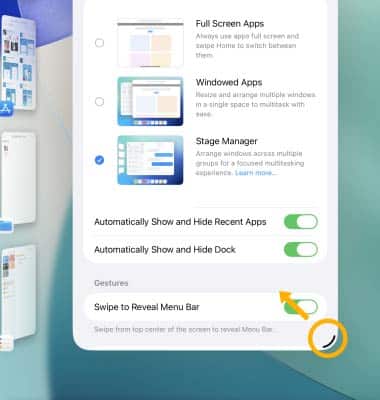
RESIZE APPS: To resize an app, select and drag the bottom right corner of the app to the desired size.
Note: To view an app in full screen again, select the Menu icon on the top of the app then select the Maximize icon.
ADD ANOTHER WINDOW: To add another window, select and drag the desired app from the Recent Apps section on the left or select an app from the dock.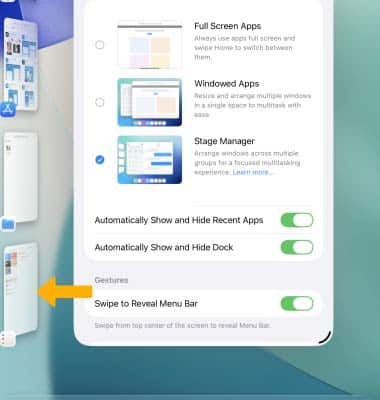
CLOSE A WINDOW: To close a window, select the Menu icon at the top of the desired window then select the X icon.