In this tutorial, you will learn how to:
• Enable/disable Call Screen
• Use Call Screen
• Access Call Screen settings
Enable/disable Call Screen
1. Call Screen is disabled by default. To enable or disable Call Screen, from the home screen, select the  Phone app. Select the
  Menu icon, then select Settings. Select Call Screen.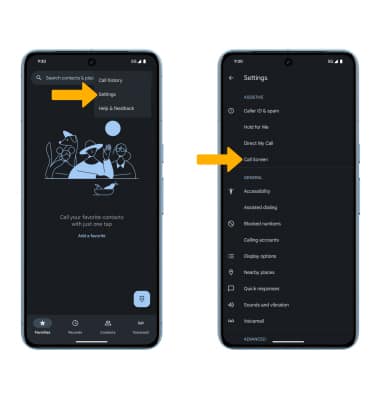
2. Select the Automatically screen calls switch.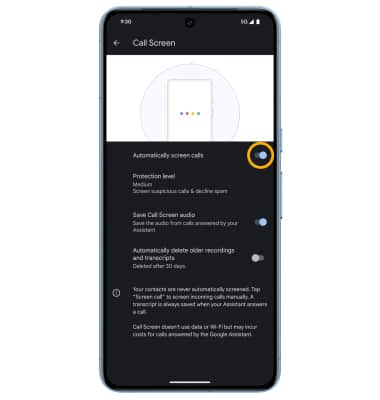
Use Call Screen
1. When receiving a call, select Screen call.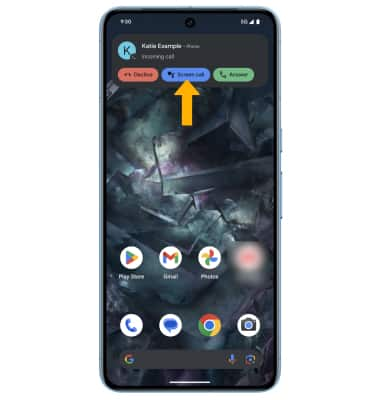
2. Google Assistant will ask the caller why they are calling. Using the live transcription, you can view the callers response, then select the following option. 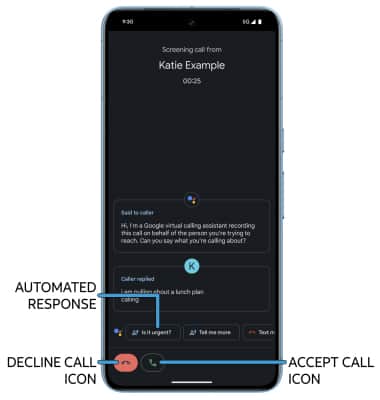
• ASK ANOTHER QUESTION: Swipe to and select the desired automated response to have Google Assistant ask the caller another question.
• DECLINE CALL: Select the Decline call icon.
• ACCEPT CALL: Select the Accept call icon.
Access Call Screen settings
1. From the home screen, select the Phone app. Select the Menu icon, then select Settings. Select Call Screen. 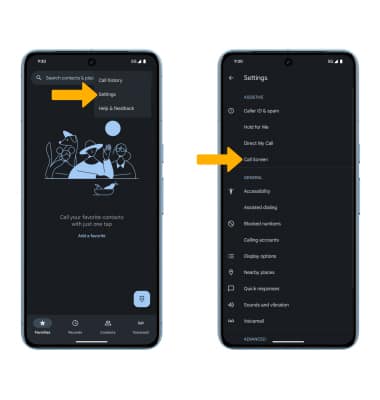
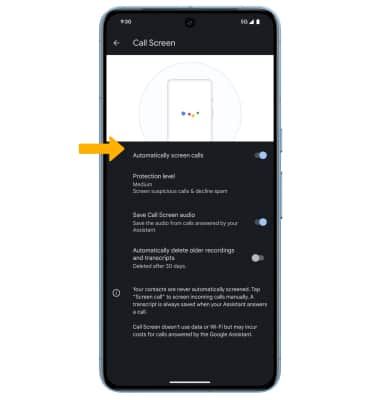
2. Edit settings as desired.