In this tutorial, you will learn how to:
• Take a screenshot
• Edit or share screenshots immediately
• Take a scrolling screenshot
• Access and use screen recording
Take a screenshot
Press and hold the Power/Lock and Volume down buttons simultaneously.
Note: To access screenshots, from the home screen, select the  Photos app > Library tab > Screenshots folder.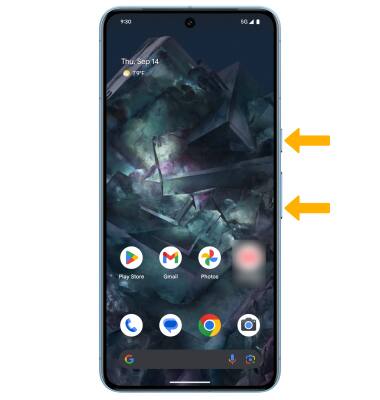
Edit or share screenshots immediately
Immediately after taking a screenshot, a notification will appear on the screen. Select the desired option:
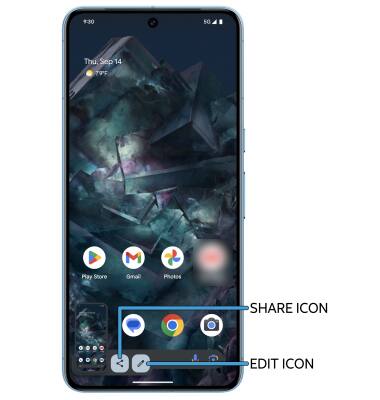
• EDIT A SCREENSHOT: Select the Edit icon, then edit screenshot as desired.
• SHARE A SCREENSHOT: Select the Share icon, then follow the prompts to share.
• SHARE A SCREENSHOT: Select the Share icon, then follow the prompts to share.
Take a scrolling screenshot
On some screens, a scrolling screenshot can be taken to capture a larger image of the current page you’re on. After taking a screenshot, select Capture more. Select and drag the edges of the capture window as desired, then select Save when finished.
Note: On this screen, you may also immediately edit or share the screenshot by selecting the Edit icon or the Share icon.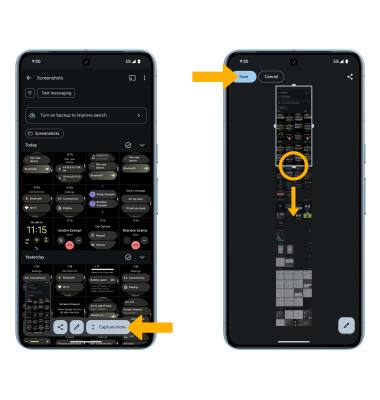
Access and use screen recording
Screen recording lets you capture what’s happening on your phone. Swipe down from the Notification bar with two fingers and swipe left, then select the Screen record icon. Edit settings as desired, then select Start.
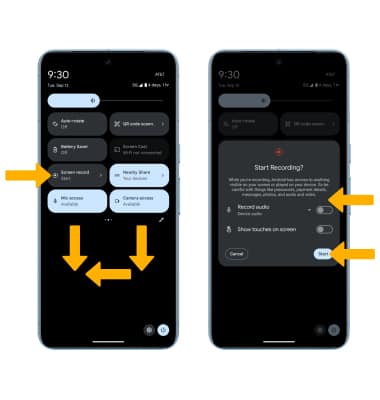
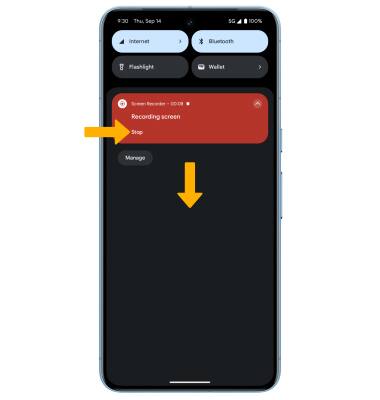
To stop the recording, swipe down from the Notification bar, then select Stop on the Screen Recorder notification.
Note: To access screen recordings, from the home screen, select the
Photos app > Library tab > Movies folder.