
In this tutorial, you will learn how to:
• Take a photo
• Switch between the front and rear cameras
• Focus the camera
• Zoom in and out
• Use Multicapture
• Access and use Single Take
• Enable and use Show palm
• Switch between the front and rear cameras
• Focus the camera
• Zoom in and out
• Use Multicapture
• Access and use Single Take
• Enable and use Show palm
This tutorial requires you to open the Camera app. From the home screen, select the  Camera app. To access the camera from the lock screen, press the Side button twice or select and drag the Camera icon up.
Take a photo
Select the Capture icon.
Note: Alternately, press either of the Volume buttons.
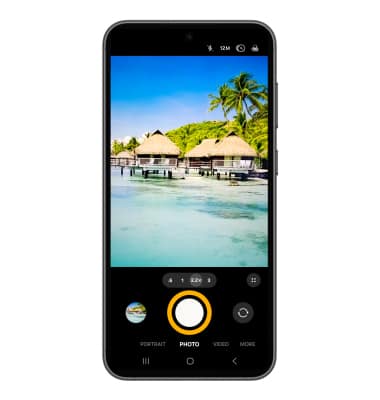
Note: Alternately, press either of the Volume buttons.
Switch between front and rear cameras
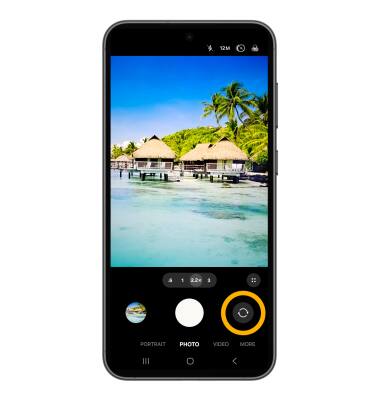
Select the Switch camera icon.
Note: You can also swipe up or down to quickly switch between the rear and front facing cameras.
Note: You can also swipe up or down to quickly switch between the rear and front facing cameras.
Focus the camera
Select the screen in the desired location to focus the camera.

Zoom in and out
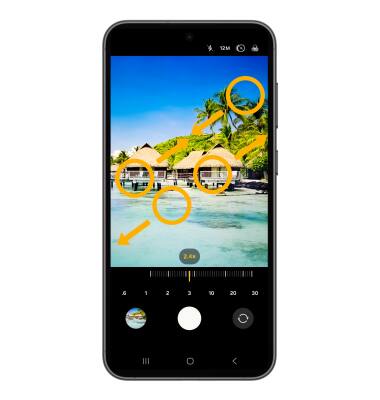
Drag two fingers from the middle of the screen toward the outer edges of the screen to zoom in. Pinch two fingers from the outer edges of the screen to the middle of the screen to zoom out.
Use Multicapture
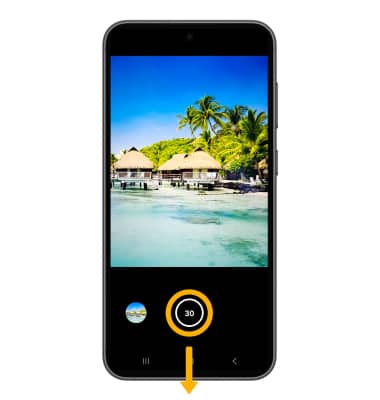
Select and drag the Capture icon down to the bottom of the screen to take a burst of images. The number of photos taken will appear on the capture icon. Release your finger to stop.
Note: You cannot take burst shots in high resolution. To change the camera resolution, select the Ratio icon then select the desired option.
Note: You cannot take burst shots in high resolution. To change the camera resolution, select the
Ratio icon then select the desired option.
Access and use Single Take
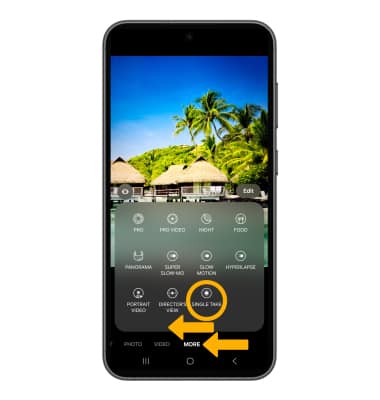
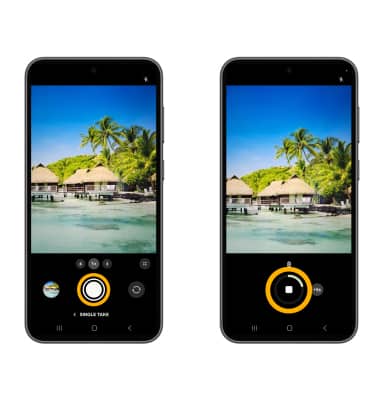
1. Single Take allows you to shoot a scene in a series of pictures and short videos at the same time. From the camera screen, swipe left to MORE, then select SINGLE TAKE.
2. Select the Capture icon to begin recording. Pan the camera around slowly to capture multiple photos in the scene. Single Take will stop automatically after about 10 seconds. To manually stop recording, select the Stop icon. Your device will automatically process all the photos and videos captured.
The photos and videos taken using Single Take will be displayed as a collection. To view the collection, from the Camera app, select the Gallery icon.
Note: Alternately, from the home screen, swipe up to access the app tray then select the Gallery app.
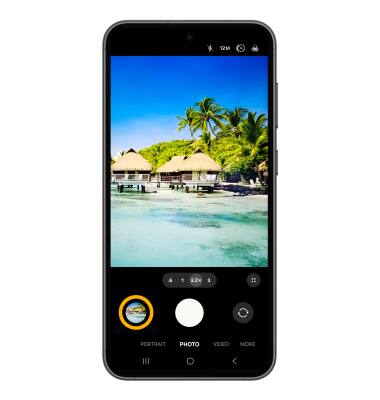
The photos and videos taken using Single Take will be displayed as a collection. To view the collection, from the Camera app, select the Gallery icon.
Note: Alternately, from the home screen, swipe up to access the app tray then select the
Gallery app.
Enable and use Show palm
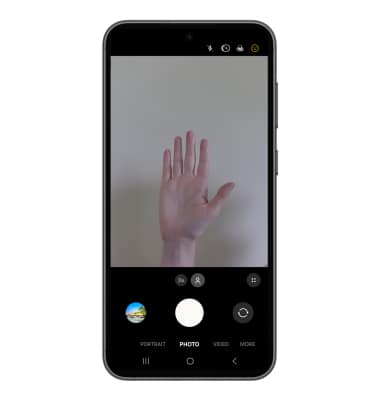
Show your palm to the front facing camera to take selfie or start a selfie video. To enable, from the Camera settings screen, scroll to and select Shooting methods then select the Show palm switch.
To take a selfie using Show palm, simply hold your palm up to the camera.
Note: This feature only works with the front facing camera. To switch the camera to the front facing camera, select the Switch camera icon.