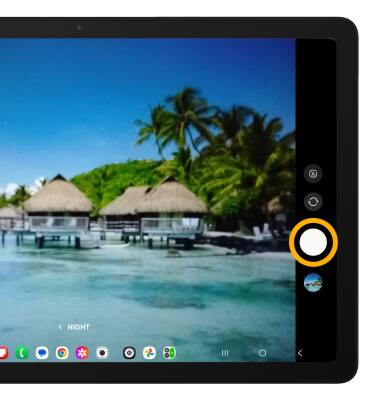

 Camera app.
In this tutorial, you will learn how to:
• Access camera modes and filters
• Customize photo and video settings
• Turn shutter sound on/off
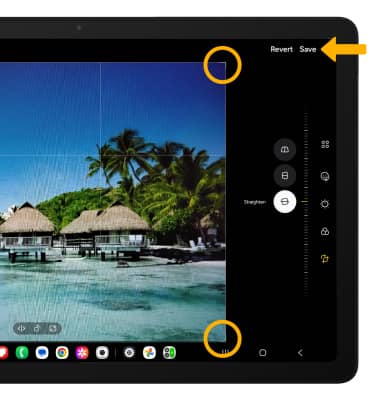
• Crop a photo
• Use Night mode
Access camera modes and filters
1. From the Camera app, swipe left to MORE to access modes such as Night, Pro, Panorama and Hyperlapse. Select the desired option.
Note: Night allows you to take photos in low light conditions. Pro allows you to manually adjust settings such as ISO, shutter speed and exposure levels. Panorama allows you to create wider photos by stitching together multiple photos. Hyperlapse allows you to capture changes that happen slowly in a smooth time-lapse video.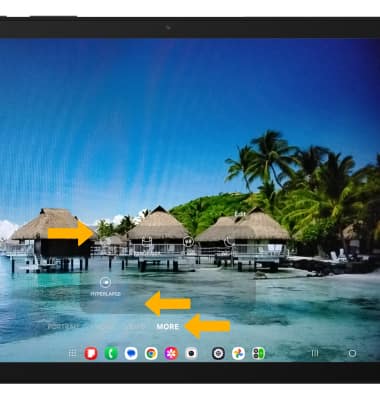
2. To access filters, from the camera screen, select the  Quick control icon then select the
  Filters icon. Select the desired filter.
Note: Filters are not available in some camera modes.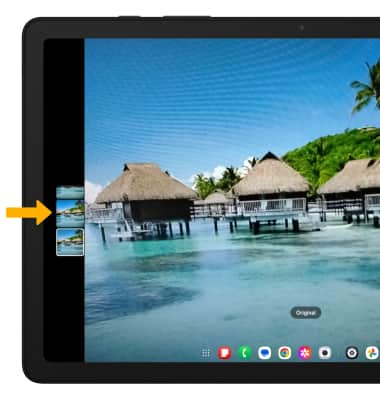
Customize photo and video settings
1. From the Camera app, select the Quick controls icon then select the  Settings icon.
2. Edit settings as desired.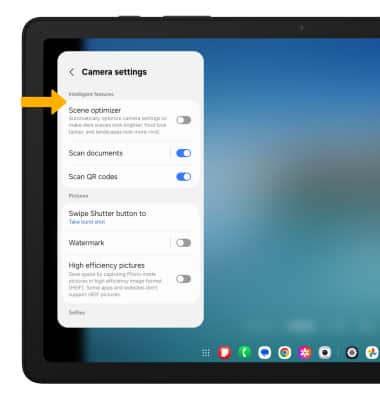
Turn shutter sound on/off
From the Camera settings screen, scroll to and select the Shutter sound switch.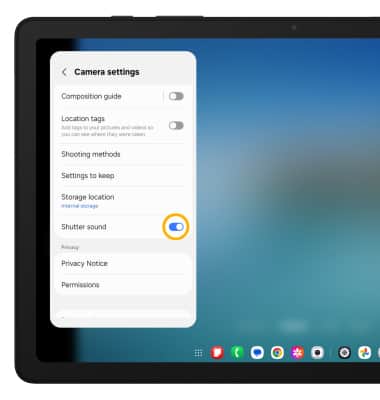
Crop a photo
Note: Alternately, from the home screen, select the
 Gallery app then navigate to and select the desired photo.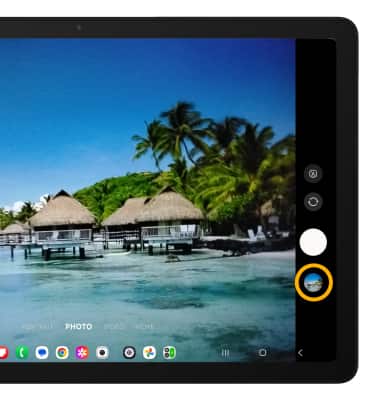
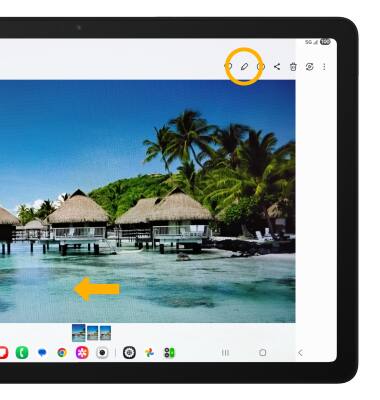
2. Swipe left to the desired photo, then select the Edit icon.
Use Night mode
1. Use Night mode to take brighter and sharper photos under low light conditions. From the Camera settings screen, swipe left to MORE, then select NIGHT.
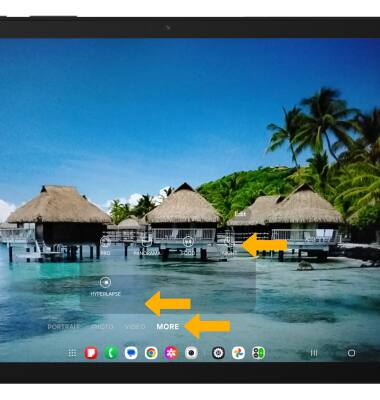
2. Select the Capture icon.