In this tutorial, you will learn how to:
• Access and edit notifications and Quick Settings
• Access additional apps
• Enable/disable gestures
• Access and edit navigation bar settings
• Use Full screen gestures
Access and edit notifications and Quick Settings
ACCESS: Swipe down from the Notification bar to access Notifications.
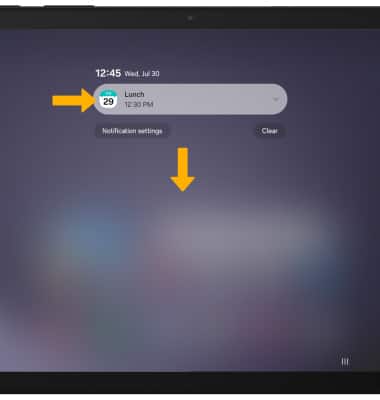
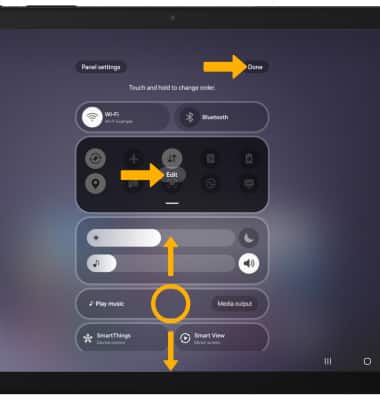
ACCESS QUICK SETTINGS: Swipe down from the upper right corner of the screen to access Quick Settings.
Note: Swipe down from the icon section of the Quick Settings screen to access additional buttons.
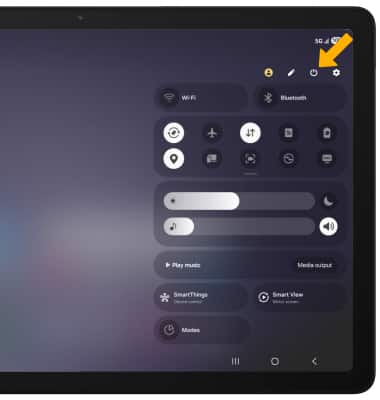
EDIT APPEARANCE: From the Quick Settings screen, select the  Edit icon. Select and drag the desired settings window to the desired location. To Edit the icon section, select Edit then select and drag the desired icon to the desired location. Select Done to save.
Access additional apps
Swipe up from the center of the home screen to access the Apps tray.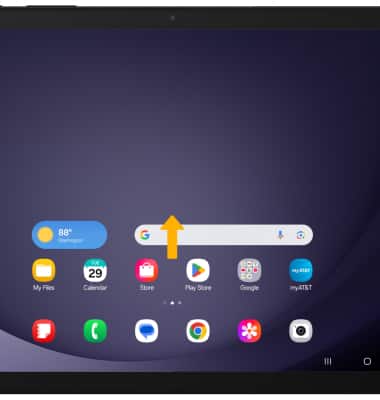
Enable/disable gestures
1. Swipe down from the upper right corner of the screen, then select the  Settings icon.
2. Scroll to and select Advanced features, then select Motions and gestures.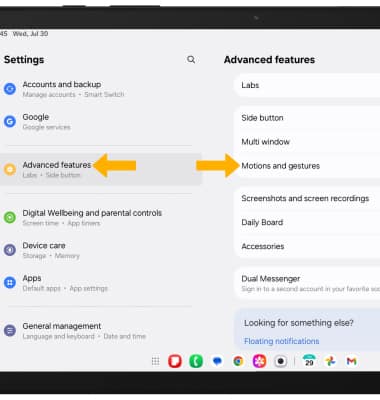
3. Select the switches to turn on or off the desired advanced features.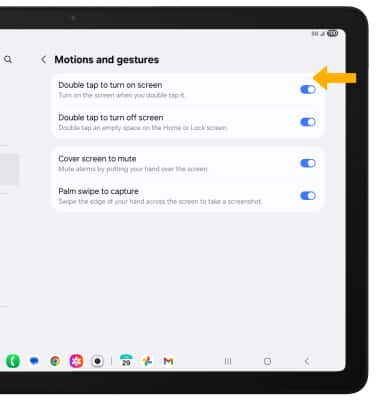
Access and edit navigation bar settings
ACCESS: To change how you interact with the Navigation bar, from the Settings screen, scroll to and select Display, then scroll to and select Navigation bar.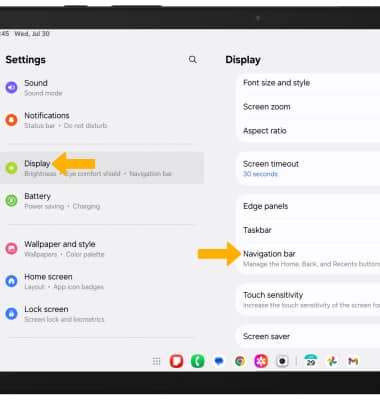
EDIT: From the Navigation bar screen, edit navigation bar settings as desired: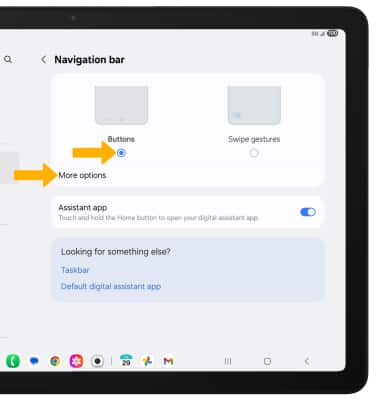
• NAVIGATION BUTTONS: Select Buttons to enable a button-based navigation bar.
• CHANGE BUTTON ORDER: Select More options, then select the desired Button order.
• CHANGE BUTTON POSITION: Select More options, then select Button position. Select the desired option.
Use Full screen gestures
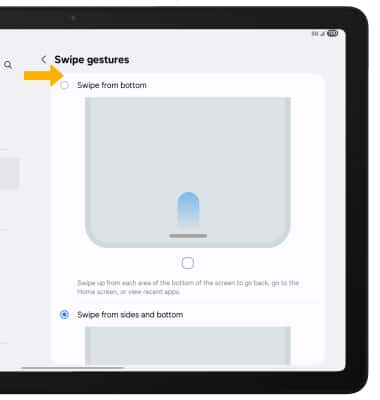
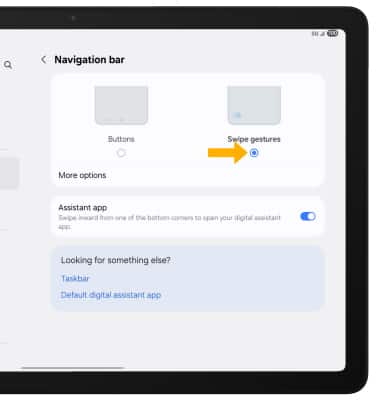
ENABLE: Enabling Swipe gestures allows you to swipe from different areas of the screen to go backwards, forwards, return to the home screen, and see your open apps. From the Navigation bar screen, select Swipe gestures.
EDIT: From the Navigation bar screen, select the desired switches. For more settings, select More options.
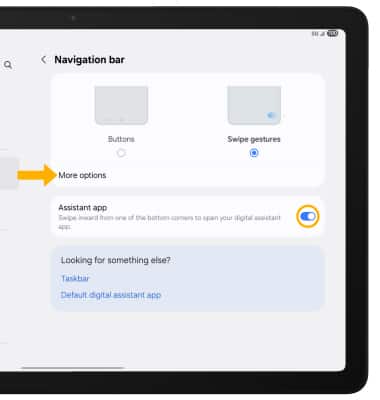
Edit settings as desired.