
1. From the home screen, select the Google folder >  Gmail app.
Gmail app.Note: Review the Gmail tutorial, then select GOT IT. The Gmail app allows any email account to be set up even if it is not a Gmail account. If you already have an email account setup and wish to add another account, from the home screen select the
Gmail app >  Menu icon > scroll to and select Settings > select Add account > follow the prompts.
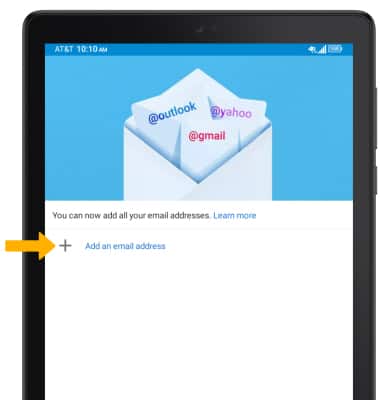
2. Select Add an email address.
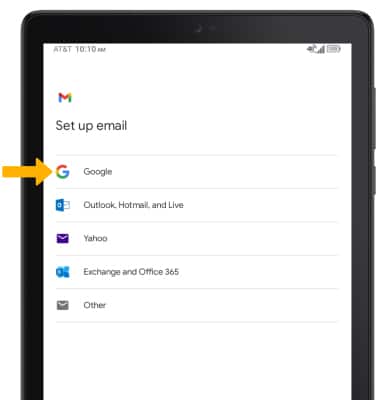
3. Select the desired email provider.
Note: For this tutorial, Google was selected. To manually configure email settings (such as server settings and domain), select Other > enter the required information, then select NEXT. If your corporate server requires remote security administration, you will be prompted to set up security features. Select ALLOW to continue.
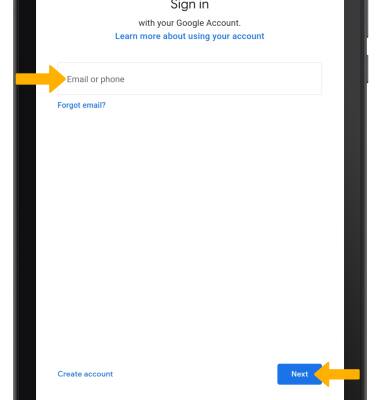
4. Enter the desired Email or phone number, then select Next.
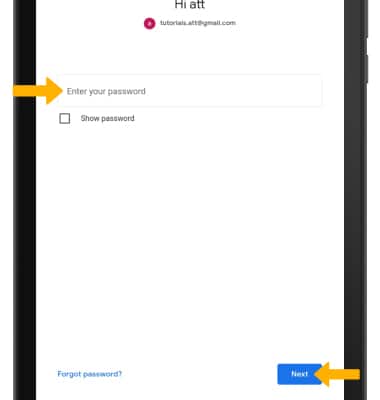
5. Enter the Password, then select Next.
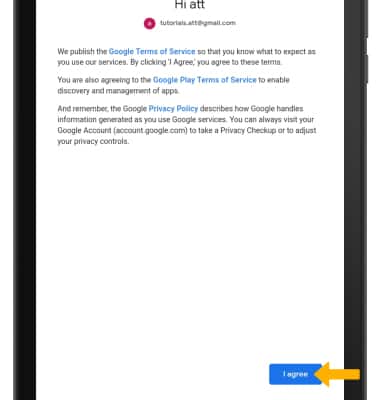
6. Select I agree.
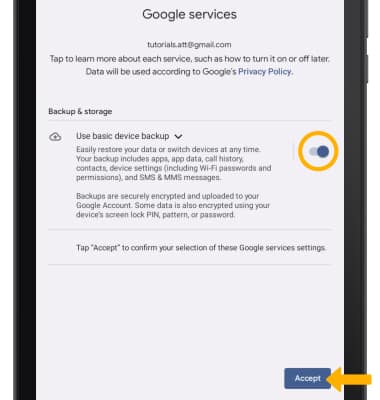
7. Review the Google Services Privacy Policy, then if desired, select the Use basic device backup switch. Select Accept when finished.
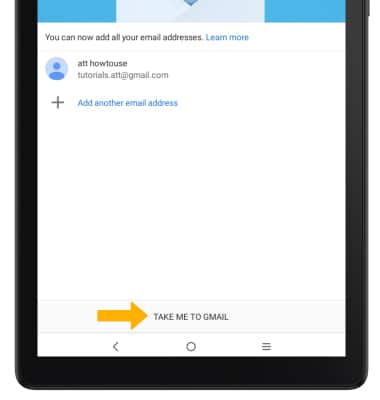
8. Select TAKE ME TO GMAIL. When setup is complete, your Inbox will appear.