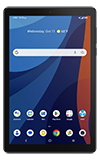

• Access accessibility features
• Turn on/off TalkBack
• Enable and use Select to Speak
Access accessibility features
 Settings icon.
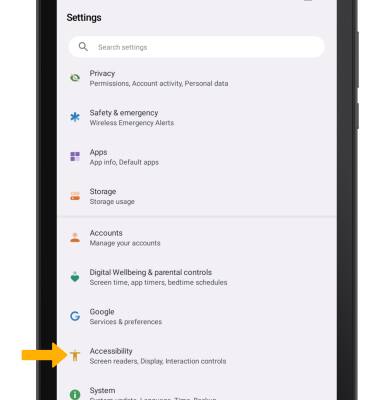
 2. Scroll to and select Accessibility.
Turn on/off TalkBack
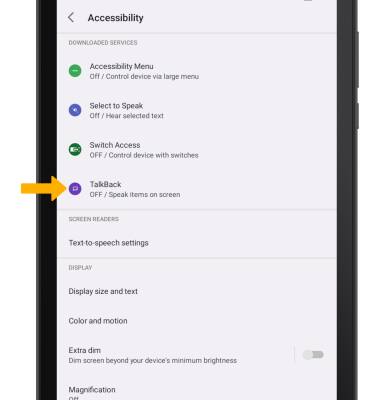
Note: Review the Welcome to TalkBack prompt, and follow the prompts. To disable, double-tap the Talkback switch then double-tap STOP.
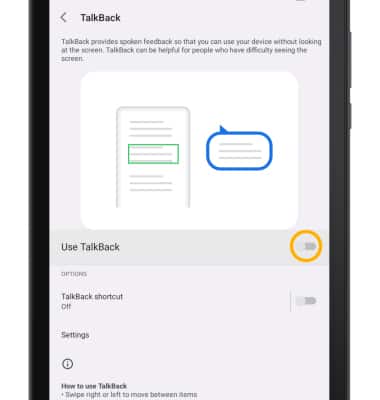
Enable and use Select to Speak
1. From the Accessibility screen, select Select to Speak.
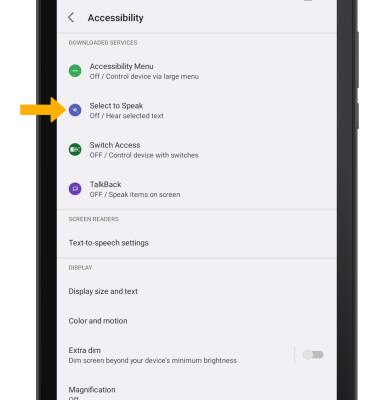
2. Select the Select to Speak shortcut switch to place it in the On position.
Note: Review the Select to Speak prompt then select Allow to confirm. Review the Use accessibility button to open prompt, then select GOT IT.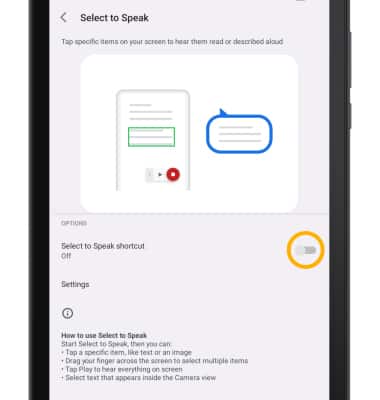
3. To use Select to Speak, select the Accessibility icon then select the area of the screen you would like to hear read aloud.
Note: To pause screen reading, select the Pause icon. To resume, select the Play icon. To stop using Select to Speak, select the Stop icon. 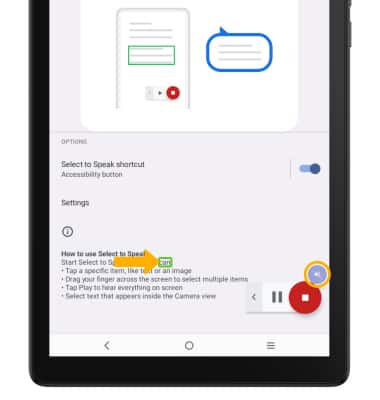
Access and edit Text-to-speech
ACCESS: From the Accessibility screen, select Text-to-speech settings.
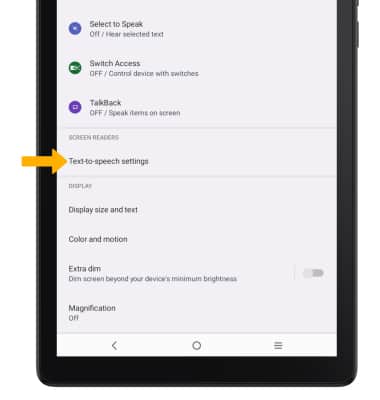
EDIT: Edit settings as desired.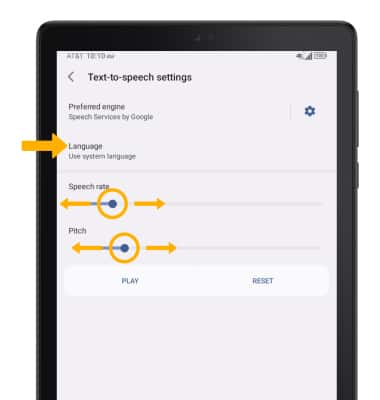
• CHANGE LANGUAGE: Select Language, then select the desired option.
• SPEECH RATE: Select and drag the Speech rate slider to the desired speech rate.
• PITCH: Select and drag the Pitch slider to the desired pitch.