In this tutorial, you will learn how to:
• Take a screenshot
• Edit or share screenshots immediately
• Take a scrolling screenshot
• Access and use screen recording
• Access 3-finger screenshot
• Access 3-finger regional screenshot
Take a screenshot
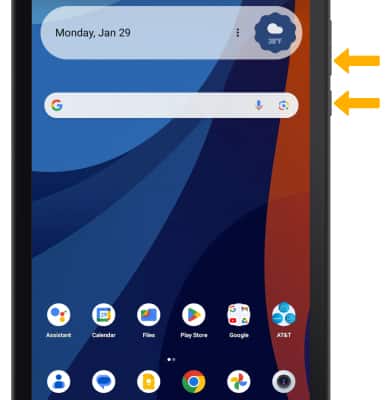
Press and quickly release the Side and Volume down buttons simultaneously.
Note: To access screenshots, from the home screen, select the  Photos app > Library tab > Screenshots folder.
Edit or share screenshots immediately
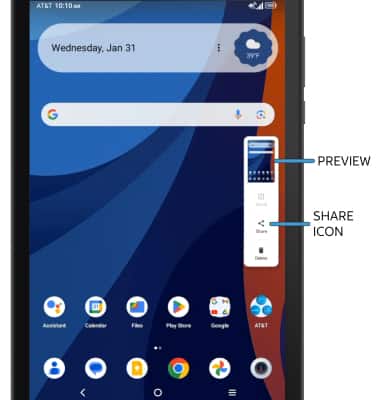
• EDIT A SCREENSHOT: Select the preview, then edit screenshot as desired.
• SHARE A SCREENSHOT: Select the Share icon, then follow the prompts to share.
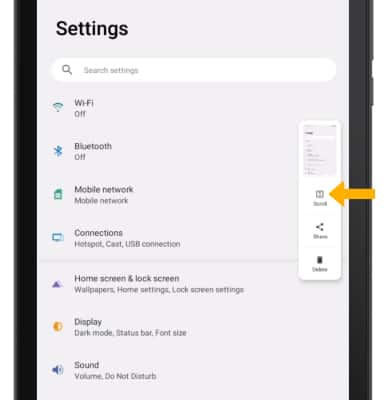
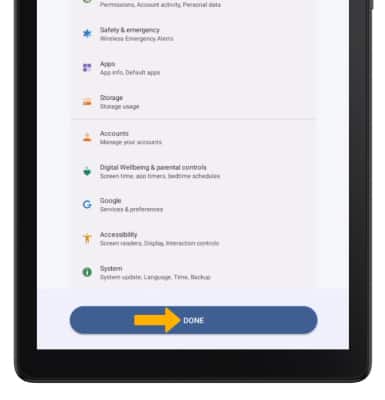
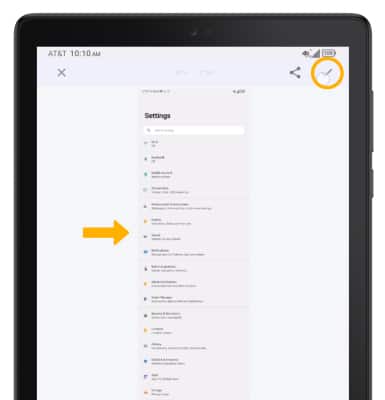
Take a scrolling screenshot
Access and use screen recording
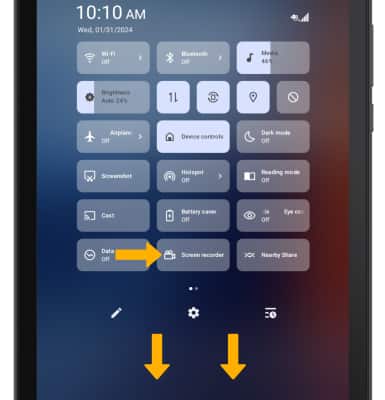
Note: Alternatively, swipe down from the Notification bar then select the Recording screen notification. To access screen recordings, from the home screen, select the
Photos app > Library tab > Camera folder.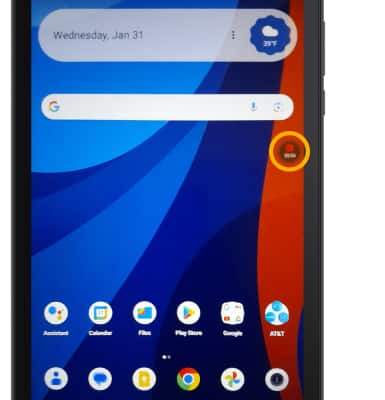
Access 3-finger screenshot
1. Swipe down from the Notification bar with two fingers, then select the  Settings icon.
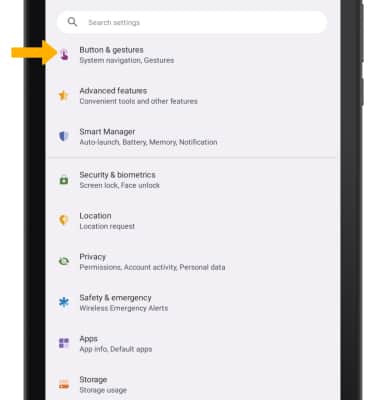
2. Scroll to and select Button & gestures.
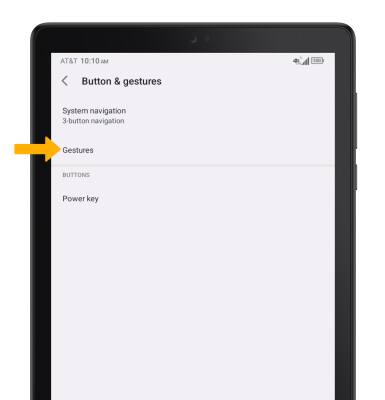
3. Select Gestures.
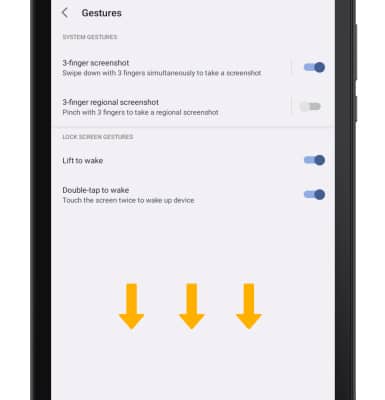
4. Select the 3-finger screenshot switch to enable.
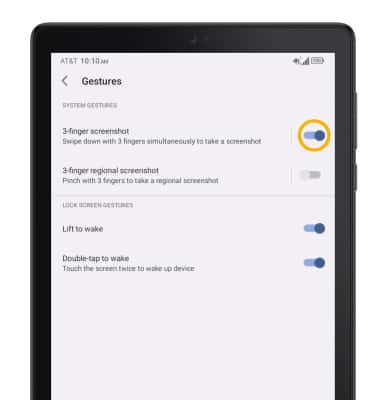
5. To take a 3-finger screenshot, swipe down with three fingers.
Access 3-finger regional screenshot
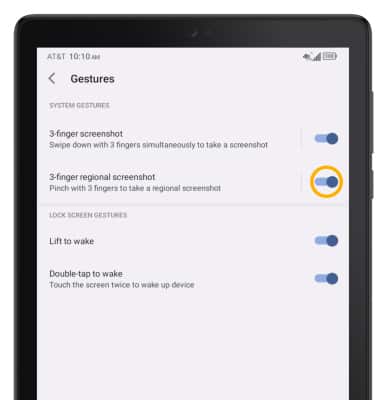
1. From the Gestures screen, select the 3-finger regional screenshot switch.
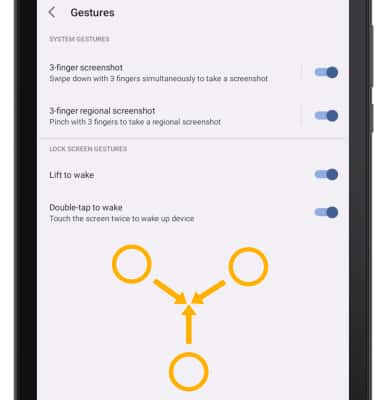
2. To start taking a 3-finger regional screenshot, pinch inwards with three fingers on the screen.
3. Drag the crop area as desired. When finished, select the Checkmark icon.
