
In this tutorial, you will learn how to:
• Record a video
• Switch between the front and rear cameras
• Focus the camera
• Zoom in and out
• Pause, stop and save a video
• Capture a still image while in video mode
• Use Timelapse mode
This tutorial requires you open the Camera app. To access the camera from the home screen, select the  Camera app.
Record a video
From the Camera screen, swipe right to access Video mode then select the Record icon.
Note: Alternately, you can start or stop a video recording by pressing one of the Volume buttons.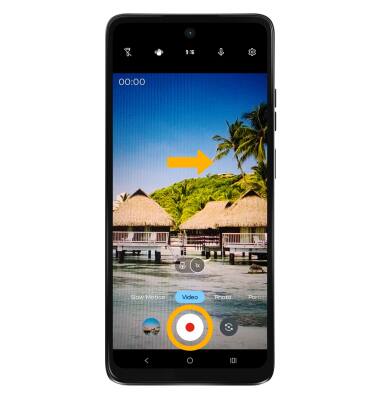
Switch between front and rear cameras
Select the Switch camera icon.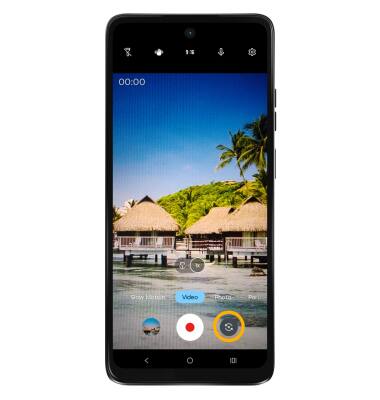
Focus the camera
Select the screen in the desired location to focus the camera. A circle will appear when the area is selected.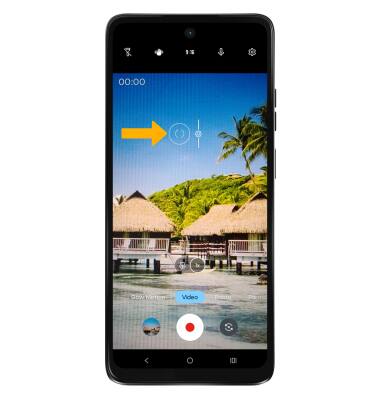
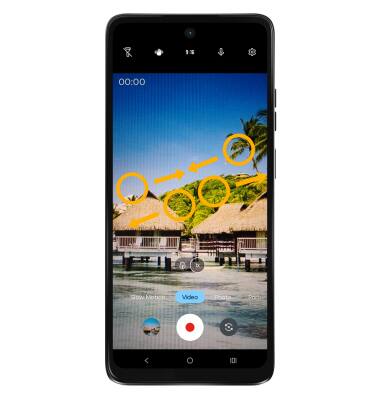
Zoom in and out
Note: Zoom out all the way to 0.5X to capture Ultra-wide angle photos and videos.
Pause, stop and save a video
To pause a recording, select the Pause icon. To stop recording, select the Stop icon.
Note: To resume a recording, select the  Play icon. Alternately, you can start or stop a video recording by pressing one of the Volume buttons. Videos are automatically saved when recording ends.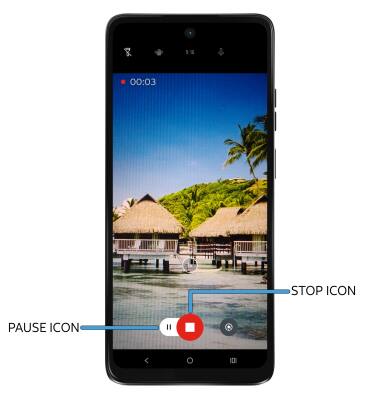
Capture a still image while in video mode
While recording, select the Capture icon. 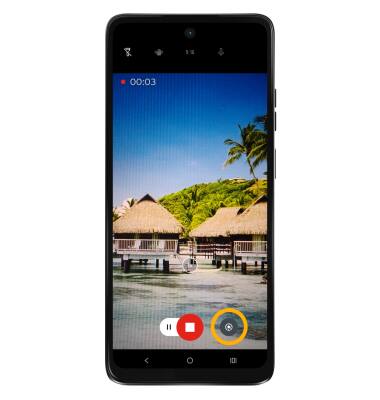
Use Timelapse mode
To access and use Timelapse mode, swipe left to More then select Timelapse. To begin a time lapse recording, press the Record button. 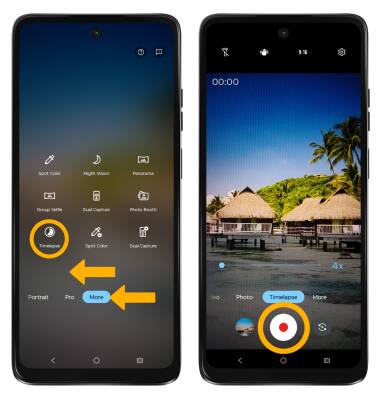
Use Spot Color
Spot Color allows you to choose one color and turn the rest of the photo black and white. To access the Spot Color feature, swipe left to More, then select the Video Spot Color icon. Select the desired area of the photo to choose a color, then drag the slider at the bottom to adjust the amount of black and white.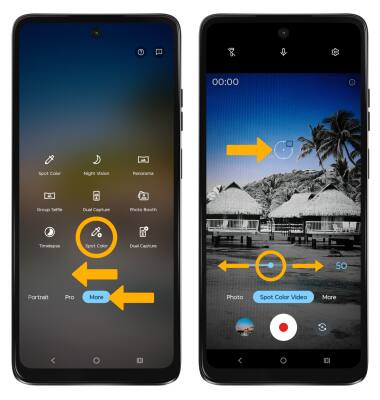
Use Slow Motion mode
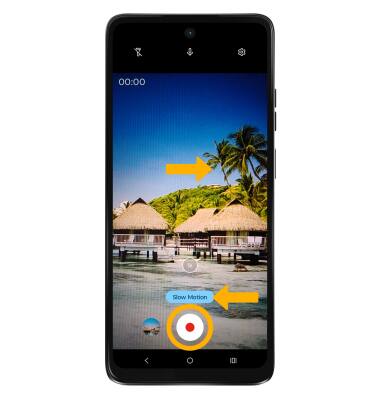
Slow Motion allows video recordings to be recorded at a lower playback speed. To use Slow Motion, swipe right to Slow Motion then select the Record icon.
Use Dual Capture mode
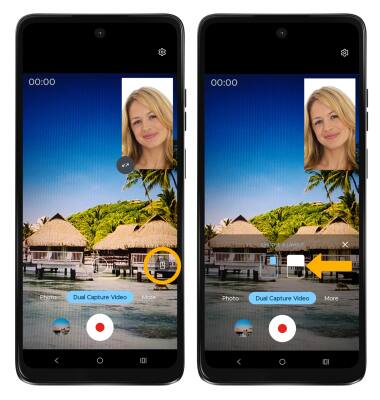
1. Dual Capture can capture one picture using two cameras. From the Camera app, swipe left to More then select the Dual Capture Video icon.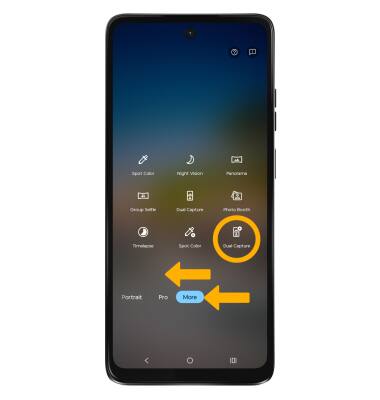
2. Select the Switch icon on the upper right to change the selfie photo camera to the front-facing camera.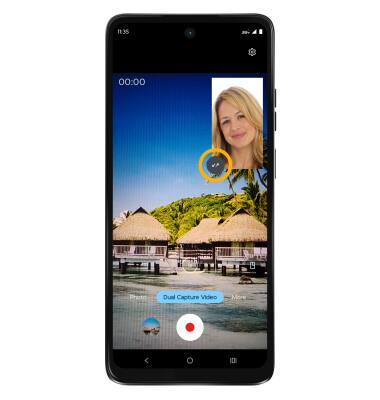
3. Select the Layout icon then select the desired layout to change layout style of the view.