
 To access the Camera app, from the home screen, select the
 In this tutorial, you will learn how to:
• Change the picture size
• Set a timer
• Turn the shutter sound on or off
• Set Volume button function
• Read a QR code
• Add gridlines
To access the Camera settings, from the home screen, select More on the My apps widget > navigate to and select the  Camera app > select the Settings icon. If the My apps widget is not displayed, select the Search icon > search for and select Camera.
Change the picture size
From the camera screen, select the  Ratio icon then select the desired option.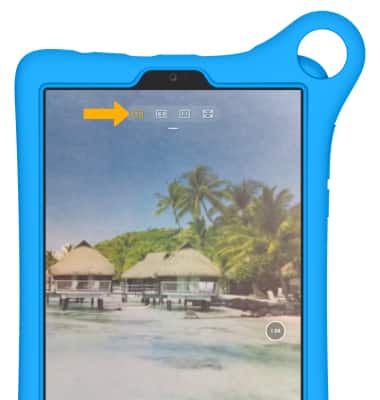
Set a timer
From the camera screen, select the  Timer icon then select the desired time.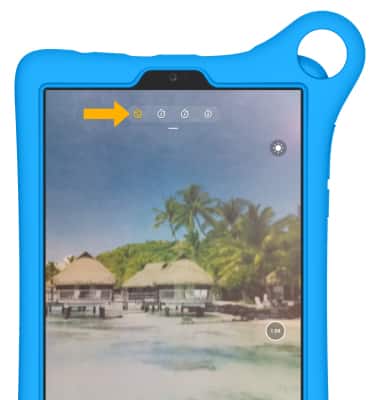
Turn the shutter sound on or off
From the Camera settings screen, select the Shutter sound switch.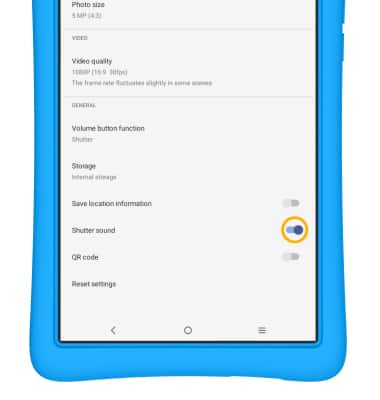
Set Volume button function
From the Camera settings screen, select Volume button function, then select the desired option.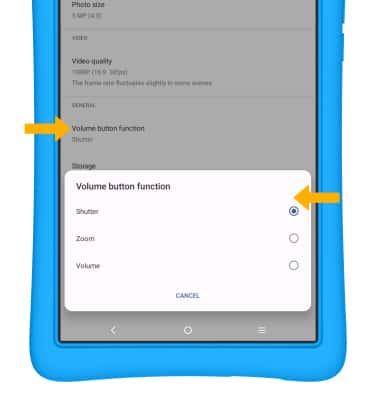
Read a QR code
1. From the Camera settings screen, select the QR code switch.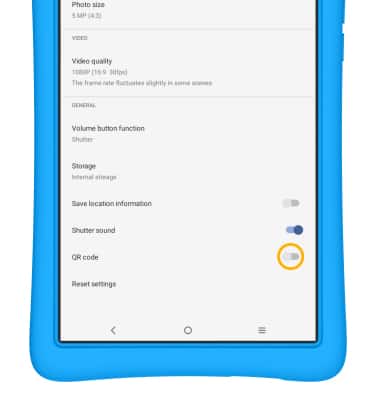
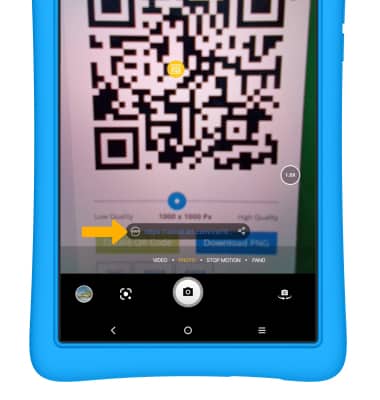
2. When the QR code switch is enabled, the link will be shown whenever a QR code is detected.
Add gridlines
1. From the camera screen, select the Gridline icon.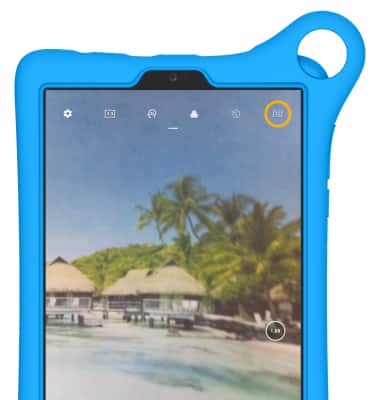
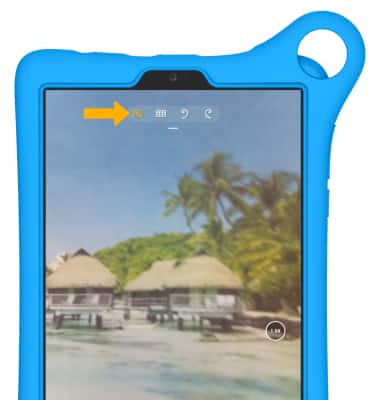
2. Select the desired gridline option.
Tips
ALTERNATE METHODS TO ACCESS CAMERA: Press the Side button twice or from the lock screen swipe left from the  Camera icon.
CHANGE CAMERA MODES: From the Camera app, swipe left or right to access different camera modes.