 The AT&T amiGO™ app comes pre-installed onAT&T amiGO™ devices. To pair a smartphone with your AT&T amiGO™ device, you must first install the app on your smartphone. Visit the
 In this tutorial, you will learn how to:
• Add a SafeZone
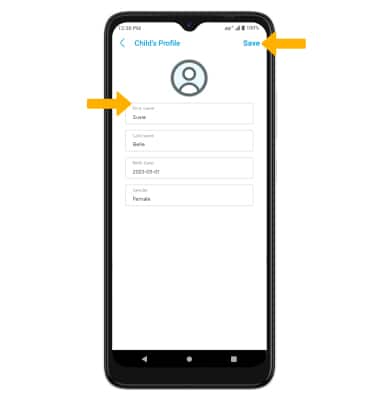
• Update child's profile
• Call or message your child
• Contact a contact from the tablet
To access the AT&T amiGO™ app, swipe up from the home screen to access the App tray, then select the  AT&T amiGO™ app.
Add a SafeZone
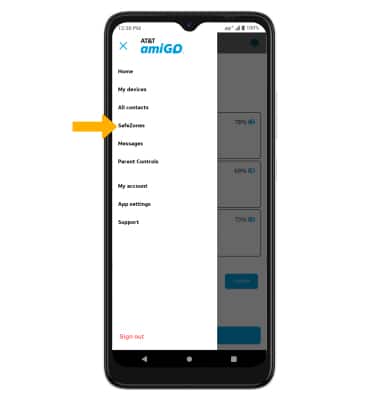
1. Setting SafeZones lets you receive a notification when the tablet enters or exits a geographical area. From the AT&T amiGO™ app on your smartphone, select the  Menu icon then select SafeZones.
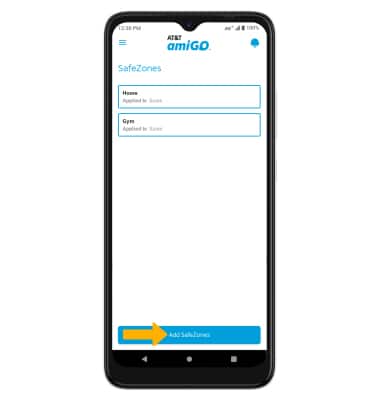
2. Select Add SafeZones.
3. Enter the address and zone name of the SafeZone, then select and drag the radius slider to set a desired radius.
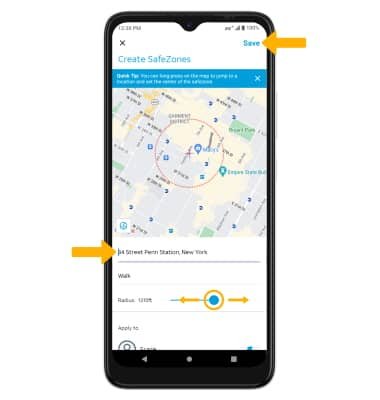
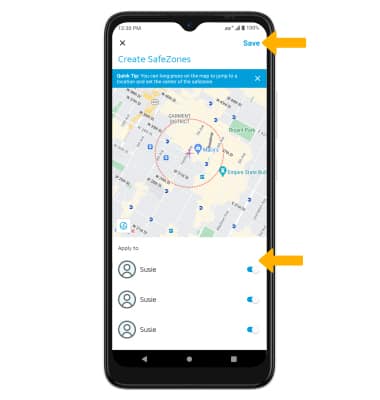
4. Scroll to and select the switch next to the desired child you wish to apply the SafeZone to. When finished, select Save.
Note: You will be prompted to select OK to confirm.
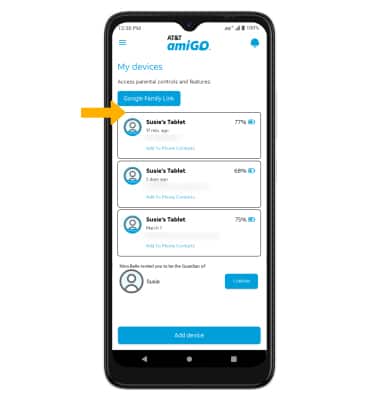
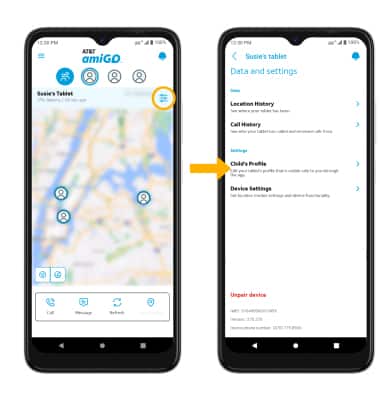
Update child's profile
Call or message your child
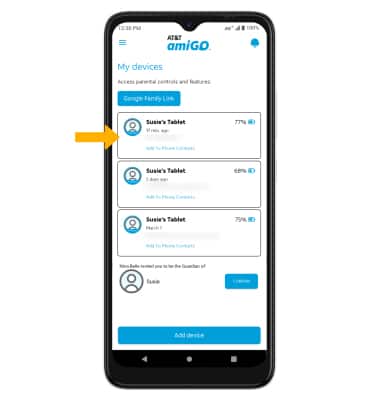
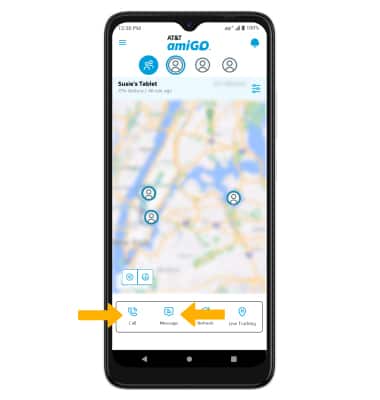
• CALL: Select the Call icon.
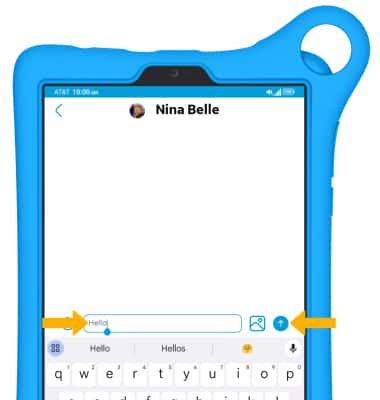
• MESSAGE: Select the Message icon. Enter your message, then select the Send icon.
Contact a contact from the tablet
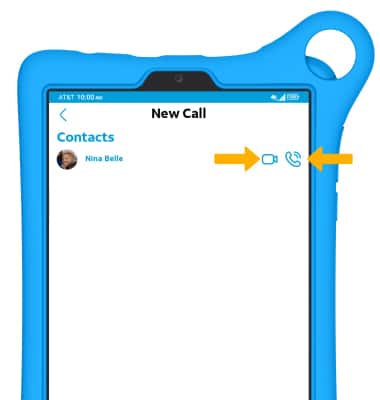
CALL A CONTACT: From the AT&T amiGO™ app on your tablet, select Call.
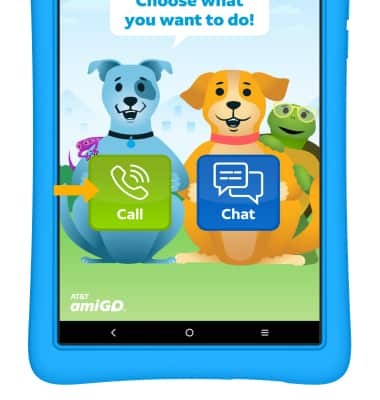
Select the Voice call icon next to the desired contact to initiate a voice call, or select the Video call icon next to the desired contact to initiate a video call.
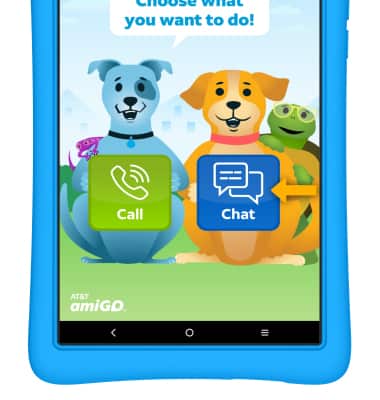
MESSAGE A CONTACT: From the AT&T amiGO™ app on your tablet, select Chat.
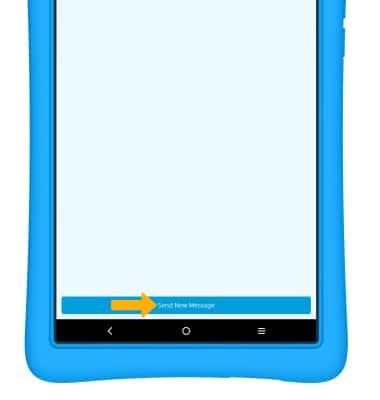
Select Send New Message.
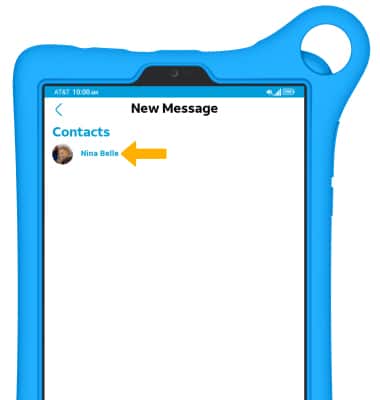
Select the desired contact.
Enter the desired message, then select the Send icon.