
In this tutorial, you will learn how to:
• Set up Google Meet
• Make a video call
• Make a group video call
• Respond to an incoming call
• Video call options
This tutorial shows how to make a video call through the Google Meet app. The AT&T amiGO™ Jr. Tab is also able to make and receive video calls through the  AT&T amiGO™ app. For more information on how to use the AT&T amiGO™ app, visit AT&T amiGO™ Companion App.
Set up Google Meet
From the home screen, select More on the My apps widget then navigate to and select the  Meet app.
Note: If the My apps widget is not displayed, select the Search icon > search for and select Meet. Upon first access, you will be prompted to choose an account. Select Continue as or Use Meet without an account. You will also be prompted to allow access to your microphone and camera. Select Allow to continue. For more information, please visit Set up Google Meet.
Make a video call
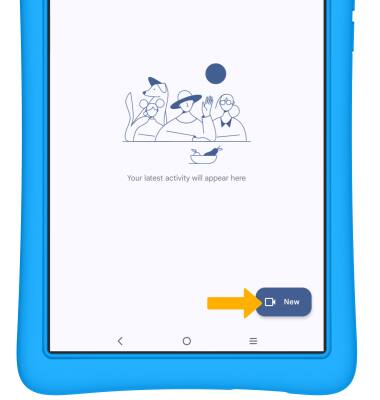
Note: In order to make a call, both users must be signed in to Google Meet.
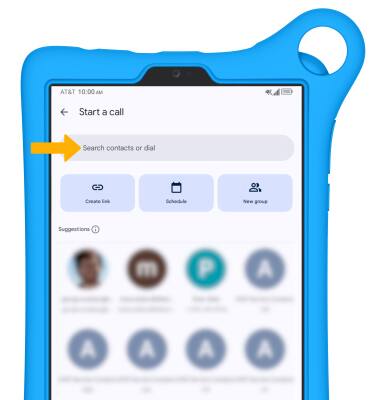
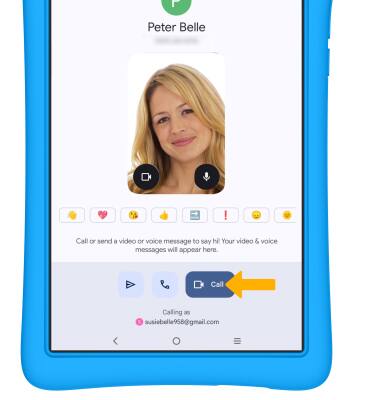
3. Select Video call icon to begin a video call.
Make a group video call
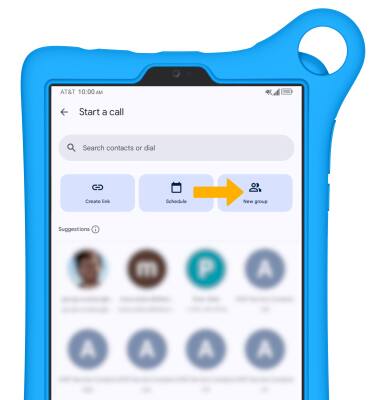
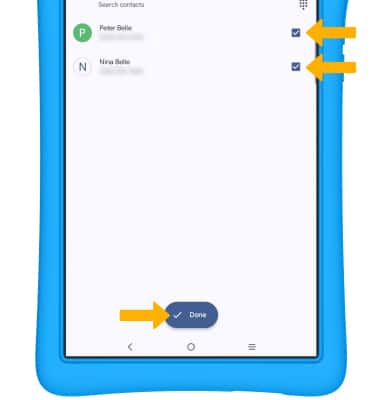
Note: You can add up to 100 people (when using a personal Google account) and up to 500 people (when using a Business or Enterprise account) to the video call. The person talking is shown on screen at that time. For more information, visit Requirements for using Google Meet.
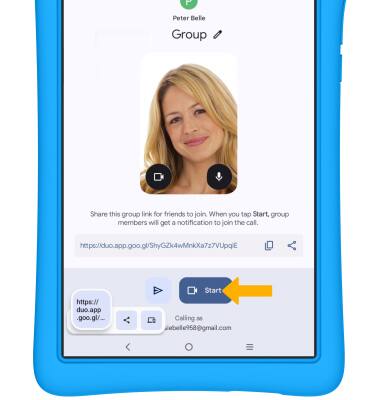
3. Select Start to begin a video call.
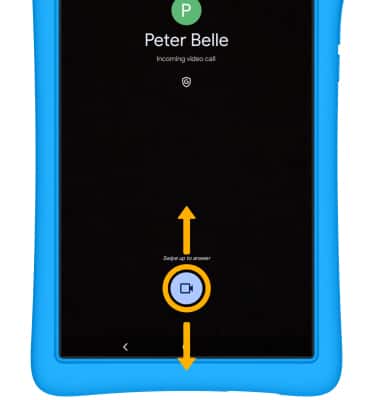
Respond to an incoming call
Video call options
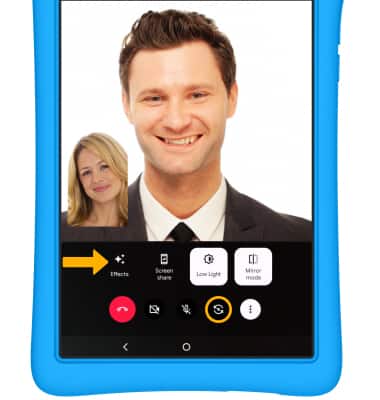
• USE FILTERS: Select the
 More icon, then select the Effects icon.
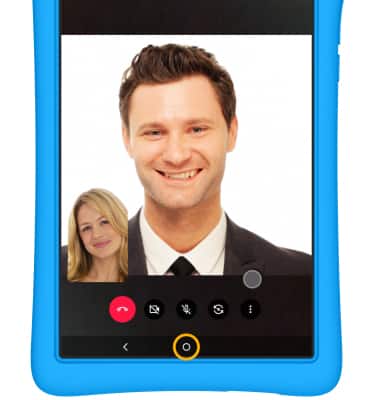
To use your phone while on a video call, select the Home button to return to the home screen.
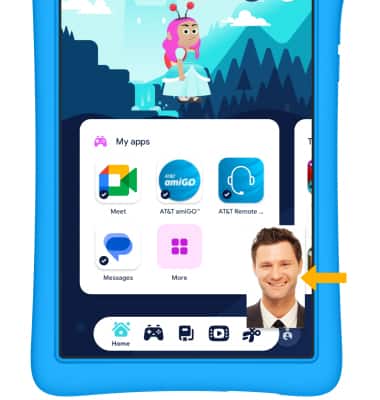
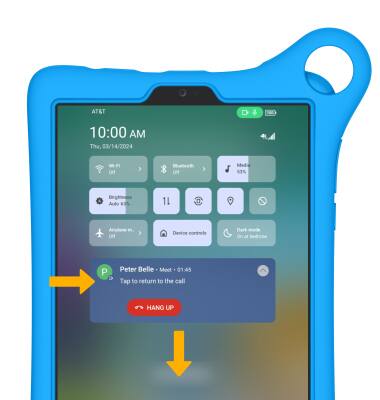
To return to a call, swipe down from the Notification bar, then select the active call notification.