
In this tutorial, you will learn how to:
• Access cellular data
• Turn mobile data on or off
• Turn international data on or off
• Quickly turn mobile data on or off
Check network connection strength
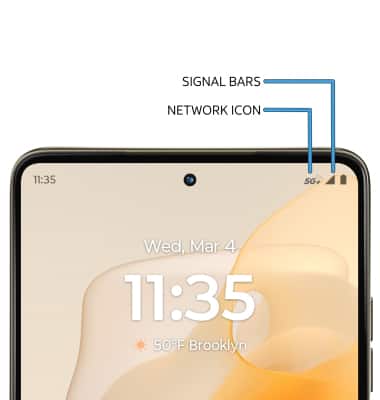
• CONNECTION TYPE: When connected to 5G, the Network icon will be displayed in the Notification bar.
• CONNECTION STRENGTH: The Signal Bars display the connection strength. The more bars that are displayed, the better the connection.
Access cellular data
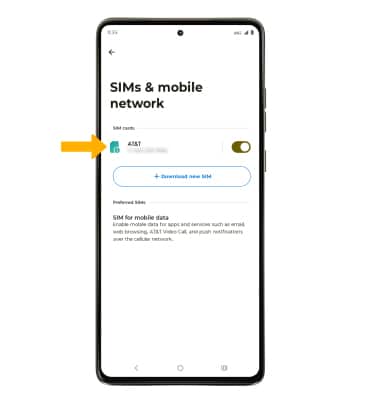
1. Swipe down from the Notification bar with two fingers, then select the  Settings icon.
2. Select Network & internet, then select SIMs & mobile network. 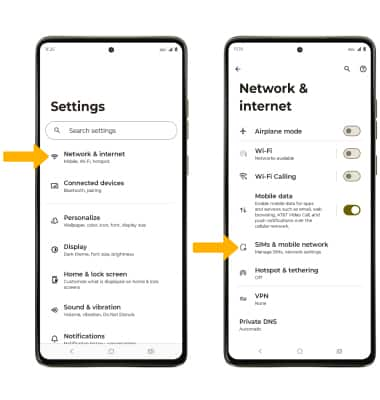
3. Select the desired SIM.
Turn mobile data on or off
From the SIMs & mobile network screen, select SIM for mobile data, then select the Use mobile data switch.
Note: Mobile data is on by default. Turning off mobile data will not allow any data to be transferred over the wireless network. Wi-Fi access, voice function, and standard text messaging are still allowed. You can also turn data on or off by device using your own myAT&T account.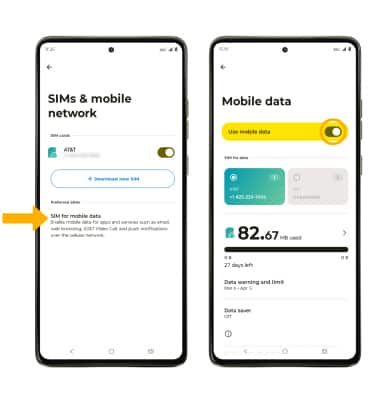
Turn international data on or off
From the SIMs & mobile network screen, select the desired SIM, then scroll to and select the International Data Roaming switch.
Note: Data roaming is off by default. Enabling Data roaming will allow the device to attach to foreign wireless network signals when available. International roaming charges will apply. This setting does not apply to voice access, which requires additional provisioning for usage on international networks. To learn more, visit the AT&T International website.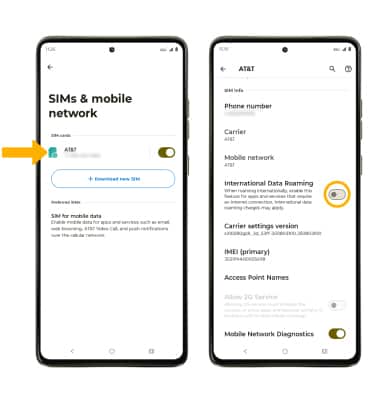
Quickly turn mobile data on or off
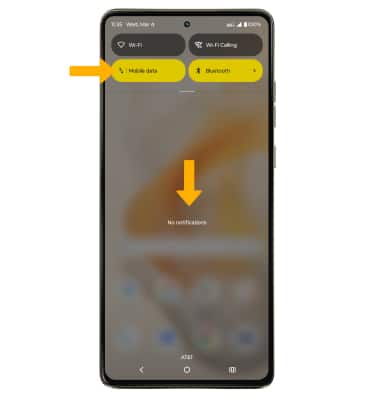
Swipe down from the Notification bar, then select the Mobile data icon.