In this tutorial, you will learn how to:
• Change wallpaper
• Add widgets
• Access Cover Screen settings
• Respond to notifications
Change wallpaper
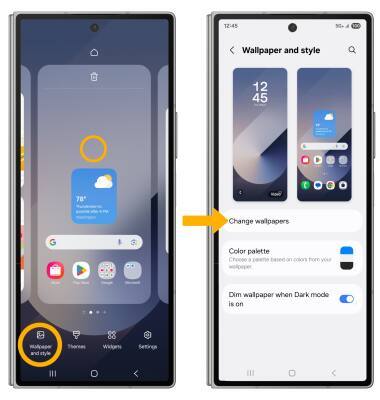
1. From the Cover screen, select and hold an empty part of the home screen. Select Wallpaper and style, then select Change wallpapers.
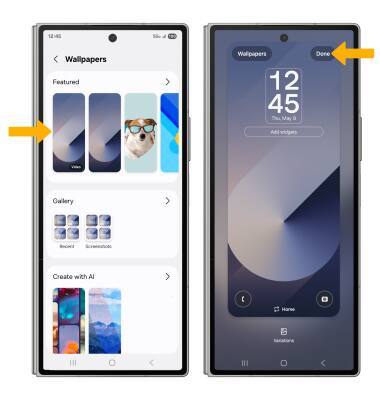
2. Navigate to and select the desired wallpaper, then select Done.
Add widgets
From the Cover screen, select and hold an empty part of the home screen, then select Widgets. Navigate to and select the desired widget, then select Add.
Note: To move widgets, select and drag the desired widget to the desired location.

Access Cover Screen settings
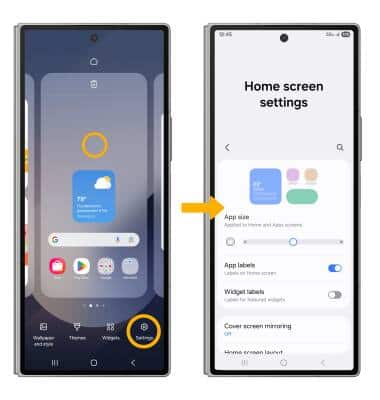
From the Cover screen, select and hold an empty part of the home screen. Select the Settings icon. Edit settings as desired.
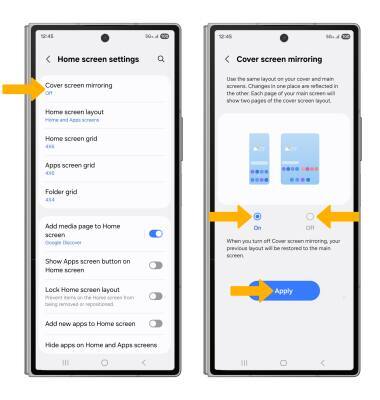
ENABLE OR DISABLE COVER SCREEN MIRRORING: From the home screen settings screen, select Cover screen mirroring. Select the desired option, then select Apply.
Respond to notifications
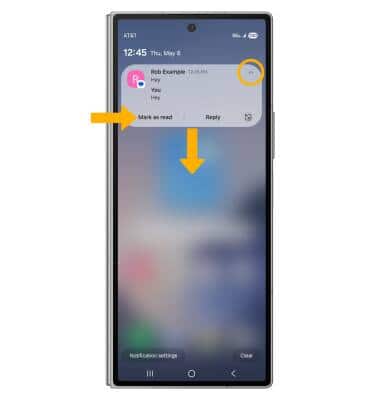
From the Cover screen, swipe down from the Notification screen. Select the drop-down icon then select the desired response or action.