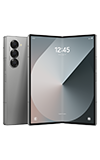
In this tutorial, you will learn how to:
• Access and use Generative edit
• Access and use Edit suggestions
Access and use Generative edit
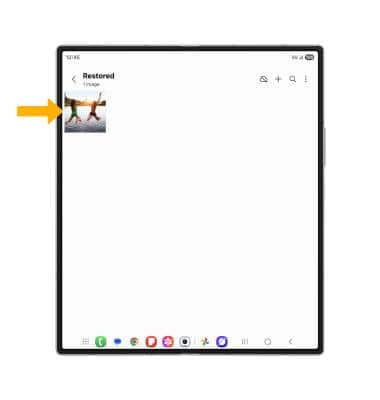
1. Navigate to and select the Gallery app. Select the desired image to edit.
Note: To access the Gallery app, from the home screen, select the Gallery app.
2. Select the Generative edit icon.

3. Select and hold an object or, with your finger or S Pen, circle the desired object to wish to edit.

4. Edit as desired, then select Generate.

5. When finished, select Save copy.

Access and use Edit suggestions
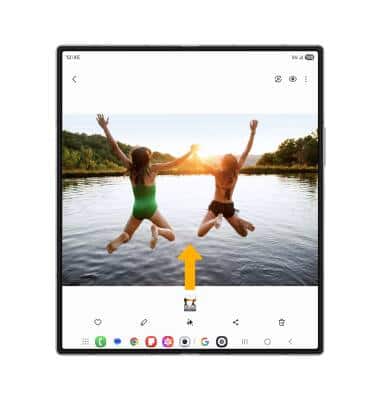
1. From the desired image in the Gallery app, swipe up to show the image's information.
Note: Displayed Edit suggestions will vary depending on the photo. Typical Edit suggestions include Background blur, Colorize, and Remaster.
2. Select the desired smart edit suggestion to use.
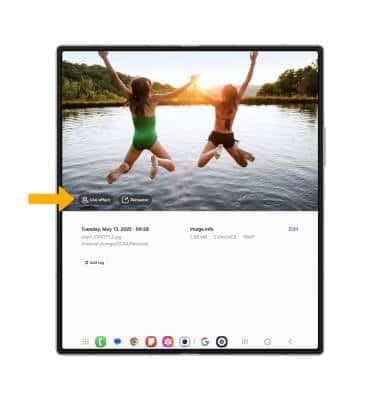
3. Edit as desired, then select Save.