In this tutorial, you will learn how to:
Add an app to the home screen
From the home screen, swipe up to access the Apps tray. Select and drag the desired app to the desired location on the home screen.
Note: To remove an app from the home screen, select and drag the desired app to Remove at the top of the screen.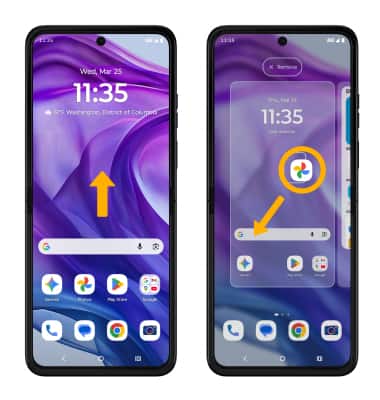
Add/remove a folder from the home screen
Select and drag the desired app over another app, then release. A new folder will automatically be created. To delete a folder, remove all apps from the folder. The folder will automatically be deleted.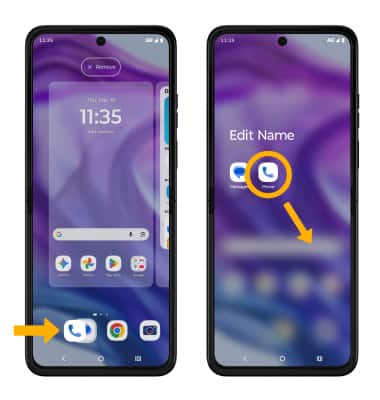
Edit display options
Select and hold an empty space on the home screen, then perform the following for the desired display option: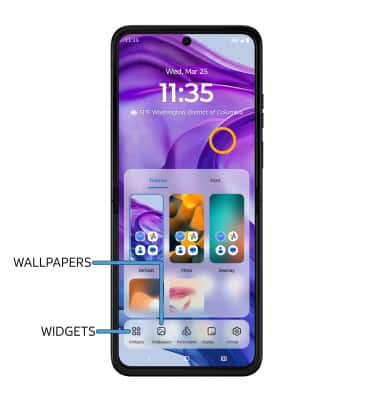
• ADD A WIDGET: Select Widgets, then select and drag the desired widget to the desired location.
• CHANGE WALLPAPER: Select Wallpapers, then navigate to and select the desired wallpaper.
Access Moto personalization options
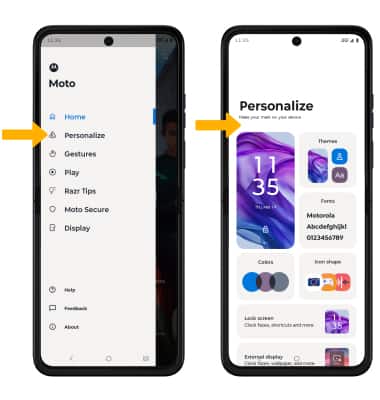
1. From the home screen, swipe up from the center of the screen to access the Apps tray then navigate to the Moto folder and select the  Moto app.
2. Select the  Menu icon, then select Personalize. Edit options as desired.
Tips
Live wallpapers can increase battery consumption. Visit the Optimize Battery Life tutorial for more information.