
 Camera app.
In this tutorial, you will learn how to:
• Access camera modes
• Customize photo and video settings
• Crop a photo
• Access camera filters
• Access and use Photo Booth
• Access and use Tilt Shift
Access camera modes
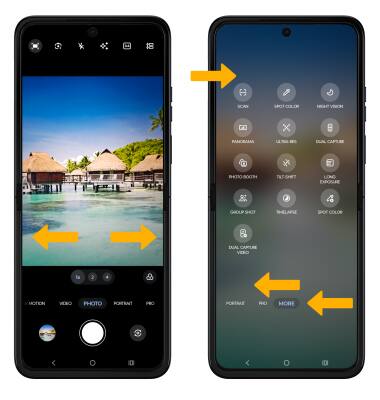
From the Camera app, swipe left or right to access Portrait or Pro. Swipe left to More to access modes such as Scan, Panorama, and Timelapse.
Note: Portrait allows you to highlight the subject of a photo by blurring the background. Pro allows you to take photos in manual mode. Scan allows you to scan documents. Panorama allows you to create wider photos by stitching together multiple photos. Timelapse allows you to create time-lapse videos. Not all of these options are available when using the front facing camera.
To access Google Lens, select the Google Lens icon then follow the prompts to use.

Customize photo and video settings
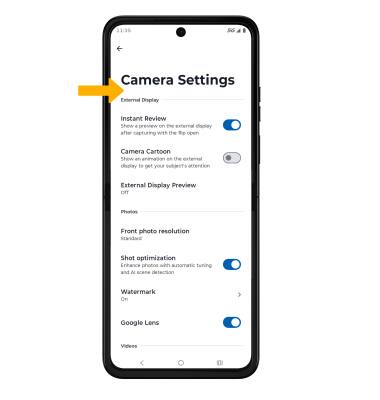
From the Camera app, select the  Settings icon. Adjust settings as desired.
Crop a photo
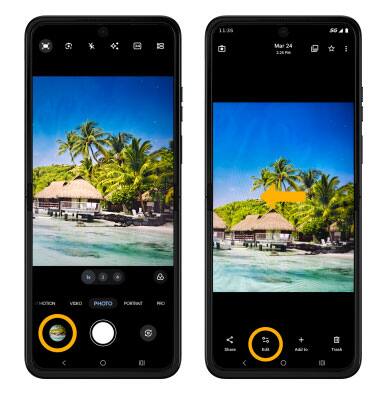
1. From the Camera app, select the Gallery icon. Swipe left to the desired photo, then select Edit.
Note: Alternately, from the home screen, select the  Photos app > navigate to and select the desired photo.
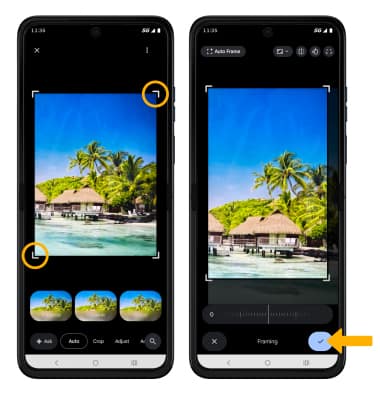
2. Select and drag the crop corners to crop as desired. When finished, select the Checkmark icon.
Access camera filters
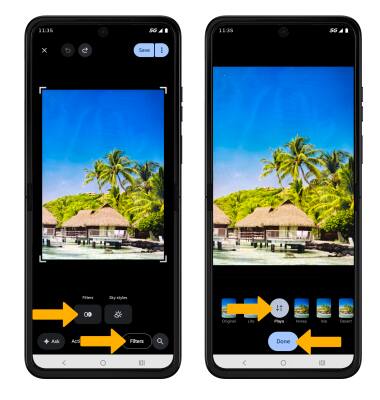
From the Action screen, select the Filter tab then select Filters. Select the desired filter, then select Done.
Access and use Photo Booth
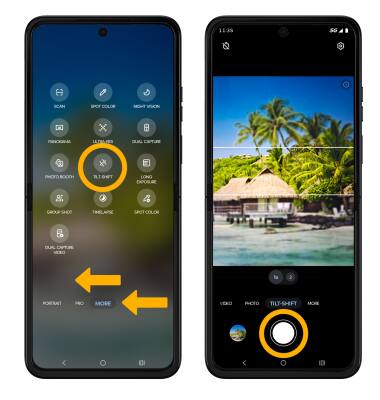
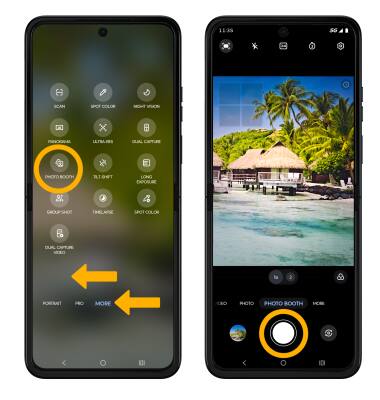
Photo Booth allows you to take sequences of four photos in a row with a few seconds between each shot. To access the Photo Booth feature, swipe left to More then select Photo Booth. Select the Capture icon.
Access and use Tilt Shift
Tilt Shift allows you to focus on one subject and blur the rest of the background in the photo. To access the Tilt Shift feature, swipe left to More then select Tilt Shift. Select the Capture icon.