In this tutorial, you will learn how to:
• Access keyboard settings
• Use one-handed operation
• Use Swype
• Use Auto-complete suggestions
• Access emojis, speech-to-text, capitalize text & symbols
• Use Voice Typing
Access keyboard settings
When the keyboard is visible, select the Settings icon. Keyboard settings allow you to change languages, keyboard height and layout, and adjust smart typing features.
Note: To access keyboard settings outside of the keyboard screen, swipe down from the Notification bar with two fingers, then select the  Settings icon > scroll to and select System > select Keyboard > On-screen keyboard > Gboard.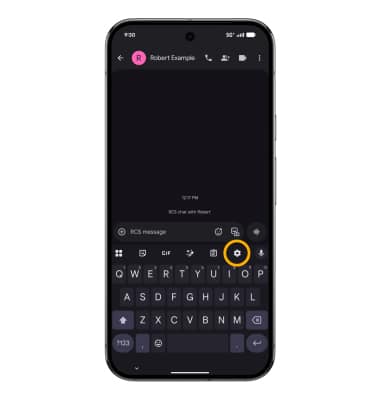
Use one-handed operation
When the keyboard is visible, select the Menu icon, then select One-handed.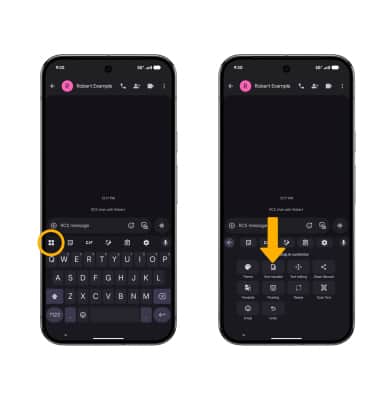
Use Swype
Select and drag across each letter of the desired word without removing your finger from the screen. Words will automatically be entered into the text field.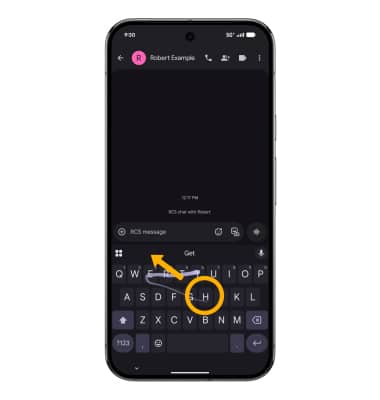
Use Auto-complete suggestions
When typing a word, three suggestions will appear at the top of the keyboard. Select the desired suggestion to enter it into the text field.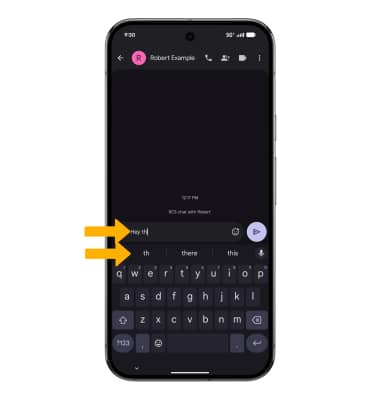
Access emojis, speech-to-text, capitalize text & symbols
Select the desired option: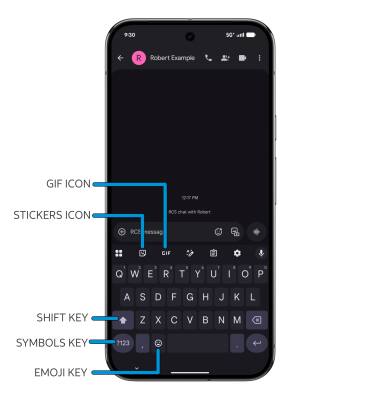
• STICKERS: Select the Stickers icon.
• GIFS: Select the GIF icon.
• CAPITALIZE TEXT: Select the Shift key to capitalize the next letter. Double-tap the Shift key to enable or disable caps lock.
• SYMBOLS: Select the Symbols key.
• EMOJIS: Select the Emoji key.
Use Voice Typing
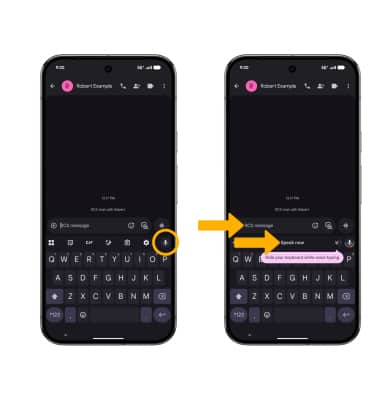
When a text area is selected, select the Microphone icon, then speak the words you wish to type out when "Speak now" appears under the Text message field. When finished, the spoken words will appear as text in the input field.