In this tutorial, you will learn how to:
• Access contacts
• Call or send a message
• Add a contact
• Edit or delete a contact
• Add a ringtone to a contact
• Back up your contacts
Access contacts
Press the Watch Crown to access Apps tray, then scroll to and select the  Contacts app.
Call or send a message
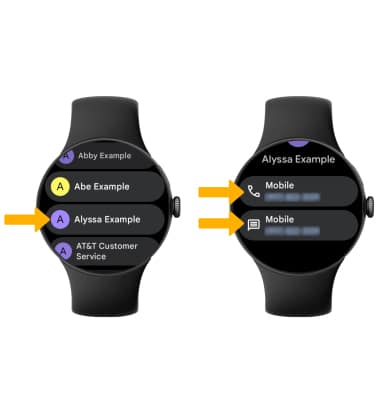
From the Contacts app, scroll to and select the desired contact. To call the contact, select the Phone icon. To send a message, select the Message icon.
Add a contact
1. On your paired device, navigate to and select the Contacts app, then select the  Add icon.
Note: If prompted, select the desired save location.
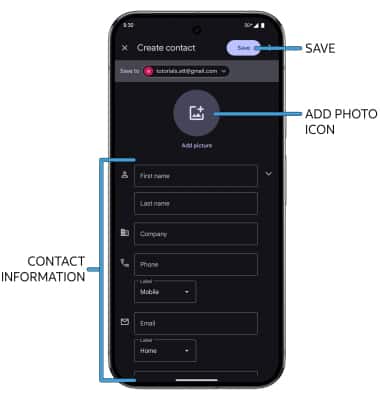
2. Enter the desired contact information in the corresponding fields. To add a picture, select the Add photo icon, then navigate to the desired image. Select Save when finished. Contacts will sync with your watch automatically
Edit or delete a contact
EDIT CONTACT: Select the desired contact, then select the  Edit icon. Edit the contact as desired, then select Save.
DELETE CONTACT: From the desired contact, select the  Menu icon, then select Delete. Select Move to Trash to confirm.
Add a ringtone to a contact
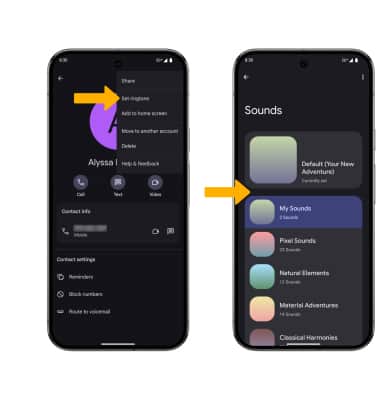
1. From the desired contact screen on your paired device, select the Menu icon, then select Set ringtone. Select the desired sound.
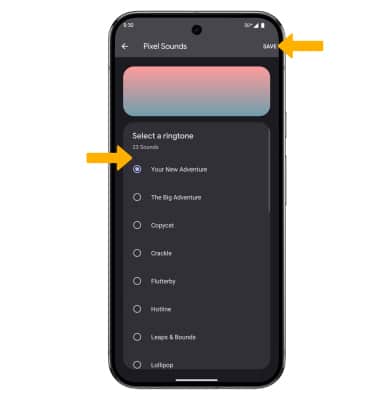
2. Select the desired ringtone, then select Save.
Back up your contacts
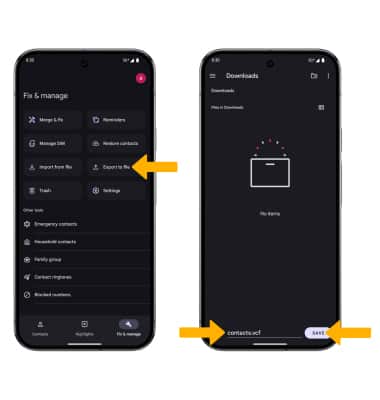
From the Contacts screen on your paired device, select the Fix & manage tab > Export to file > navigate to and select the desired storage location > enter the desired file name > select SAVE. Your contacts will be exported.