
In this tutorial, you will learn how to:
• Enable Live Translate
• Use Live Translate on text messages
• Use the camera to translate
• Use Live Caption when watching media in any language
The Google Tensor chip helps artificial intelligence understand you, take better pictures, and so much more. Machine learning recognizes speech and turns it into text in real time through Live Caption. Tensor also makes real-time language translation possible with Live Translate, either speech-to-text or directly to audio.
Enable Live Translate
1. Swipe down from the Notification bar with two fingers, then select the  Settings icon.
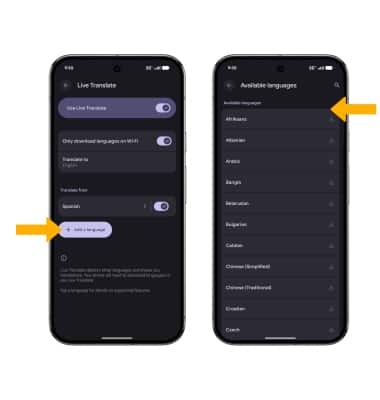
2. Scroll to and select System > select Live Translate > Use Live Translate switch.
Note: Google Tensor translates conversations and audio in real time. Whether you're texting, holding a phone call, or watching videos, you'll see translations appear alongside the audio.
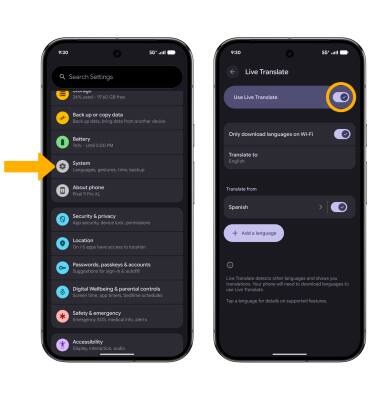
3. Select Add a language, then select the Download icon next to the desired language.
Note: When prompted, select Add language to confirm. Once the language add-on has been downloaded, the language can be enabled or disabled by toggling the corresponding switch under the Translate from section on the Live Translate screen.
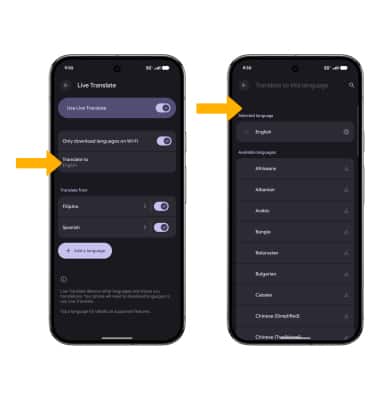
4. Select Translate to, then select the desired option.
Note: Select Select language to confirm.
Use Live Translate on text messages
1. From the home screen, select the  Messages app.
2. Select the desired message thread. When you open your messages, Live Translate will detect a language according to your preferred settings. Select Translate to at the top of the screen.
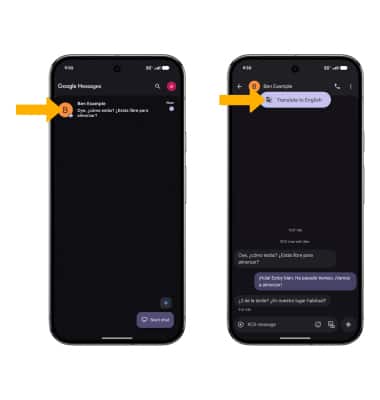
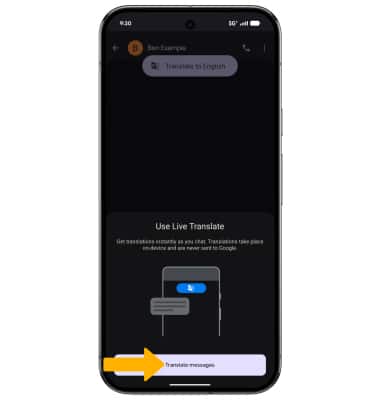
3. Select Translate messages. The message will be translated instantly.
Note: To change language settings, select the language drop-down arrow at the top of the screen. Edit language preferences as desired.
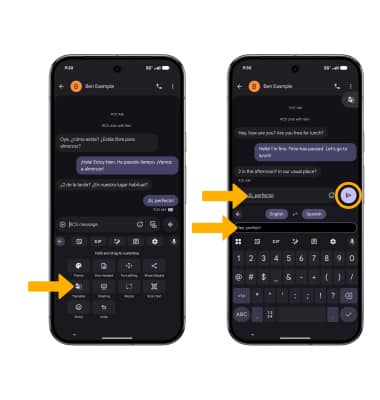
4. To answer back in the desired language, select the  Menu icon then select Translate. Type your response in the Type here to translate field. Your translated message will appear in the Text message field. When finished, select the Send icon.
Use the camera to translate
1. From the home screen, select the Lens icon. Select Translate.
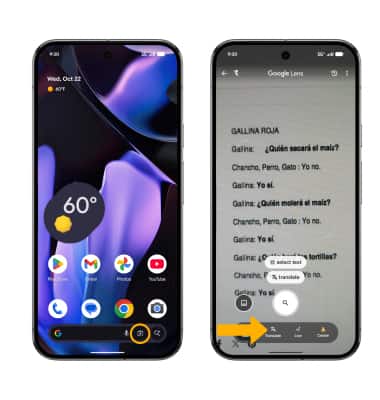
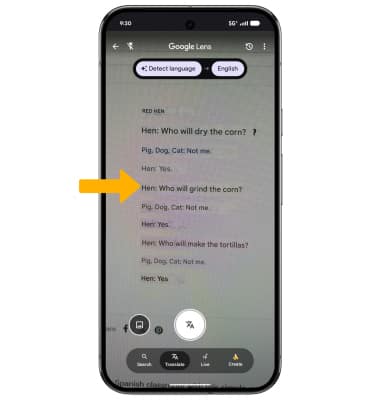
2. Point the camera at the desired text you would like to translate. Google Lens will automatically identify the language and translate text to English.
Note: Select the displayed languages at the top of the screen to change the languages.
Use Live Caption when watching media in any language
1. Swipe down from the Notification bar with two fingers, then select the Settings icon.
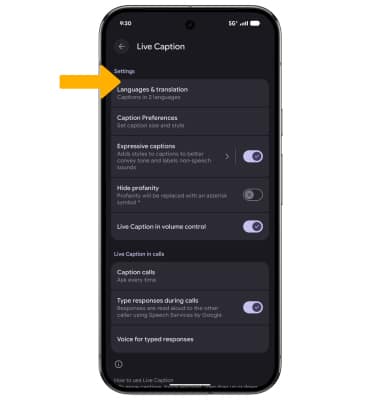
2. Scroll to and select Accessibility > Live Caption > select the Use Live Caption switch.
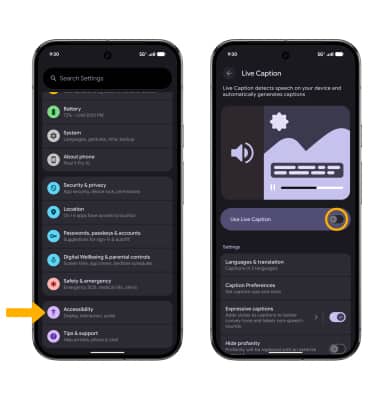
3. Scroll to and edit settings as desired.