In this tutorial, you will learn how to:
• Access a voice note
• Delete a voice note
Create a voice note
1. To create a voice note, press and hold the Side button to launch Google Assistant. Say "Create a voice note". 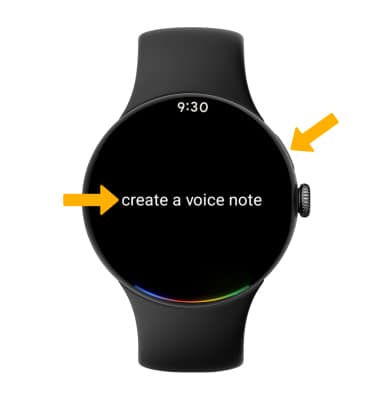
2. Say the desired voice note. Voice notes will save automatically.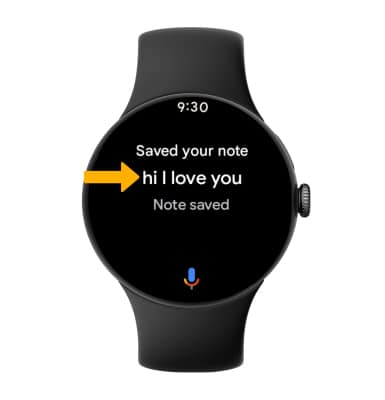
Access a voice note
1. Press the Watch Crown to access the Apps tray, then scroll to and select the  Keep Notes app.
Note: The Keep Notes app does not come pre-download on the Google Pixel Watch. To install, navigate to and select the Play Store app > search for Google Keep - Notes and Lists > Install.
2. Voice notes will be displayed.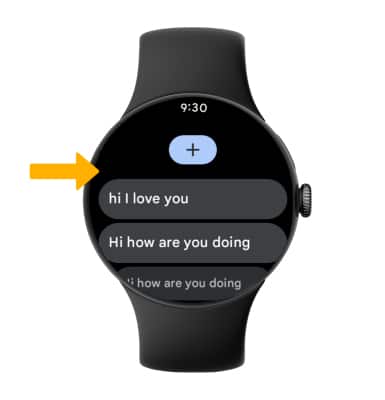
Delete a voice note
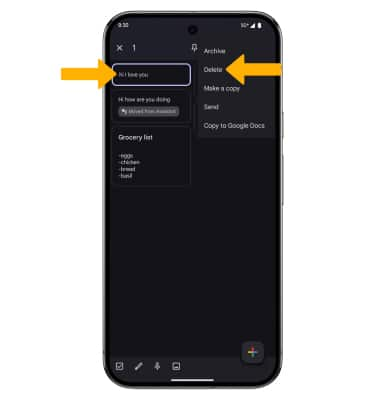
1. On your paired device, navigate to and select the Keep Notes app.
Note: You can can only delete a voice note from your pair device.
2. Select and hold the desired voice note. Select the  Menu icon, then select Delete.