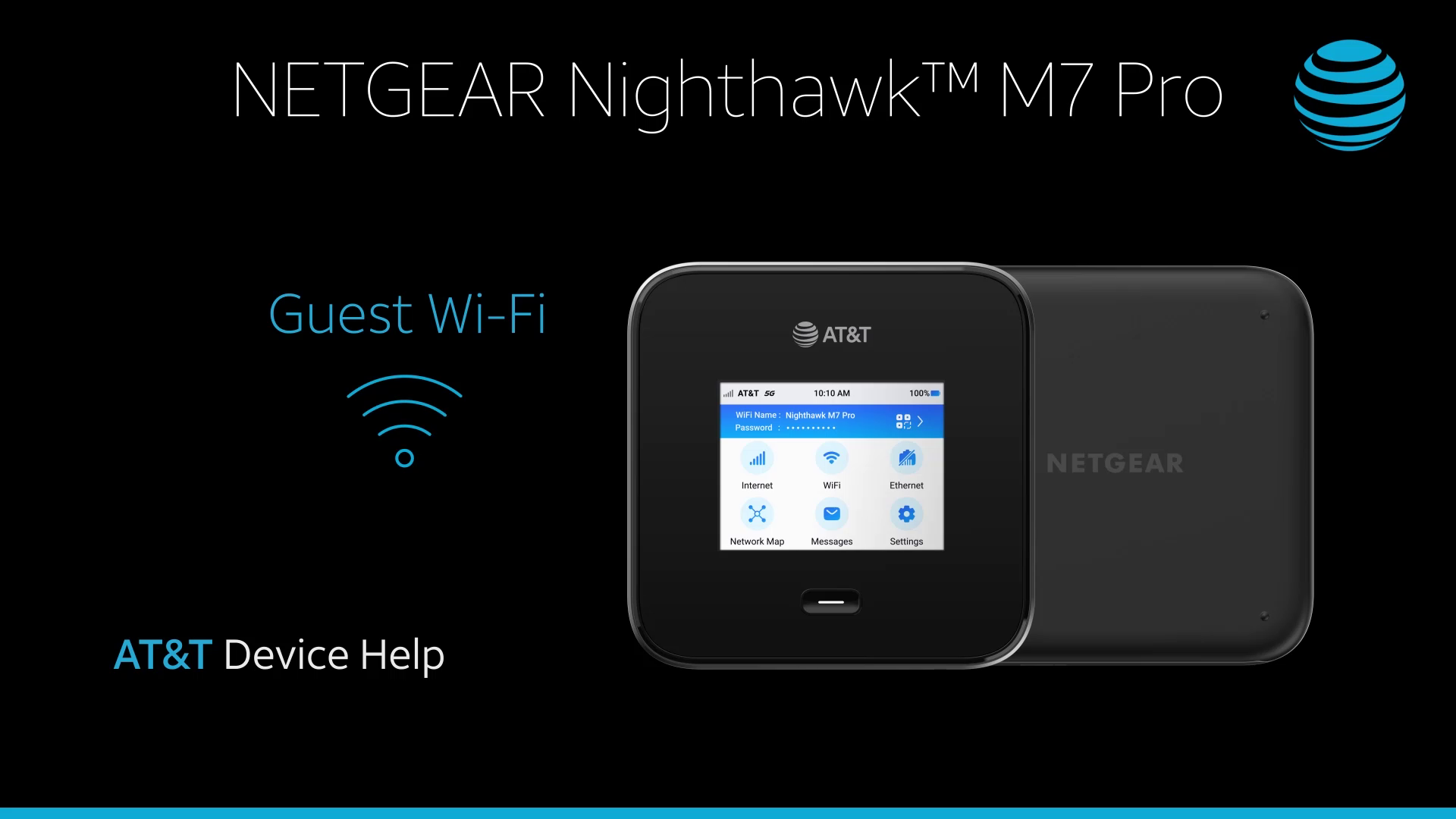

Turn on guest network
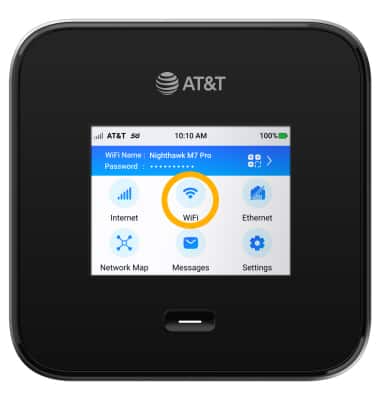
1. From your device's home screen, select WiFi.
Note: Ensure that your device is connected to the Netgear Nighthawk's Wi-Fi network. For more information, please see the Connect Devices to Wi-Fi or Connect PC or Mac to Wi-Fi tutorials.
Note: Ensure that your device is connected to the Netgear Nighthawk's Wi-Fi network. For more information, please see the Connect Devices to Wi-Fi or Connect PC or Mac to Wi-Fi tutorials.
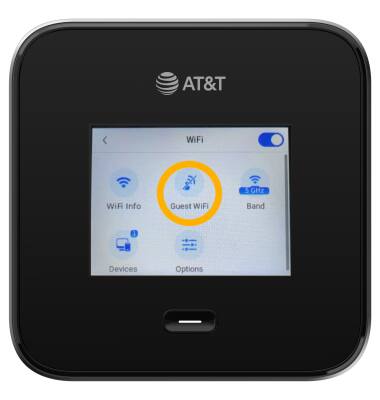
2. Select Guest WiFi.
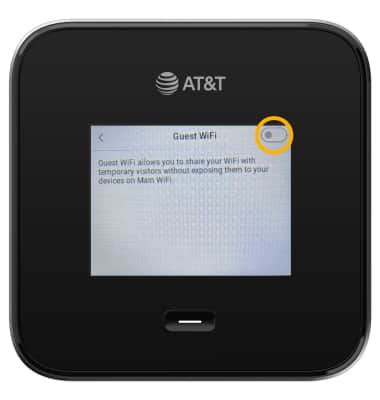
3. Select the Guest WiFi switch to turn it on.
Note: Enabling Guest WiFi requires WiFi offloading to be disabled. Select OK.
Configure guest network
1. To configure Guest Wi-Fi settings, from the Guest WiFi screen, scroll to and select the Edit icon next to the desired option.
Note: For this tutorial, WiFi Name will be selected.

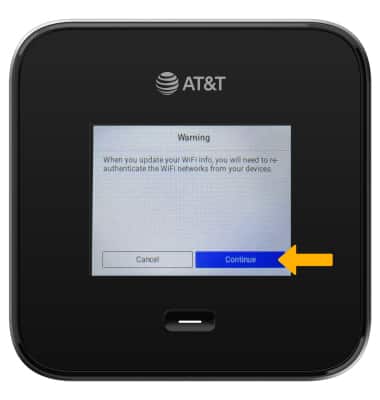
2. Select Continue.
3. Edit the setting as desired then select Done.