In this tutorial, you will learn how to:
• Set up Wi-Fi or Ethernet Offloading
Set up Wi-Fi or Ethernet Offloading
1. From the device home screen, select Internet.
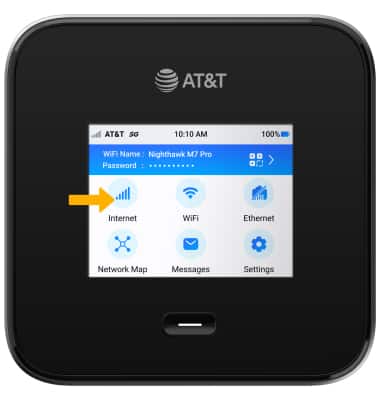
2. Scroll to and select the desired offloading option.
Note: If you are setting up Ethernet offloading, ensure that your ethernet cable is connected in the device and your mobile router.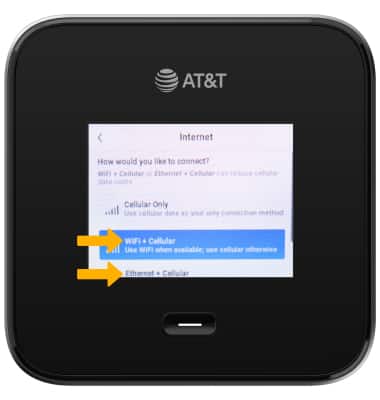
Configure Wi-Fi Offloading
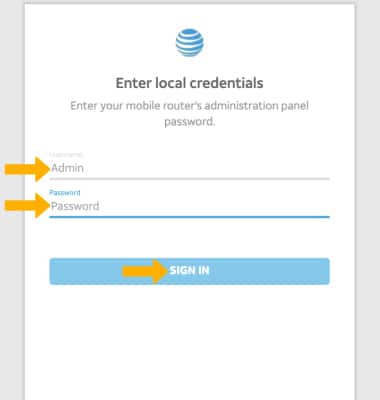
1. To configure WiFi offloading settings, the device must be set up and you must be logged in to the AT&T Wi-Fi Manager website.
From your device's web browser, go to http://attwifimanager or type 192.168.1.1 into the search bar. Enter your Username and Password, then select SIGN IN.
Note: Ensure that your device is connected to the Netgear Nighthawk M7's Wi-Fi network. For more information, please see the Connect Devices to Wi-Fi or Connect PC or Mac to Wi-Fi tutorials.
2. Select Settings. 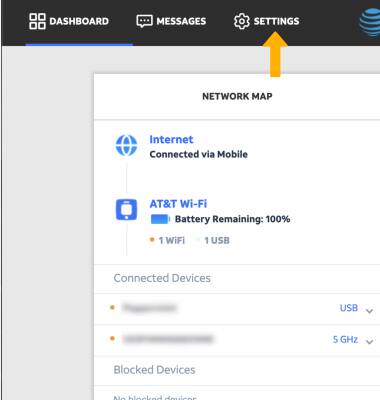
3. Select General, then select Internet.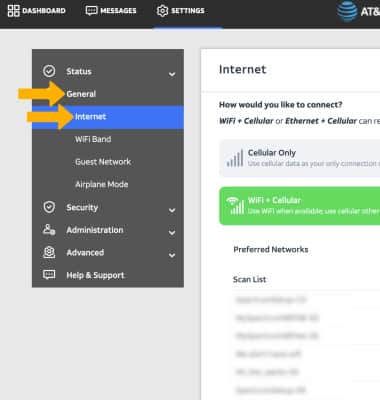
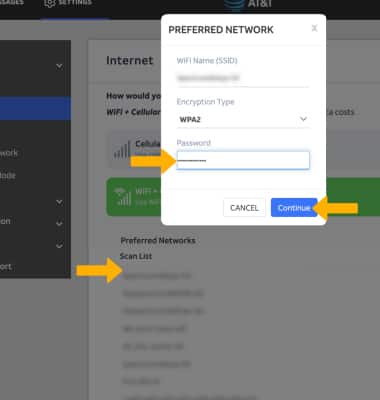
4. Selectthe desired Wi-Fi network, if necessary, enter the password then select Continue.