In this tutorial, you will learn how to:
• Activate FaceTime
• Make a FaceTime call using the Contacts app
• Make a FaceTime call using the FaceTime app
• Respond to an incoming FaceTime call
• Record a video message for missed calls
• FaceTime options
Activate FaceTime
From the home screen, select the  Settings app > scroll to and select FaceTime > select the
  FaceTime switch.
Note: FaceTime requires an applicable data plan and your call recipient must also have a FaceTime-activated iOS device. If you need additional help, view the Apple support article If you can't turn on or sign in to iMessage or FaceTime on your iPhone or iPad. FaceTime now supports up to 32 people at one time. 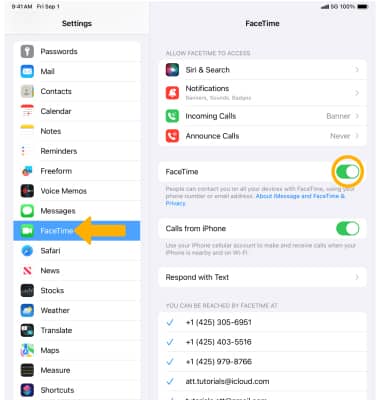
Make a FaceTime call using the Contacts app
1. From the home screen, navigate to and select the  Contacts app.
2. Select the  Sidebar icon, then select the desired contact.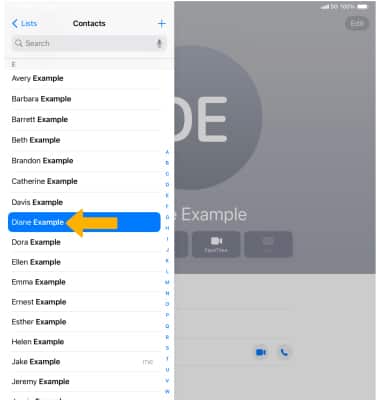
3. To make a FaceTime call, select the video or phone icon next to Facetime.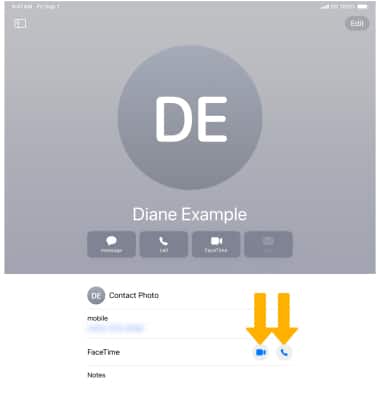
Make a FaceTime call using the FaceTime app
1. From the home screen, select the  FaceTime app.
Note: Upon first using FaceTime, you will be receive a prompt about Center Stage. Center Stage uses machine learning to adjust the front-facing Ultra Wide camera when you use video apps such as FaceTime on your compatible iPad model or Mac connected to Studio Display. As you move around, Center Stage helps keep you and anyone else with you in the frame. Review the prompt, then select Continue.
2. Select the desired contact from the call history or select Create Link or New FaceTime to create a new call and follow the prompts. 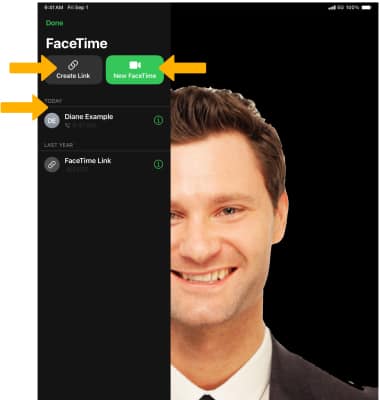
Respond to an incoming FaceTime call

• ACCEPT CALL: Slide the Call icon to the right.
• DECLINE CALL: Press the Sleep/Wake button on the side of the device.
• DECLINE CALL WITH MESSAGE: Select Message, then select the desired message or select Custom... to send a custom message.
Note: If you need additional help, view the Apple support article If you can't make or receive FaceTime calls.
Record a video message for missed calls
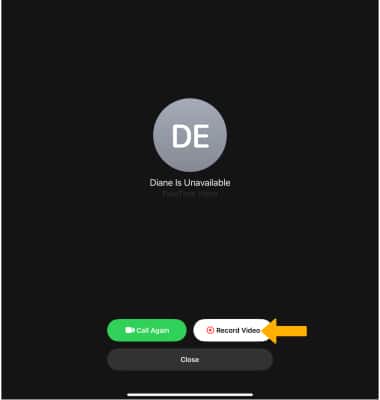
FaceTime options
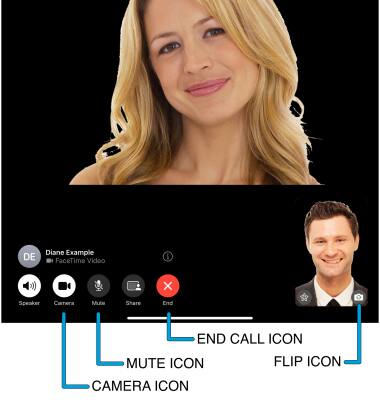
• MUTE: Select the Mute icon.
• SWITCH CAMERAS: Select the Flip icon.
• END CALL: Select the End Call icon.
• HIDE CAMERA: Select the Camera icon.
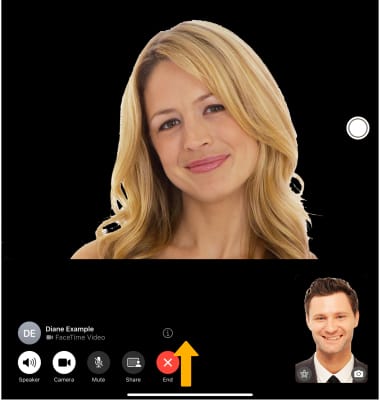
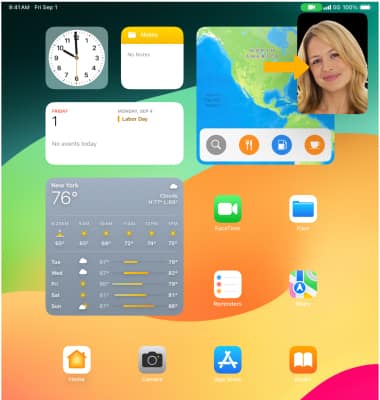
The call will appear in the upper right corner of the screen.