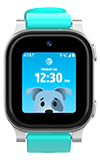

In this tutorial, you will learn how to:
• View available memory
• Free up memory
View available memory
1. From the Watch screen, swipe left three times then select the  Settings app.
2. Scroll to and select Device, then scroll to and select Storage.
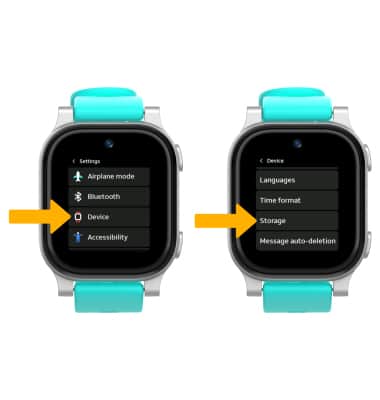
3. Scroll down to System. Available storage will be displayed.

Free up memory
DELETE PHOTOS AND VIDEOS: You can delete unwanted photos or videos to free up memory. To delete a photo or video, from the Watch screen, swipe left then select the  Gallery app > navigate to the desired photo > Delete icon > Delete icon to confirm.

DELETE AUDIO RECORDINGS: Deleting unwanted audio recordings will free up memory. To delete an audio recording, from the Watch screen, swipe left three times then select the  Sound recorder app > Menu icon > desired recording > Delete icon.
Note: Select the Delete icon to confirm.
