In this tutorial, you will learn how to:
• Set up School Mode
• Enable/disable School Mode
• Edit or delete School Mode limits
Set up School Mode
1. From your connected smart phone, navigate to and select the  AT&T amiGO™ app.
AT&T amiGO™ app.Note: School mode can only be setup and managed from the Guardian account in the companion app. When School Mode is enabled, calls and text messages are restricted during school hours. Parents and guardians are still able to contact the AT&T amiGO Jr. Watch™ as normal.
2. Select the  Menu icon then select Planner. Select the desired Account icon, then select School Mode.
Menu icon then select Planner. Select the desired Account icon, then select School Mode.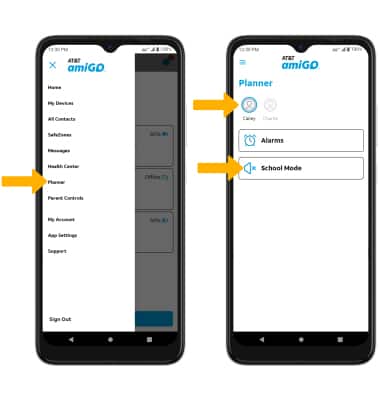
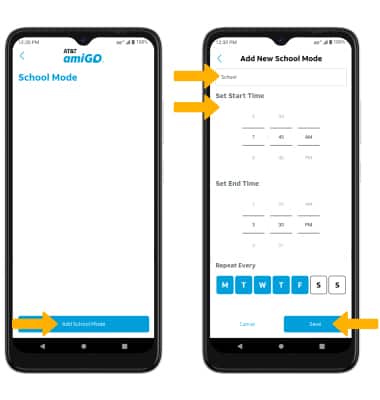
3. Select Add School Mode. Edit School Mode settings as desired, then select Save.
Enable/disable School Mode
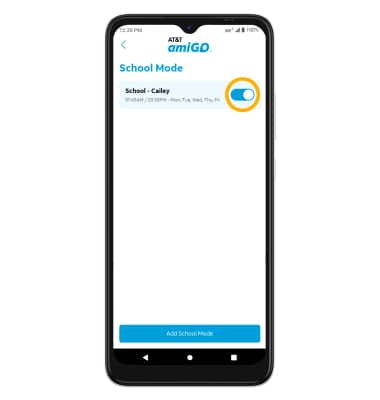
To enable or disable School Mode, from the School Mode screen in the AT&T amiGO™ app, select the switch next to the desired School Mode restriction to turn on or off.
Edit or delete School Mode limits
To edit School Mode limits, from the School Mode screen in the AT&T amiGO™ app, select the desired School Mode restriction. Edit settings as desired, then select Save.
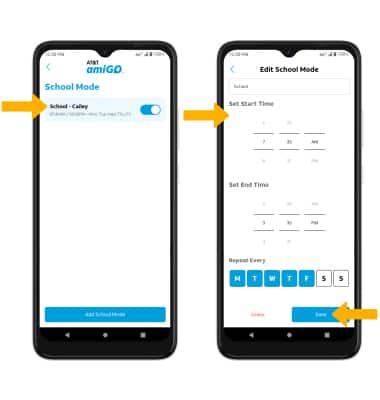
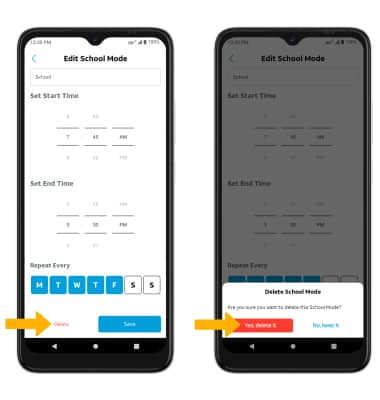
To delete a School Mode limit, from the Edit School Mode screen, select Delete. Select Yes, delete it to confirm.