 The AT&T amiGO Jr. Watch™ only supports video calling from the companion app. You can only make and receive video calls from contacts listed as guardians in the app.
In this tutorial, you will learn how to:
• Make an outbound video call from your watch
• Receive an inbound video call on your watch
• Access in call options
• Make a Video call from the AT&T amiGO™ app
Make an outbound video call from your watch
1. From the Watch screen, swipe left then select the  Phone app.
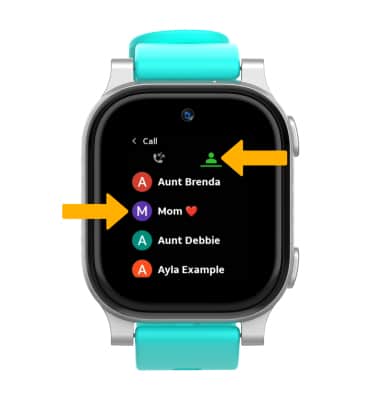
2. Select the Contacts tab, then select the desired contact.
Note: Calls can only be made and received from Contacts added through the AT&T amiGO™ app.
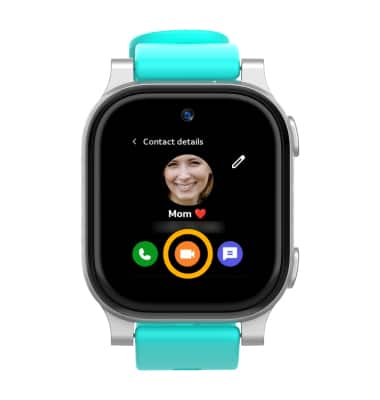
3. Select the Video call icon.
Receive an inbound video call on your watch
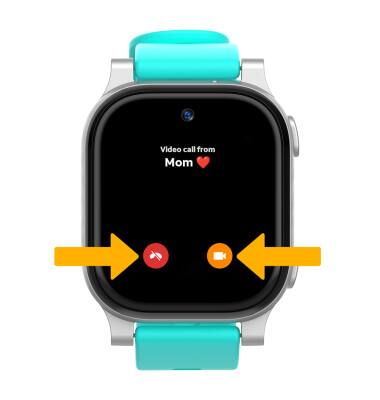
When receiving an incoming call, select the Video icon to answer the call, or select the Decline icon to decline the call.
Access in call options
While on an active video call, the following options will be available:
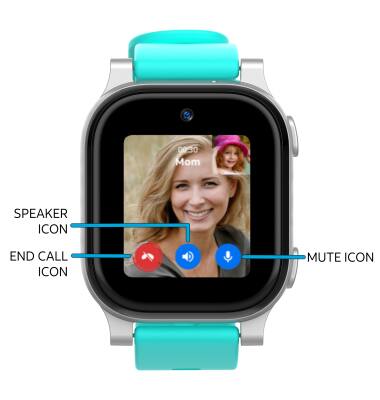
• ENABLE/DISABLE SPEAKERPHONE: Select the Speaker icon.
• END CALL: Select the End call icon.
• MUTE/UNMUTE: Select the Mute icon.
Note: There is a 3 minute time-duration limit set on video calls to prevent the device from overheating. The video call will end automatically when the time- duration limit has been met.
Make a Video call from the AT&T amiGO™ app
1. From your connected smart phone, navigate to and select the  AT&T amiGO™ app.
2. Select the desired device.
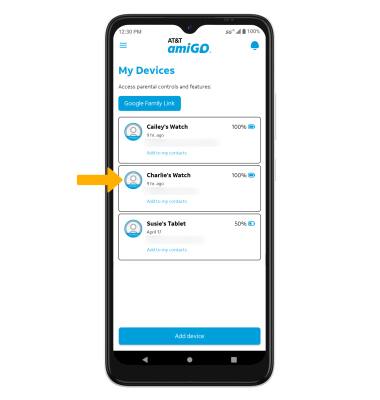
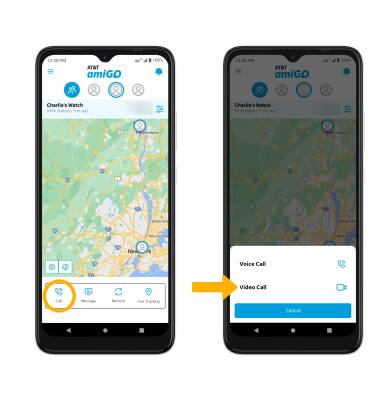
3. Select Call, then select Video Call.