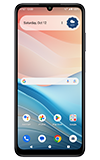
In this tutorial, you will learn how to:
• Access camera modes
• Customize photo and video settings
• Use Auto enhance
• Use Night mode
• Crop a photo
• Access camera filters
• Access and use Professional mode
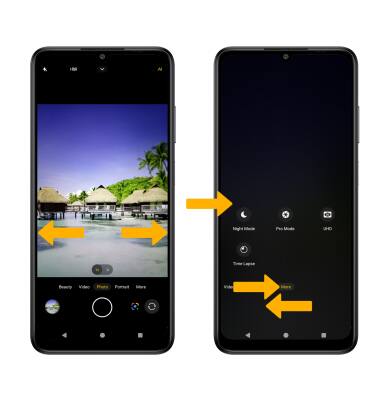
Access camera modes
Note: Beauty mode brightens facial features, minimizes imperfections, and smooths over fine lines or glares to instantly look your best. Night allows you to capture stunning details even in low light conditions. Professional allows you to manually adjust settings such as ISO, shutter speed and exposure levels. Time Lapse allows you to capture videos and play them back at a fast playback speed.
Customize photo and video settings
From the Camera app, select the drop-down icon, then edit settings as desired.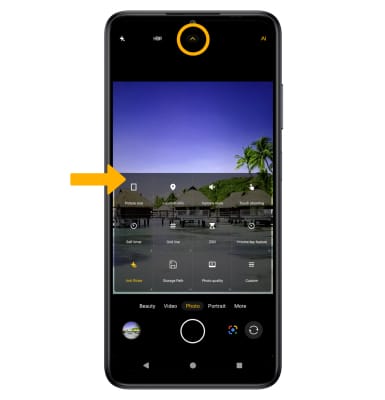
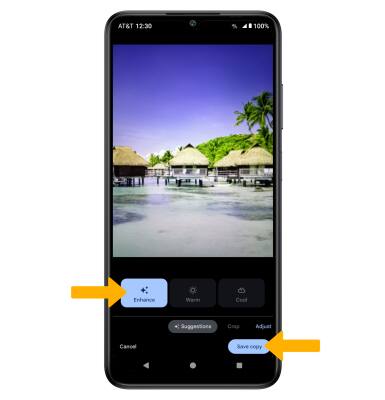
Use Auto enhance
1. From the Camera app, select the Gallery icon. Swipe left to the desired photo, then select the Edit icon.
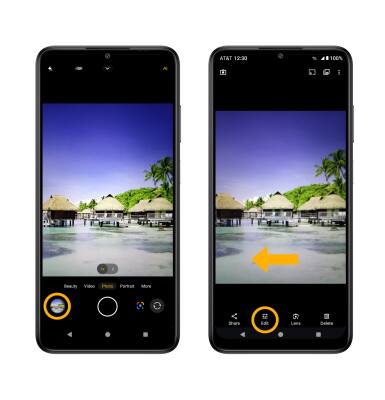
2. From the Suggestions tab, select Enhance to auto enhance the photo, then select Save copy.
Use Night mode
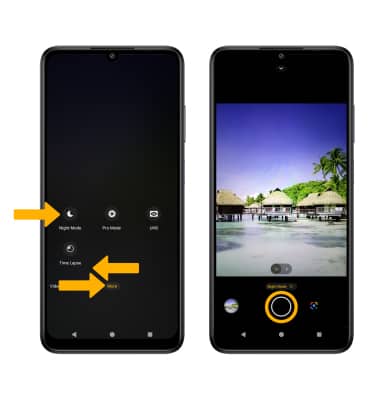
From the Camera screen, swipe left to More, then select Night Mode. Select the Capture icon.
Crop a photo
1. From the Camera app, select the Gallery icon. Swipe left to the desired photo, then select the Edit icon.
Note: Alternately, from the home screen, select the  Photos app then navigate to and select the desired photo.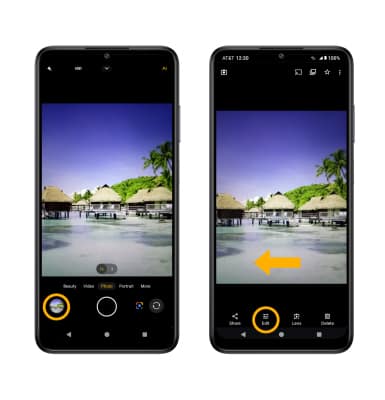
2. Select Crop. Select and drag the crop corners to crop as desired, then select Save copy.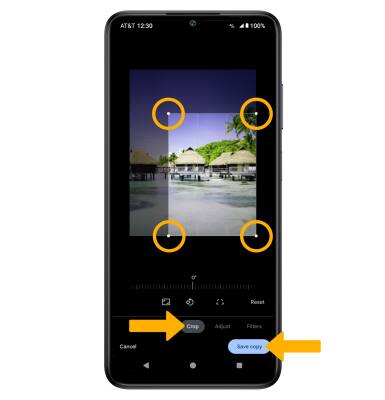
Access camera filters
From the Edit screen, swipe left to Filters. Select the desired filter, then select Save copy.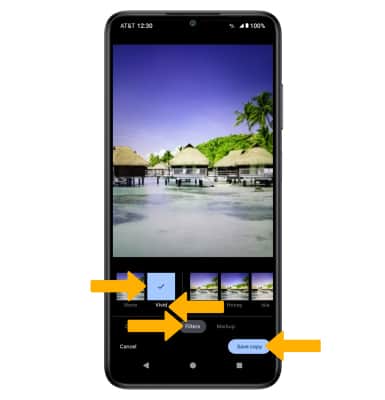
Access and use Professional mode
Professional mode allows you to manually adjust settings such as ISO, shutter speed and exposure levels. To access Pro mode, from the Camera screen, swipe left to More, then select Pro Mode. Edit settings as desired then select the Capture icon.