
In this tutorial, you will learn how to:
• Set up Secure Folder
• Access Secure Folder
• Add apps to Secure Folder
• Use Secure Folder
• Hide Secure Folder
Set up Secure Folder
1. From the home screen, swipe down from the upper right corner of the screen, then select the  Settings icon.
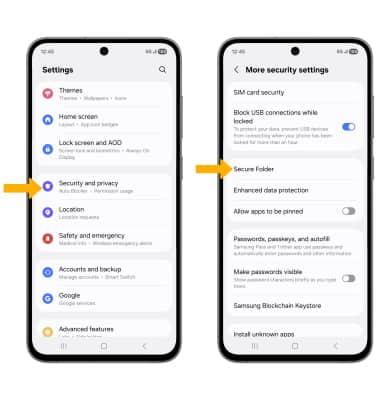
2. Scroll to and select Security and privacy > More security settings > Secure Folder.
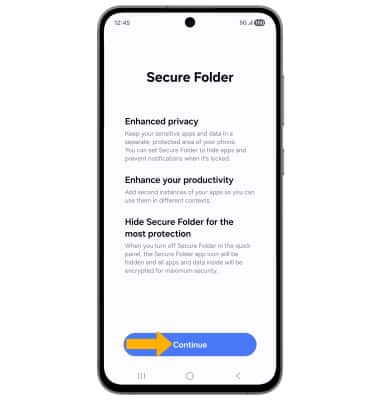
3. Select Continue.
Note: To set up Secure Folder, you must have a screen lock setup on your device.
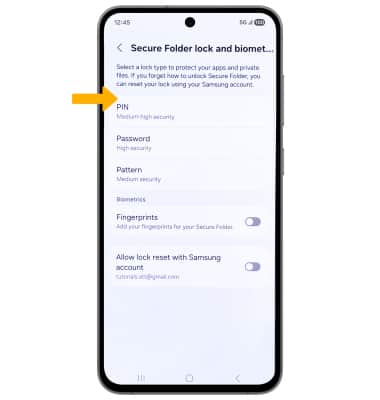
4. Select the desired folder lock type.
Note: For this tutorial, Pattern was chosen.
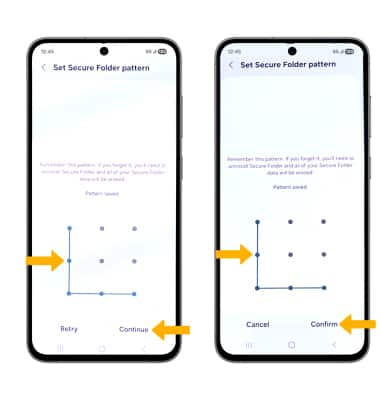
5. Enter the desired lock code, then select Continue. Enter the lock code again, then select Confirm.
Note: After setting up a lock type, you will be prompted to Turn on Reset with Samsung account. Select Turn on to enable account reset with your Samsung account, or select Cancel to opt out.
Access Secure Folder
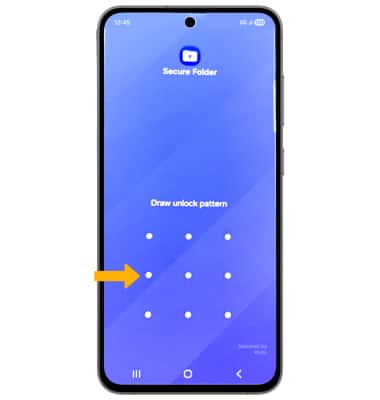
After completing the Secure folder set up, the Secure Folder app will appear in your Apps tray. When you access Secure folder, you will be prompted to enter your passcode. Select the  Secure Folder app, then enter the passcode.
Note: To access the Apps tray, swipe up from the center of the home screen.
Add apps to Secure Folder
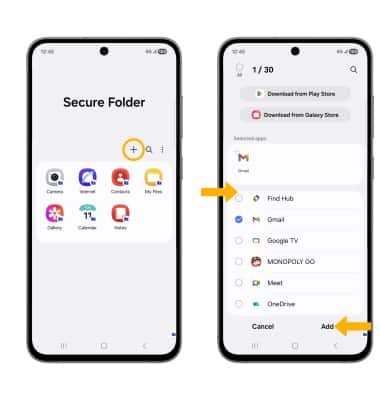
Select the Add icon. Select the desired app(s), then select Add to add apps to the secure folder.
Use Secure Folder
Select the  Menu icon. Select the desired option:
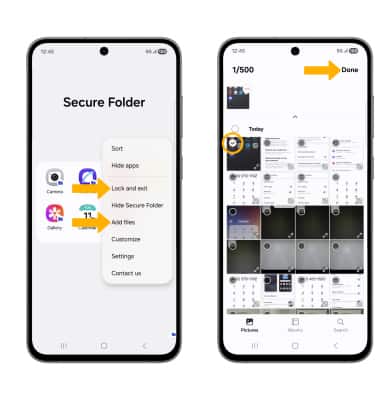
• LOCK AND EXIT: Select Lock and exit.
• ADD FILES: Select Add files. Select the desired file type > navigate to and select the desired file(s), then select Done.
Note: You can also add pictures from the  Gallery app. Select and hold the desired picture(s) > More > Move to Secure Folder. Pictures that have been moved to the Secure Folder are no longer visible in the regular Gallery. To view pictures that have been moved to the Secure Folder, select the Secure Folder app > Gallery app.
Hide Secure Folder
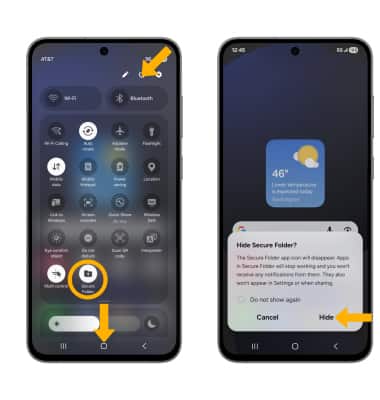
From the home screen, swipe down from the upper right corner of the screen to access Quick settings then swipe down from the icon section. Select Secure Folder. Select Hide.