In this tutorial, you will learn how to:
• Access and use Circle to Search
• Use Circle to Search to search text
• Use Circle to Search to search in a video
Access and use Circle to Search
1. To launch Circle to Search, from any app, select and hold the Home key.
Note: If this is your first time accessing Circle to Search, review the prompt and select Continue. Circle to Search is enabled by default. To enable or disable Circle to Search by pressing the Home key, from the home screen, swipe down from the upper right corner of the screen then select the  Settings icon > scroll to and select Display > Navigation bar > select the Circle to Search switch.

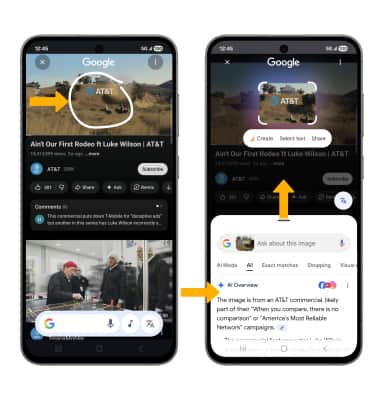
2. With your finger or S Pen, circle the desired object to search.
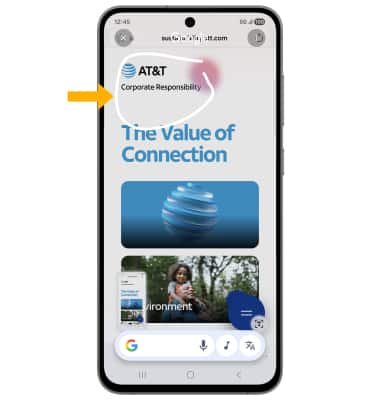
3. Your search results will appear at the bottom of the screen. Swipe up to view more search results.
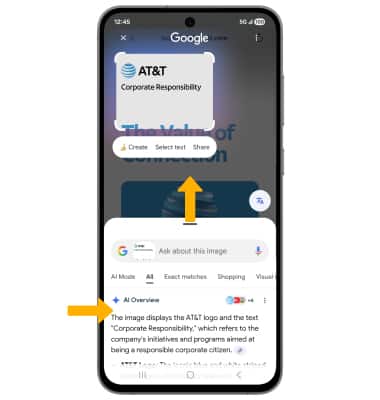
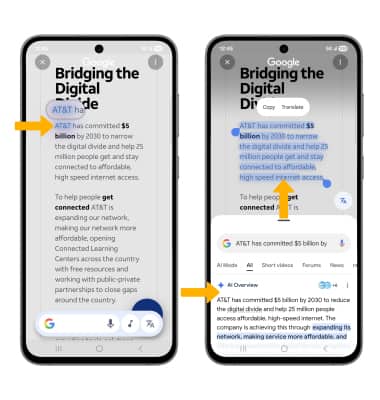
Use Circle to Search to search text
1. To do a text-based search, select and hold the Home key.

2. Select and hold the desired text. Your search results will appear at the bottom of the screen. Swipe up to view more search results.
Use Circle to Search to search in a video
1. To search for an object in a video, without pausing the video, select and hold the Home key.

2. With your finger or S Pen, circle the desired object to search. Your search results will appear at the bottom of the screen. Swipe up to view more search results.